

Screen privacy for international travel is the practice of protecting your laptop display from unauthorized viewing in public settings, using physical filters and digital security measures together. Airports, train stations, and cafés expose your screen to strangers at close range. Shoulder surfing, where someone reads your screen from the side or behind, is a real and common threat. The layered approach to screen privacy combines a physical privacy filter with disciplined digital habits to reduce both visual and data exposure. Clarmuse builds magnetic privacy screens specifically for MacBook models to address exactly this kind of public exposure.
What is screen privacy for international travel?
Screen privacy is defined as the combination of physical viewing angle restriction and digital data protection that prevents unauthorized access to on-screen information while traveling. The physical side uses optical filters to narrow the visible angle of your display. The digital side covers network security, authentication, and device configuration. Neither layer alone is sufficient.
Modern travel environments create concentrated exposure. Airport lounges seat dozens of people within reading distance of your screen. Train carriages place strangers directly beside you for hours. Café seating often puts your back to an open room. These settings make shoulder surfing a practical risk, not a theoretical one. International travel amplifies that risk because you spend more time in transit and in unfamiliar spaces where you have less control over your surroundings.
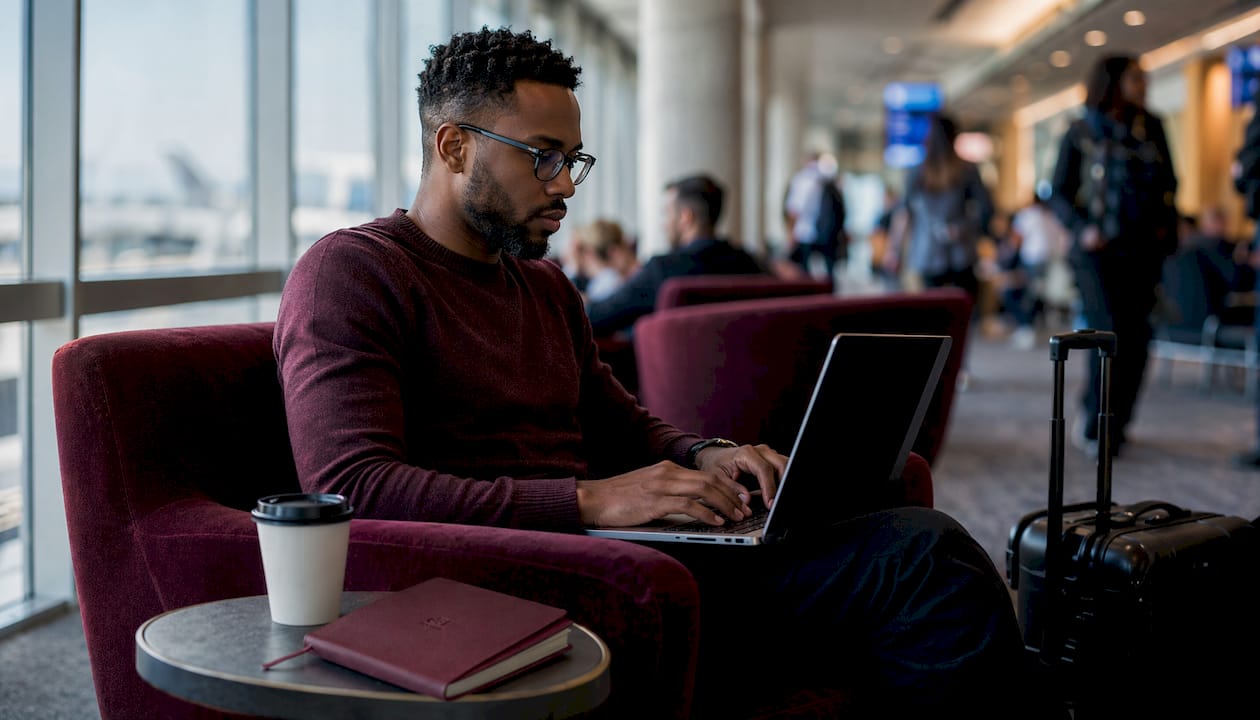
Privacy screens are essential physical security tools that complement digital protections in a layered defense approach. That framing matters because many travelers treat screen privacy as either a hardware problem or a software problem. It is both.
How do privacy screen protectors work for travelers?
Privacy screens use a micro-louver optical filter, a layer of tiny vertical blinds embedded in the film, to block light at angles beyond a set threshold. Anyone sitting beside you sees a dark or blurred screen. The person directly in front sees a clear image. The standard viewing angle restriction runs from 30 to 60 degrees around the screen center.
Magnetic vs. adhesive filters
Magnetic privacy screens attach with embedded magnets that align to the MacBook bezel. They snap on and off in seconds and leave no adhesive residue. Adhesive filters bond directly to the display glass. They degrade in humid environments, and repeated removal damages optical clarity over time. For travelers moving between climates, magnetic attachment is the practical choice.
Magnetic screens typically weigh 40–65g and do not add meaningful bulk to a travel setup. Adhesive filters are lighter but create a permanent commitment to the screen. If you need to remove the filter for a video call or collaborative work session, magnetic detachment takes two seconds. Peeling an adhesive filter is a different situation entirely.
Brightness and battery trade-offs
Privacy filters reduce screen brightness by approximately 10–20%. That reduction forces most travelers to raise display brightness to maintain readability, which shortens battery life by 45–60 minutes on MacBook Air models. That is a real cost on a long-haul flight without a power outlet.
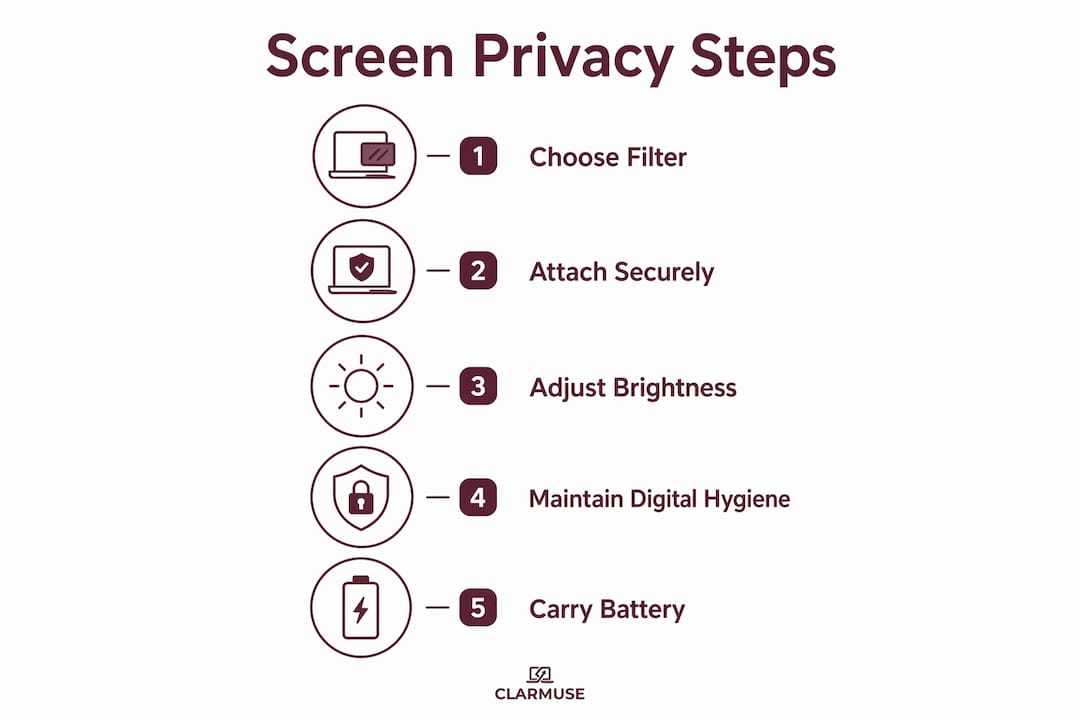
Color vibrancy also drops slightly. For general document work, email, and spreadsheets, the difference is negligible. For photo editing or color-critical design work, the filter introduces enough shift to make accurate color judgment unreliable. Remove the filter for that work and reattach it when you return to sensitive documents.
Effective travel models typically cost $49–$79. That price range covers filters with good optical clarity and durable construction. Cheaper options sacrifice clarity or durability, both of which matter more during travel than at a fixed desk.
Pro Tip: Carry a portable battery pack rated for at least 20,000mAh to offset the battery drain from running your screen at higher brightness with a privacy filter attached.
What digital practices complement physical screen privacy?
Physical filters stop visual exposure. They do not encrypt your data, protect your network connection, or prevent a compromised Wi-Fi network from intercepting your traffic. Privacy screens address physical risks like shoulder surfing but do not replace digital hygiene. Both layers must work together.
Here are the core digital practices for protecting privacy abroad:
- Use a VPN on every public network. Public Wi-Fi is one of the largest attack surfaces for travelers. A VPN encrypts your traffic before it leaves your device, making interception on a shared network far harder. ProtonVPN and Mullvad are widely recommended for travelers because both operate no-log policies.
- Disable auto-connect to Wi-Fi networks. Your device will join any network matching a saved name. Attackers set up rogue hotspots with common names like “Airport Free WiFi” to intercept connections automatically. Turn off auto-connect in your network settings before you leave home.
- Move two-factor authentication off SMS. Per-vendor email aliases and hardware-based authenticators significantly reduce account takeover risk. SMS codes can be intercepted through SIM swapping. Use an authenticator app or a hardware key like a YubiKey instead.
- Minimize data on your travel device. Carry only the files you need for the trip. Remove sensitive documents, client data, and personal records before departure. A device with minimal data causes minimal harm if lost, stolen, or searched.
- Disable biometric unlocks before crossing borders. Biometric unlocks should be disabled before border crossings and replaced with passcodes. A border agent can compel a fingerprint. They cannot compel a passcode in many jurisdictions.
Pro Tip: Set up a separate travel email alias for accounts you access on the road. If that alias is compromised, your primary identity stays clean.
Practical tips for using screen privacy in airports, cafés, and trains
Situational awareness is the skill that makes all other privacy measures work. A privacy filter restricts side angles, but it does not help if someone is standing directly behind you. Positioning your body and device to eliminate rear line-of-sight is the first step before any technology.
- Choose your seat deliberately. In airports and cafés, sit with your back to a wall. On trains, face the direction of travel and take a window seat. These positions reduce the number of people who can see your screen from any angle.
- Adjust brightness after attaching the filter. Raise display brightness two or three steps above your normal setting to compensate for the filter’s dimming effect. Check battery level before a long session and connect to power when available.
- Remove the filter for collaborative or color-critical work. If a colleague needs to review your screen or you are editing images, detach the magnetic filter. Reattach it when you return to private documents. Magnetic attachment makes this a two-second habit rather than a disruption.
- Treat crowded boarding areas as high-risk zones. Airports concentrate people in tight spaces. Avoid opening sensitive files while standing in a boarding queue or seated in a crowded gate area. Wait until you are airborne and seated with clear space around you.
- Combine the filter with physical barriers. A laptop sleeve propped at an angle, a bag placed beside the device, or a jacket draped over the side of your seat all reduce exposure. Privacy technology works best when physical positioning supports it.
When selecting a laptop for travel, performance and build quality affect how well your device handles the demands of working in varied environments, including running a VPN and maintaining brightness with a filter attached.
How do border searches affect your screen privacy strategy?
Border agents in many countries hold broad authority to search electronic devices. In the United States, Customs and Border Protection can inspect and copy device contents without a warrant. Similar powers exist in the United Kingdom, Australia, Canada, and several other jurisdictions. A privacy screen does not prevent a border search. It only prevents visual shoulder surfing in transit.
The practical response is to minimize data stored on devices before crossing any border. Sensitive client files, financial records, and personal communications should be removed from the local drive and stored in encrypted cloud services that require separate authentication. A device with minimal local data gives a border agent very little to work with.
Key steps for border crossings:
- Disable Face ID and Touch ID before arrival at the border checkpoint. Switch to a strong alphanumeric passcode.
- Log out of cloud storage apps so that credentials are not cached on the device.
- Remove sensitive apps from the home screen. Out of sight reduces the chance of an agent requesting access.
- Know the privacy laws of your destination country before you arrive. Some countries require device access as a condition of entry.
Privacy is not only about secrecy but about reducing vulnerability. Treating your travel device as a semi-public document during transit is the correct mental model. Plan for the possibility of inspection and configure your device accordingly.
Key Takeaways
Screen privacy for international travel requires both a physical privacy filter and disciplined digital hygiene, and neither layer works reliably without the other.
| Point | Details |
|---|---|
| Physical filters restrict viewing angles | Micro-louver screens block side views beyond 30–60 degrees, stopping shoulder surfing in public spaces. |
| Magnetic attachment beats adhesive | Magnetic privacy screens snap on and off in seconds with no residue, making them practical for travel. |
| Filters reduce battery life | A 10–20% brightness loss forces higher display settings, cutting MacBook Air battery life by 45–60 minutes. |
| Digital hygiene is non-negotiable | VPNs, disabled auto-connect, and hardware-based 2FA close the gaps that physical filters cannot address. |
| Border crossings require extra steps | Disable biometrics, minimize local data, and log out of cloud apps before reaching any border checkpoint. |
What I have learned from working in public spaces abroad
The first time I worked through a full day in a busy airport lounge without a privacy filter, I noticed how often people glanced at my screen. Not maliciously, just casually. That casual glance is the threat most travelers underestimate. Nobody announces that they are reading your screen. They just do it.
What changed my approach was realizing that privacy anxiety costs productivity. When you are not sure who can see your screen, you hesitate before opening documents. You minimize windows when someone walks past. You work slower. A magnetic privacy screen removes that hesitation. You open what you need and focus on the work.
The battery trade-off is real but manageable. I raise brightness by two steps when the filter is on and carry a battery pack on any flight over four hours. That habit costs almost nothing and eliminates the one practical downside of using a filter.
The digital side took longer to get right. Switching from SMS-based authentication to a hardware key felt like friction at first. After the first week, it became automatic. The same applies to VPN use. Set it to connect automatically on unfamiliar networks and you stop thinking about it. The goal is to build habits that run in the background, not security theater that requires constant attention.
My honest recommendation: set up your travel device configuration before you leave home, not at the airport. Decisions made under time pressure in a crowded terminal are worse than decisions made calmly at your desk. Privacy is a planning problem as much as a technology problem.
— Gabriel
Clarmuse magnetic privacy screen for MacBook Air 15.3"
Travelers who work with sensitive documents in public spaces need a privacy screen that attaches quickly, stays secure, and comes off without a fight.
The Clarmuse MacBook Air 15.3" privacy screen uses magnetic attachment to snap on and off in seconds, with no adhesive residue and no tools required. The micro-louver filter restricts side viewing angles to block shoulder surfing while keeping your display clear from the front. It is built specifically for MacBook Air 15.3" dimensions, so the fit is exact and the edges align cleanly. For travelers who want reliable screen protection without adding complexity to their setup, this is a practical and direct solution.
FAQ
What is a privacy screen filter and how does it work?
A privacy screen filter uses a micro-louver optical layer to block light at angles beyond 30–60 degrees from the screen center. Anyone beside you sees a dark display while you see a clear image from directly in front.
Do privacy screens prevent data theft at borders?
Privacy screens block visual shoulder surfing but do not encrypt data or prevent a border agent from searching your device. Minimizing local data and disabling biometric unlocks are the effective countermeasures for border crossings.
How much does a quality travel privacy screen cost?
Effective travel privacy screens typically cost between $49 and $79. Magnetic models in that range offer good optical clarity, durable construction, and residue-free attachment.
Will a privacy filter drain my MacBook battery faster?
Yes. Privacy filters reduce screen brightness by 10–20%, which causes most travelers to raise display brightness. That adjustment reduces MacBook Air battery life by approximately 45–60 minutes per charge cycle.
What digital steps should I take alongside a privacy screen?
Use a VPN on every public network, disable Wi-Fi auto-connect, switch two-factor authentication from SMS to a hardware key or authenticator app, and remove sensitive files from your device before travel.


