

MacBook screens broadcast your work to anyone within viewing distance, yet most users assume proximity alone keeps their content private. It does not. In cafés, libraries, coworking spaces, and airport lounges, a glance from the next seat can expose client data, personal messages, financial records, and draft documents without triggering a single security alert. Screen filters change that equation. They also reduce glare, cut blue light, and reshape how long and how comfortably you can work in public. This article covers the technology, the real trade-offs, and how to choose the right filter for your specific MacBook workflow.
Table of Contents
- Why privacy matters for MacBook users in shared spaces
- How MacBook screen filters work: Technology and effectiveness
- How privacy filters change your MacBook workflow
- Picking the right filter: Choosing for your work, color needs, and habits
- The real-world truth: What most MacBook filter guides don’t tell you
- Find your MacBook’s perfect privacy filter
- Frequently asked questions
Key Takeaways
| Point | Details |
|---|---|
| Screen filters enhance privacy | Privacy filters make it much harder for others to see your MacBook screen in public spaces. |
| There are trade-offs | Using a filter can reduce brightness, impact battery life, and affect color accuracy. |
| Attachment style matters | Magnetic filters are best for flexibility, while adhesive types are more permanent. |
| Choose the right filter | Match your filter type to your workflow—commuting, creative work, or long public work sessions. |
| Comfort and eye health | Many filters reduce glare and blue light, making long public sessions easier on your eyes. |
Why privacy matters for MacBook users in shared spaces
Open environments are the default for a growing number of MacBook users. Students take their Air to the library. Freelancers set up in coffee shops. Consultants answer emails on trains. In every one of those situations, the person beside you can read your screen as easily as you can.
The risks are not hypothetical. Visual hacking, which means capturing sensitive information simply by looking at someone’s screen, is a recognized security threat in corporate and academic settings. Intellectual property, client proposals, medical records, and login credentials are all at risk whenever you work in public without protection. The discomfort of being watched, even without malicious intent, also affects focus and output quality.
- Credential exposure. Login screens, password managers, and banking portals are visible to anyone with a side-angle view.
- Confidential documents. Legal drafts, contracts, and financial spreadsheets contain data that should never leave a secure context.
- Personal communications. Email previews and messaging apps reveal more than most users realize.
- Intellectual property. Design work, source code, and unreleased content can be seen, photographed, or memorized.
Strategies for protecting confidential data in open environments increasingly point to physical controls as a first line of defense, not just software. Privacy screen filters are one of the most practical physical controls available.
“In shared spaces, filters enhance privacy and comfort by preventing visual hacking, but trade-offs like brightness loss and battery drain favor magnetic models for frequent removal. They are ideal for non-color-critical tasks.” Kensington security blog
For students working in campus libraries or open classrooms, the stakes around personal and academic data are just as real. Guidance on privacy for student MacBook users outlines specific scenarios where filters add measurable value to a study routine.
Having established why visual privacy is crucial, the next step is understanding exactly how screen filters manage this risk.
How MacBook screen filters work: Technology and effectiveness
Screen filters look simple. A thin panel sits over your MacBook’s display and blocks side views. But the mechanism behind that effect is more precise than most users realize.
Microlouver technology is the core principle. Think of microlouvers as thousands of microscopic venetian blinds embedded inside the filter material. Each louver is oriented vertically, allowing light to pass straight through to the person directly in front of the screen while absorbing or deflecting light traveling at an angle. From the side, the screen appears black. From the front, the display looks normal, though slightly dimmer.
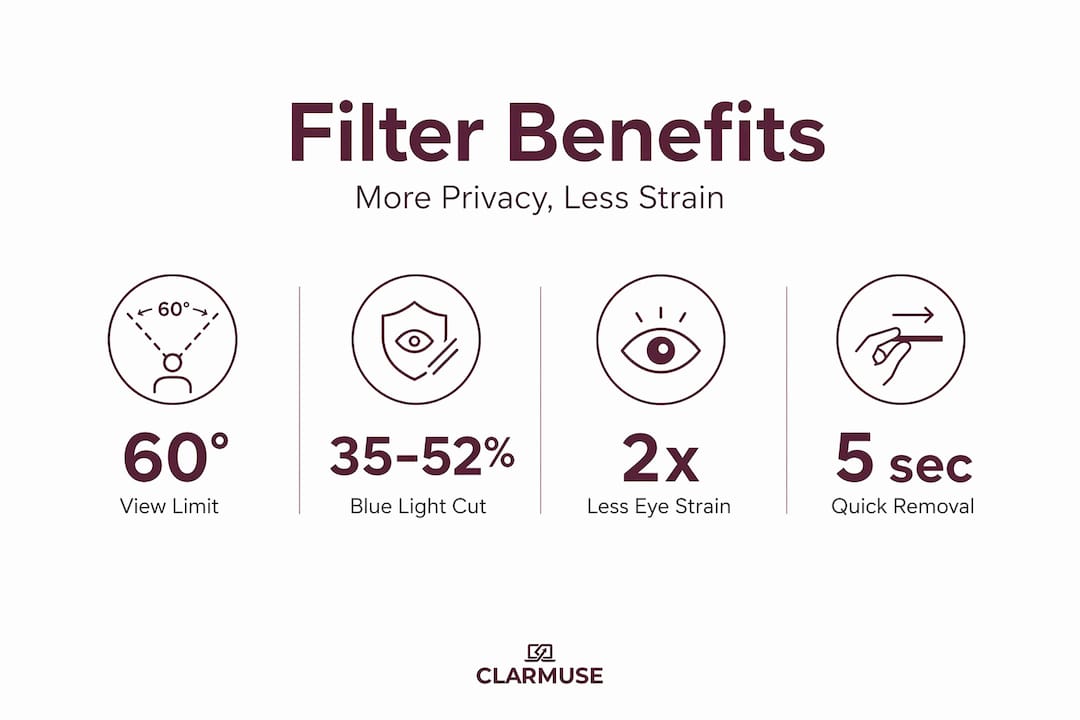
Privacy filters use microlouver or nanolouver technology to limit viewing angles to roughly ±30 degrees, totaling a 60-degree privacy cone. Anything beyond that angle reads as a dark or blacked-out panel. Some manufacturers have refined this further, with 3M achieving blackout at exactly 30 degrees in their side-angle testing.
Understanding how MacBook privacy filters work in practice helps you set realistic expectations before purchase.
Attachment types compared
| Filter type | Attachment method | Removal speed | Best for |
|---|---|---|---|
| Magnetic | Magnetic strips on bezel | Seconds | Commuters, frequent sharers |
| Adhesive | Sticky frame or tabs | Minutes | Stationary setups |
| Flip/slide | Hinge or track mechanism | Instant | Hybrid use, easy sharing |
Key technical details to know:
- Most filters transmit between 65% and 78% of ambient light at the front viewing angle.
- The privacy cone (total angle of full visibility) is typically 60 degrees, centered on the viewer.
- Nanolouver variants offer finer grain, slightly better clarity, and often higher price points.
- Matte-finish filters reduce screen glare; glossy-finish filters preserve color saturation better.
Pro Tip: When evaluating a filter’s claimed viewing angle, look for third-party test data rather than relying only on manufacturer specifications. Angles measured in controlled lab conditions may perform differently in bright café lighting.
The technology delivers a clear security function. What it does to your daily workflow is a separate question worth exploring in full.
How privacy filters change your MacBook workflow
Privacy is the headline feature, but the day-to-day impact on comfort and stamina deserves equal attention. Screen filters change the visual environment around your MacBook in ways that affect how long you can work and how you feel at the end of a session.
Blue light reduction. Many filters reduce blue light by 35 to 52 percent, which measurably eases eye strain during extended work in public lighting. Overhead fluorescent lights in libraries and coworking spaces already stress the visual system. A filter that also blocks a portion of blue light output reduces cumulative fatigue over a multi-hour session.
Glare control. Matte filter surfaces diffuse reflections from windows, overhead lights, and nearby screens. If you regularly work near a window or under bright ceiling fixtures, a matte privacy filter can reduce the constant micro-adjustments your eyes make to compensate for glare.
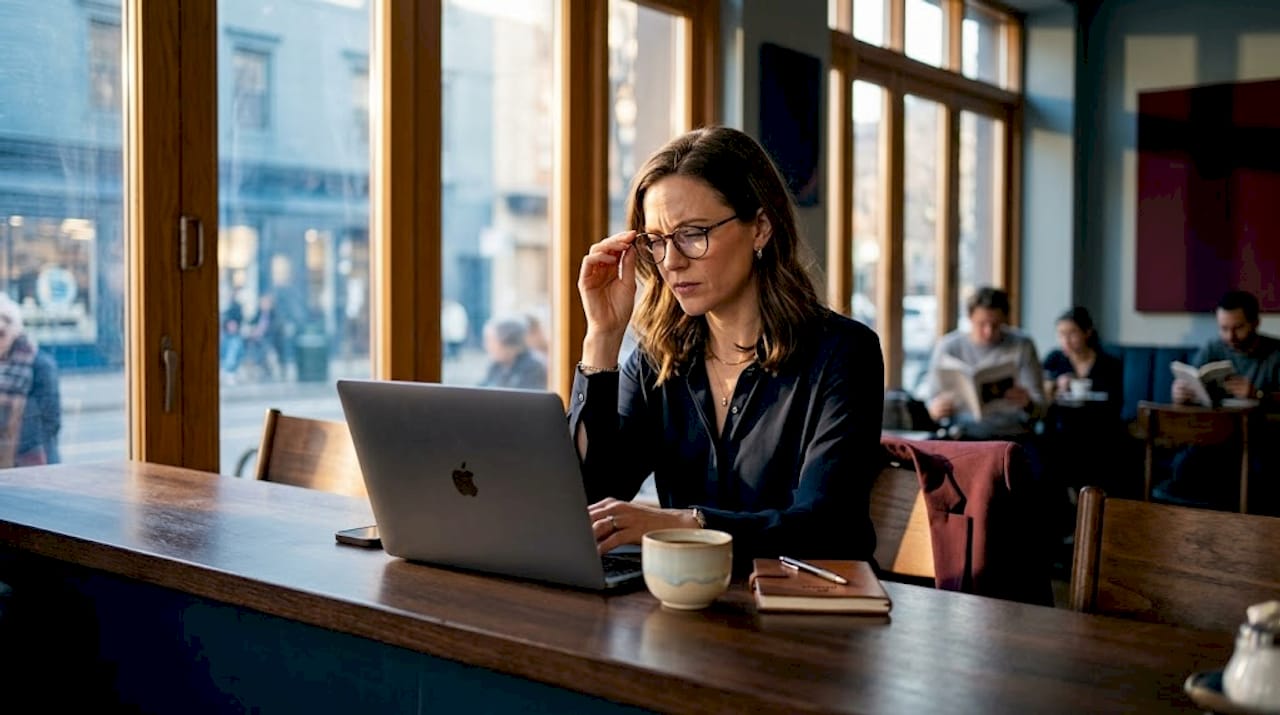
Brightness and battery trade-offs. This is where most marketing descriptions stay quiet. Filters reduce screen brightness by 15 to 25 percent, which prompts most users to increase MacBook backlight settings to compensate. Higher backlight output draws more power. On a full workday away from a charger, that additional drain is worth factoring into your planning. Some filters advertise up to 85% light transmission to minimize this effect, though real-world results depend on ambient light conditions.
Workflow adjustments to plan for:
- Calibrate your display brightness before attaching the filter to establish a comfortable baseline.
- Use Night Shift or True Tone alongside the filter for additional color temperature control.
- Carry a charging cable if your session will exceed four to five hours under heavy backlight compensation.
- Remove the filter during video calls where you need accurate color rendering on shared screen content.
- Clean the filter surface regularly with a microfiber cloth to maintain consistent light transmission.
Pro Tip: Magnetic attachment designs let you remove the filter in seconds when you move to a private setting or need accurate color for a presentation. That flexibility makes magnetic models significantly more practical for hybrid work routines than adhesive alternatives.
For users working on MacBook Pro magnetic privacy filters, the combination of precise fit and fast removal addresses both the security need and the workflow interruption problem simultaneously.
Picking the right filter: Choosing for your work, color needs, and habits
Not every MacBook user has the same needs. A law student reviewing case notes in a library faces a different set of priorities than a graphic designer who occasionally works from a hotel lounge. Choosing poorly means either losing too much visual quality or not getting enough privacy protection.
Filter type comparison
| Use case | Recommended type | Key reason |
|---|---|---|
| Daily commuter | Magnetic | Fast on/off at transit stops |
| Stationary office | Adhesive or flip | Consistent placement, less frequent removal |
| Creative professional | Skip or flip | Color accuracy matters more than constant privacy |
| Student in library | Magnetic | Shared-use flexibility, portability |
| Frequent traveler | Magnetic | Airport and lounge privacy without added bulk |
When to avoid a privacy filter:
- Color-critical work. Photo editing, video grading, and graphic design require accurate color rendering. A color shift makes filters unsuitable for creative professionals doing precision color work.
- Lid-sensitive setups. Filters thicker than 0.5mm can prevent full MacBook lid closure, disabling sleep/wake functions and potentially stressing the hinge mechanism over time.
- Rear threat environments. Standard privacy filters only block side angles. They offer no protection against someone positioned directly behind your seat.
- Dust-sensitive workflows. Filter edges attract dust and lint. In environments where screen clarity is critical, frequent cleaning becomes a mandatory maintenance step.
“The front view remains usable but dimmer in bright light. Prioritize MacBook-specific fit from established manufacturers; these filters are not effective against rear threats or precise color work.” ExpressVPN privacy screen guide
The right choice also depends on how often you switch between public and private settings. If you move between a café table and a private office multiple times each day, a magnetic filter pays for itself in convenience within the first week. If you work in a fixed coworking desk with an assigned seat, an adhesive design may suit the static setup better.
Browse more MacBook privacy filter options to compare specifications across models, or check filter usability edge cases for the MacBook Pro 14-inch specifically.
Now that you have seen the options and trade-offs in detail, here is a less comfortable truth that most filter buying guides avoid.
The real-world truth: What most MacBook filter guides don’t tell you
Most articles about MacBook screen filters read like extended manufacturer FAQs. They list viewing angles, mention blue light percentages, and call it done. The lived experience is messier and more instructive.
Maintenance is real work. Fingerprints appear faster on filter surfaces than on bare MacBook glass. Dust accumulates at the edges of magnetic frames. If you do not clean the filter every few days, light transmission degrades and the surface starts to look hazy rather than crisp. Manufacturers emphasize privacy and eye comfort benefits while reviews consistently note that maintenance and power consumption are genuine ongoing costs that buyers underestimate.
The magnetic attachment advantage is also slightly overstated in product descriptions. Magnetic models attach and detach quickly, yes. But “quickly” means aligning the frame correctly, making sure no debris is caught between the magnet and the bezel, and occasionally re-centering a filter that has shifted slightly. It is still faster than any alternative. It is just not the seamless one-motion operation that marketing language implies.
Creative professionals are the user group most frequently disappointed. A designer who buys a filter hoping to use it during travel quickly discovers that color-shifted screens make image review nearly impossible. The correct answer for that workflow is not a cheaper filter. It is no filter during image work and a magnetic model for everything else.
Power users who spend eight-plus hours on battery need to calculate the backlight compensation cost before committing. A 15 to 25 percent brightness reduction sounds manageable until you realize that running your display at higher backlight to compensate is what drives the actual battery drain. Planning around a charging stop mid-session negates some of the filter’s convenience benefit.
None of these points are reasons to avoid a privacy filter. They are reasons to buy the right one and use it with accurate expectations. For most public work and study sessions, the security and comfort payoff is clear and consistent. The key is matching the filter type to your specific habits. Advice on choosing the right setup for best privacy screens for public work helps narrow options based on environment and use frequency.
Find your MacBook’s perfect privacy filter
Understanding the technology and trade-offs is the right starting point. Acting on that understanding means matching your MacBook model to a filter designed for its exact screen dimensions, bezel depth, and hinge clearance.
Clarmuse builds magnetic privacy screens specifically for MacBook Air and MacBook Pro models, with no generic sizing or universal-fit compromises. Each filter attaches cleanly using magnetic strips, removes in seconds, and fits flush without blocking ports or straining the lid closure. The MacBook Pro magnetic screen protectors collection covers current and recent Pro models, with specifications matched to Apple’s display dimensions. For a closer look at the technology inside each filter before you purchase, the privacy filter technology details page explains microlouver design, viewing angle benchmarks, and blue light reduction in plain terms.
Frequently asked questions
Will a MacBook privacy filter affect screen clarity or color accuracy?
Screen filters reduce brightness by 15 to 25 percent and can shift color rendering, making them a poor fit for color-critical tasks like photo editing or video grading. For text, coding, and document work, the impact on clarity is minimal at calibrated brightness settings.
Can I open and close my MacBook with a screen filter attached?
Filters thicker than 0.5mm can prevent full lid closure and disable sleep/wake functions by keeping the lid gap too wide for the magnetic sensor to trigger. Always check filter thickness specifications before purchasing, especially for travel use.
Are privacy screens effective against people behind you?
Standard privacy filters only block side-angle views within a defined cone. Rear views remain unprotected unless you add a physical privacy hood or position yourself against a wall.
How much battery does a privacy screen filter use?
Filters dim your screen, which causes most users to raise the backlight. That compensation increases battery drain by 15 to 25 percent compared to unfiltered use at the same perceived brightness. Magnetic removal when you are in a private setting helps preserve battery on longer sessions.
Do blue light reductions in privacy filters really help eye strain?
Many filters reduce blue light by 35 to 52 percent, which provides measurable relief from eye fatigue during extended sessions under harsh artificial lighting. Combined with glare reduction from a matte surface, the cumulative comfort benefit for long public work sessions is consistent across user reviews.


