

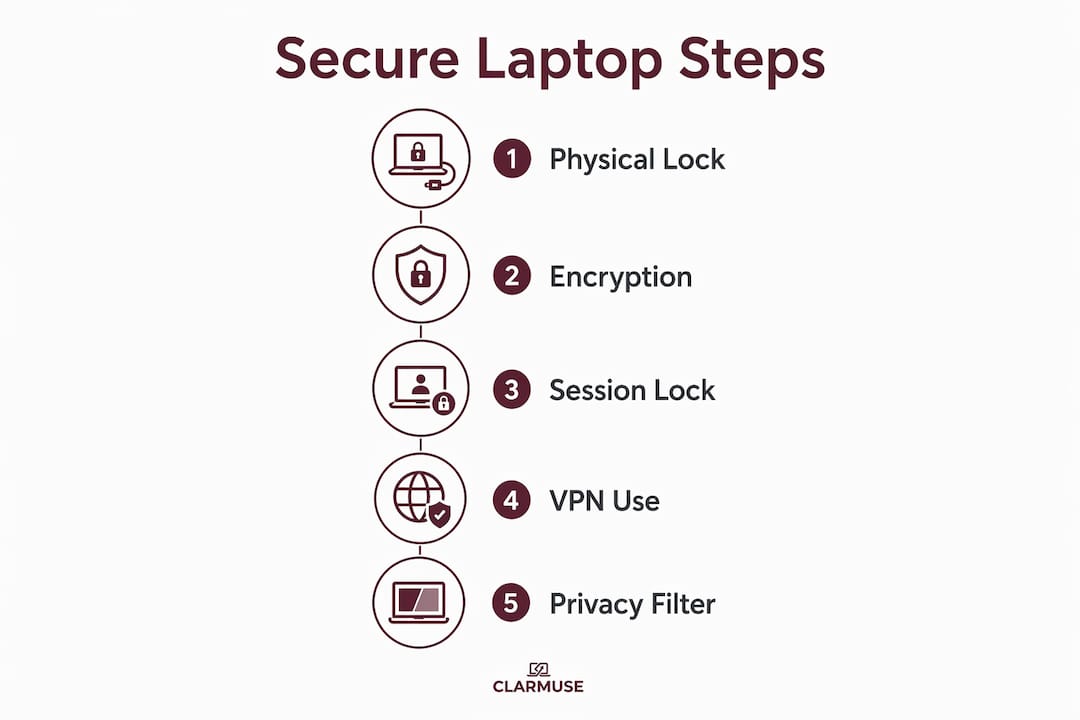
Securing sensitive data on a public laptop means protecting your device from theft, encrypting your files, connecting only through trusted networks, and blocking unauthorized views of your screen. These four layers work together. Drop any one of them and the others weaken. 48% of privacy-conscious professionals still work regularly in high-risk public spaces despite knowing the risks. That gap between awareness and action is exactly where data breaches happen.
How to secure sensitive data on a public laptop: physical security first
Physical security is the foundation of laptop data protection. A stolen device bypasses every software control you have set up.
Kensington locks and cable security
95% of laptops include a Kensington Security Slot, the small rectangular port on the side of most business and consumer machines. A cable lock threads through this slot and anchors to a fixed object like a desk leg or radiator pipe. Locks in this category typically cost $20–$30, making them one of the cheapest security investments available.
Cable locks act primarily as deterrents. They signal to opportunistic thieves that grabbing your laptop quickly is not worth the effort. A determined attacker with tools can defeat any cable lock, but most public theft is opportunistic, not planned.
For frequent travelers, lock type matters. Combination locks are preferred over keyed locks because losing a small key in a bag or hotel room forces you to cut your own cable. A four-digit combination removes that risk entirely.
What to do if your laptop has no K-slot
Many ultra-slim MacBook models lack a native Kensington slot. Clamp-style adapters and adhesive anchor plates attach to the laptop body and provide a compatible slot. Adhesive anchors bond to the laptop’s underside and must be installed carefully on a clean, flat surface. They hold well under normal conditions but are not rated for high-force attacks.
Key physical security practices:
- Always anchor to a fixed, immovable object. A chair leg moves; a table bolted to the floor does not.
- Lock your laptop even for short absences. Most opportunistic theft happens in under 60 seconds.
- Never leave your bag unattended with your laptop inside, even if the laptop itself is locked to the table.
- Use a laptop bag with a hidden zipper compartment to reduce visibility of the device in transit.
Pro Tip: Never assume a cable lock makes your laptop theft-proof. Treat it as a delay tactic and combine it with software protections so that even a stolen device yields no usable data.
What software settings protect sensitive information on a shared device?
Physical locks protect the hardware. Software controls protect the data inside it. Both are necessary.
Disk encryption and its limits
Whole disk encryption, available through BitLocker on Windows and FileVault on macOS, scrambles every file on your drive. Without the correct credentials, the data reads as noise. This is the correct baseline for anyone who handles sensitive files.
Encryption protects data at rest, not when the device is active. When you are logged in and working, the drive is decrypted in RAM and fully readable. A thief who grabs a running, unlocked laptop gets full access to everything on screen and in memory. Locking your screen the moment you step away is not optional. It is the control that closes this gap.
Session management and authentication
Set your laptop to lock automatically after two minutes of inactivity. On macOS, this lives under System Settings > Lock Screen. On Windows, find it under Screen Saver settings or Group Policy. Add a BIOS password as a second layer. This prevents someone from booting from a USB drive to bypass your operating system login entirely.
Strong password practices for public laptop security:
- Use a password manager like 1Password or Bitwarden to generate and store unique credentials. Never reuse passwords.
- Enable multi-factor authentication on every account that supports it, especially email and cloud storage.
- Set your OS to require a password immediately on wake, not after a grace period.
- Enable remote wipe through Find My (macOS/iOS) or Find My Device (Windows) so you can erase the drive if the laptop is stolen.
Pro Tip: Enable Find My Device before you need it. Activating it after a theft is too late. It takes under two minutes to set up and can save hours of damage control.
How can you stay safe on public Wi-Fi?
Public Wi-Fi is the most exploited attack surface for travelers and remote workers. Open Wi-Fi networks are vulnerable to interception and rogue access points. A rogue access point is a fake network with a convincing name, like “Airport Free WiFi,” that routes your traffic through an attacker’s device before sending it onward. You see normal browsing. The attacker sees your credentials.
VPNs and safer connection habits
A VPN (Virtual Private Network) encrypts all traffic between your laptop and the internet before it leaves your device. Even if someone intercepts the data on the local network, they see only encrypted noise. Use a reputable VPN service whenever you connect to any network you do not personally control.
Safer network practices for public spaces:
- Disable automatic Wi-Fi connection on your laptop. Connect manually and only to networks you recognize.
- Turn off file sharing before connecting to any public network. On macOS, check System Settings > General > Sharing. On Windows, set the network type to Public.
- Use your phone as a mobile hotspot for sensitive work. Your carrier’s cellular network is far harder to intercept than café Wi-Fi.
- Avoid logging into banking, payroll, or healthcare portals on public networks, even with a VPN active.
Pro Tip: Check that every sensitive site shows HTTPS in the address bar before entering credentials. HTTPS encrypts the connection between your browser and the server, adding a layer of protection even on compromised networks.
How can you prevent visual hacking in public spaces?
Visual hacking is the practice of reading someone’s screen without their knowledge. 88% of visual hacking attempts succeed in controlled environments. That figure is not a worst-case estimate. It reflects how easy it is to read a standard laptop screen from a side angle in a café or airport lounge.
Privacy filters and screen positioning
A privacy screen filter narrows the viewing angle of your display. Anyone sitting beside or behind you sees a darkened screen. You see full brightness from directly in front. This single accessory eliminates the most common form of visual data theft without changing how you work.
Screen positioning matters even with a filter in place. Sit with your back to a wall when possible. Face the room rather than the entrance. Position your screen so the angle faces away from foot traffic. These habits take seconds to form and reduce exposure significantly.
Common visual hacking mistakes to avoid:
- Sitting with your back to an open room or window where passersby can see your screen.
- Working on sensitive documents in crowded spaces without a privacy filter attached.
- Ignoring reflections. Glass walls and windows behind you can mirror your screen to people across the room.
- Leaving your screen visible and unlocked when you step away, even briefly.
For MacBook users, laptop visual security starts with understanding exactly how much of your screen is visible from common café seating angles.
Pro Tip: Treat every public space as if someone is watching your screen. That mindset takes 30 seconds to adopt and prevents the most common form of data exposure most people never think about.
Key Takeaways
Securing a laptop in public requires physical locks, active encryption, safe network habits, and visual privacy controls working together as a complete system.
| Point | Details |
|---|---|
| Physical locks deter theft | A $20–$30 Kensington cable lock stops opportunistic theft by signaling high effort to grab-and-run thieves. |
| Encryption has a critical gap | Disk encryption protects data at rest only. Lock your screen every time you step away from an active session. |
| Public Wi-Fi is a real threat | Use a VPN or mobile hotspot for any sensitive work. Never rely on open networks for logins or financial tasks. |
| Visual hacking succeeds often | 88% of attempts succeed. A privacy screen filter and wall-facing seating reduce this risk immediately. |
| Layered security is the standard | No single tool is enough. Combine physical, software, network, and visual controls for reliable protection. |
What I have learned from working in public spaces
The risk I underestimated longest was visual hacking. I spent years focused on passwords and VPNs while sitting in open cafés with my screen facing the room. The data was encrypted on the drive. The credentials were strong. And anyone with a clear sightline could read every word I typed.
The shift that changed my habits was not a data breach. It was watching someone at a coworking space photograph another person’s screen with their phone from three seats away. The victim never noticed. That moment made the risks of public laptop use feel concrete in a way that statistics never had.
The other habit most people skip is the two-minute screen lock. People step away for coffee, a bathroom break, or a quick conversation and leave an active, unlocked session sitting open. Encryption is irrelevant at that point. The drive is decrypted, the session is live, and anyone who sits down has full access. Setting auto-lock to two minutes costs nothing and closes a gap that no amount of software can fix after the fact.
The honest truth is that public security is mostly behavioral. The tools are cheap and widely available. The gap is in actually using them, every time, without exception.
— Gabriel
Clarmuse magnetic privacy screens for MacBook users
MacBook users working in shared spaces face a specific visual hacking risk. The MacBook display is bright, high-contrast, and readable from wide angles, which makes it one of the most visible screens in any café or airport lounge.
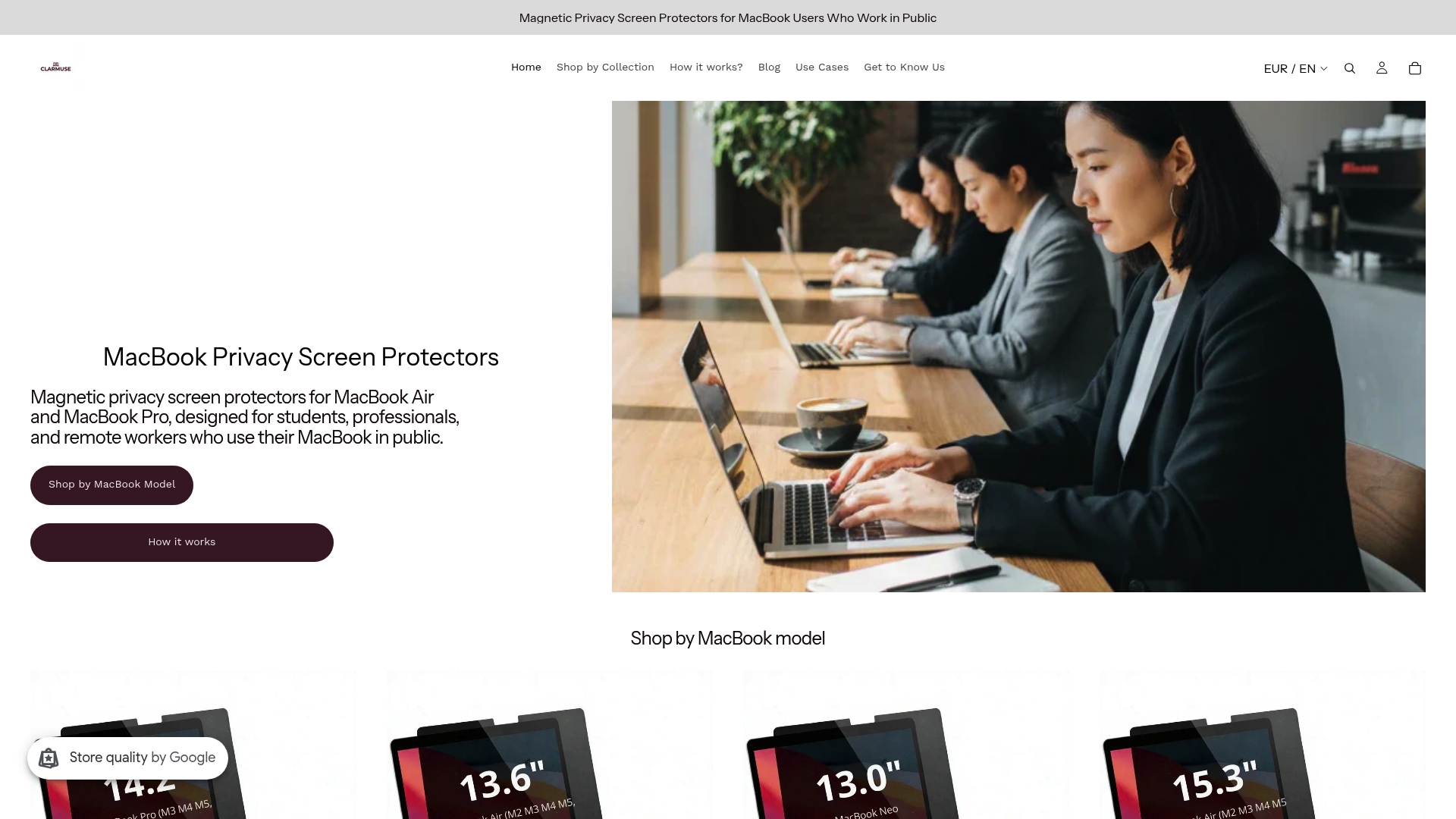
Clarmuse makes magnetic privacy screen protectors designed specifically for MacBook Air and MacBook Pro models. They attach and detach in seconds with no adhesive, no tools, and no residue. The filter narrows your screen’s viewing angle so only you see the display clearly from directly in front. Models are available for the MacBook Pro 16.2", MacBook Air 15.3", and MacBook Air 13.6", among others. Each filter also reduces blue light, which helps with eye comfort during long work sessions. Pair a Clarmuse filter with the network and physical security practices in this article for a complete public-work setup.
FAQ
What is the biggest risk when using a laptop in public?
Visual hacking and opportunistic theft are the two most common threats. 88% of visual hacking attempts succeed, making unprotected screens the most exploited vulnerability in public spaces.
Does disk encryption protect my data if my laptop is stolen?
Disk encryption protects data only when the device is powered off or locked. If the session is active, the drive is decrypted in memory and a thief with physical access can read your files.
Is public Wi-Fi safe to use with a VPN?
A VPN significantly reduces risk by encrypting your traffic before it leaves your device. Open Wi-Fi without a VPN exposes your data to interception and rogue access points. Use a VPN and avoid sensitive logins on any network you do not control.
What is a Kensington Security Slot?
A Kensington Security Slot is a small port built into most laptops that accepts a cable lock. 95% of laptops include one, and compatible locks cost $20–$30. It is the standard physical security anchor for laptops in public spaces.
How does a privacy screen filter work?
A privacy screen filter uses a micro-louver film that blocks light at wide angles. Anyone viewing your screen from the side sees a dark panel. You see full brightness from directly in front. It is the most direct countermeasure against visual data exposure in shared spaces.


