

A privacy screen is defined as a physical filter that narrows your display’s viewing angle so only the person sitting directly in front can read the content. Screen privacy benefits remote workers most directly by blocking shoulder surfing, the act of someone nearby reading your screen without permission. Cybersecurity experts and organizations like the National Institute of Standards and Technology classify physical screen protection as a baseline security control for anyone handling sensitive data outside a controlled office. With remote work now standard across cafés, coworking spaces, airports, and trains, the risk of accidental data exposure has grown significantly. Clarmuse magnetic privacy screens address this risk with a MacBook-specific fit that requires no tools and no guesswork.
1. What are the primary screen privacy benefits for remote workers?
Screen privacy protection delivers three core advantages: data security, reduced anxiety, and professional confidence. Each one compounds the others.
Data security is the most direct benefit. A privacy screen physically blocks side-angle views, so client files, financial spreadsheets, and login credentials stay visible only to you. Accidental disclosure rates are measurably higher in public transit and shared offices, which makes physical screen protection a practical necessity rather than a luxury.
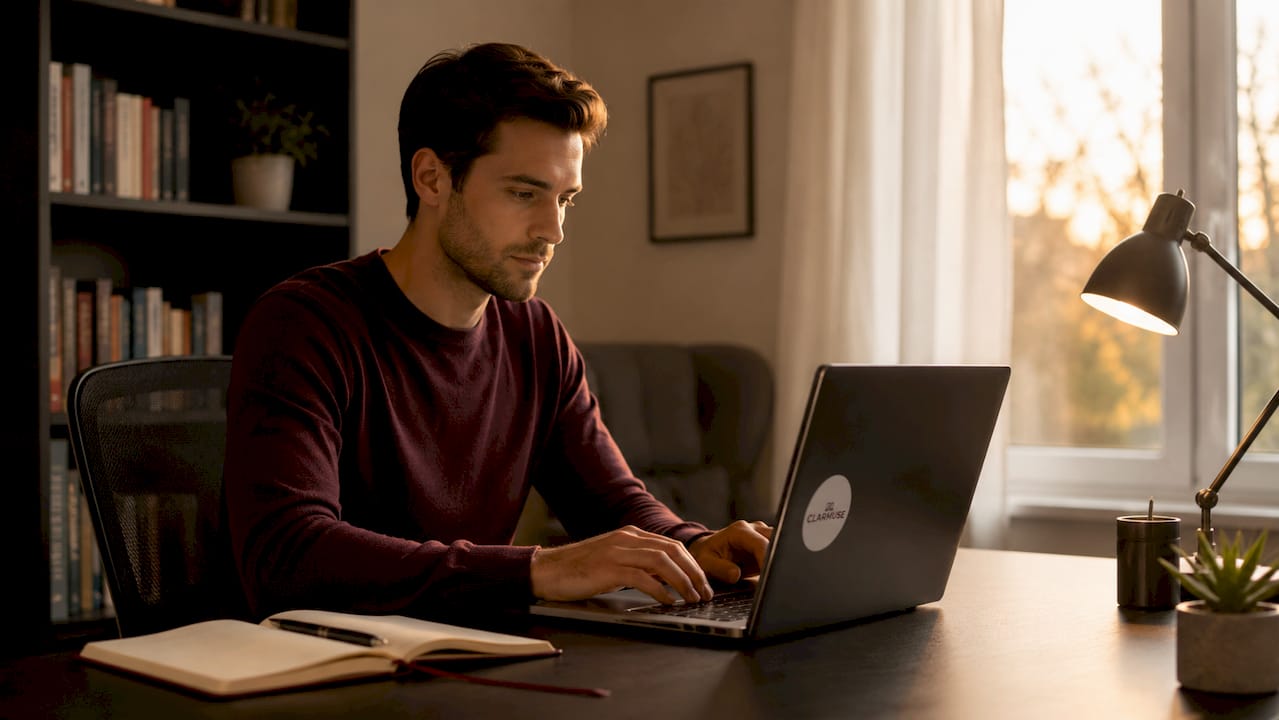
Reduced anxiety follows naturally. Remote workers who know their screen is shielded report fewer interruptions to their focus. The mental load of constantly checking whether someone is looking over your shoulder disappears.
Professional confidence matters too. When you work in a client-facing café or a hotel lounge, a privacy screen signals that you take data handling seriously. That signal matters to clients who might glance your way. Work confidence improves when you know your screen content is yours alone.
Key benefits at a glance:
- Blocks shoulder surfing in cafés, coworking spaces, and transit
- Protects client data, financial records, and personal credentials
- Reduces the distraction of monitoring who is nearby
- Signals professionalism in shared or public environments
- Supports compliance with data protection expectations in client-facing roles
2. How privacy screens work: the technology behind the filter
Privacy screens use micro-louver technology. Think of it like a venetian blind built into a thin film. Hundreds of microscopic vertical slats are embedded in the filter. Light passes straight through to your eyes but gets blocked at angles beyond roughly 30 degrees to either side.
The trade-off is brightness. Privacy screens reduce display brightness by 25–30%, which means you need to raise your screen’s brightness setting to compensate. That adjustment is the right call for visibility, but it carries a cost.
| Effect | Detail |
|---|---|
| Viewing angle blocked | Side views beyond approximately 30 degrees |
| Brightness reduction | 25–30% dimming from louver effect |
| Battery impact | Approximately 5–8% reduction per charge cycle |
| Color accuracy | Slight shift, noticeable on design-heavy work |
| Touch/glide feel | Minor reduction in finger glide on touchscreen models |
Battery life drops by approximately 5–8% over a typical workday when you compensate for the dimming with higher brightness. For most remote workers, that trade-off is worth it. Losing a small amount of battery to gain reliable data protection is a straightforward calculation.
Pro Tip: Raise your MacBook brightness by two to three notches after applying a privacy screen. This restores visual clarity without pushing battery drain beyond the 5–8% range.
Color accuracy takes a minor hit too. Graphic designers and video editors working in shared spaces may notice a slight shift in color rendering. For document work, spreadsheets, and code, the difference is negligible.
3. Productivity and behavioral benefits beyond data protection
Privacy screens do more than block views. They act as behavioral cues that change how you and others behave in shared spaces. This is one of the least discussed but most practical benefits.
When you sit down in a busy café with a privacy screen installed, you naturally choose seats with your back to the wall. You angle your screen toward you rather than toward the room. These small habits compound into a consistently more private working posture. The screen itself trains better behavior.
The behavioral effect extends to others. Shoulder surfing attempts decrease when a privacy screen is visible, because the filter signals that the user values privacy. Casual observers move on. That reduction in ambient curiosity also reduces your own distraction.
Focus improves as a result. When you are not mentally tracking who might be reading your screen, your attention stays on the work. Remote workers in busy public spaces consistently report that removing the social anxiety of screen exposure lets them work longer and more productively.
Additional behavioral benefits include:
- Encourages deliberate seat selection with back-to-wall positioning
- Reduces the urge to minimize windows or hide work when someone walks past
- Creates a psychological boundary between your workspace and the surrounding environment
- Supports longer, uninterrupted work sessions in noisy or crowded locations
Pro Tip: Pair your privacy screen with a low-profile laptop stand. Raising your screen angle slightly improves both your posture and the effectiveness of the louver filter.
4. Practical considerations for using privacy screens effectively
A privacy screen only works well when installed and used correctly. Several practical factors determine whether you get full protection or a compromised experience.
Orientation alignment is the most critical factor. Two-way privacy screens require correct louver alignment to maintain their effectiveness. If the louvers run horizontally when they should run vertically, side-angle protection disappears. Always check the orientation arrow on the filter before attaching it.
Environment matching matters for deciding when to use a screen. Privacy screens are essential in cafés, open-plan coworking spaces, airports, trains, and hotel lobbies. They are less necessary at home with a private office door. Knowing when to apply and remove the screen extends its lifespan and keeps your setup practical.
Practical tips for daily use:
- Check louver orientation every time you reattach a magnetic privacy screen
- Clean the filter weekly with a microfiber cloth to maintain optical clarity
- Store the screen flat in a protective sleeve when not in use to prevent scratching
- Adjust screen tilt to between 90 and 110 degrees for optimal louver performance
- Account for the 5–8% battery reduction by carrying a charger or power bank on long sessions
Device compatibility determines fit quality. Generic privacy filters cut to approximate sizes leave gaps at the edges that reduce effectiveness. MacBook-specific screens, like those from Clarmuse, are cut to exact model dimensions. A precise fit means no light leaks at the corners and no adhesive residue on your display.
Maintenance is straightforward but often overlooked. Fingerprints and dust on the filter surface reduce clarity and can create glare. A weekly wipe keeps the screen performing as intended.
5. How to combine privacy screens with other security measures
A privacy screen is one layer of a broader security approach. Physical and software controls work together for comprehensive protection. Neither replaces the other.
The table below shows how physical privacy tools pair with software settings and behavioral habits:
| Security layer | Method | Primary benefit |
|---|---|---|
| Physical screen filter | Magnetic or adhesive privacy screen | Blocks side-angle viewing |
| Screen timeout | Auto-lock after 1–2 minutes of inactivity | Prevents unattended screen exposure |
| Notification management | Disable lock-screen message previews | Stops sensitive alerts from appearing publicly |
| VPN | Encrypted network connection | Protects data in transit on public Wi-Fi |
| Clean desk practice | No printed documents left visible | Reduces physical data exposure |
Your public laptop security checklist should include all five layers. A privacy screen without a screen timeout still leaves your display exposed the moment you step away for coffee.
When selecting a privacy screen, match the product to your device and usage pattern. Magnetic attachment screens suit remote workers who move frequently between environments, because they attach and detach in seconds without adhesive residue. Adhesive screens suit workers with a fixed setup who rarely remove the filter. For MacBook users, MacBook-specific magnetic filters offer the best combination of fit, ease of use, and daily practicality.
Privacy screens are standard gear for digital nomads and remote professionals in 2026. Treating them as optional is the same as leaving your front door unlocked because you live in a quiet neighborhood.
Key takeaways
Screen privacy protection is the most cost-effective physical security layer a remote worker can add to their setup in shared or public environments.
| Point | Details |
|---|---|
| Core benefit | Privacy screens block side-angle views, preventing shoulder surfing and accidental data exposure. |
| Technical trade-off | Expect a 25–30% brightness reduction and approximately 5–8% battery drain per workday. |
| Behavioral impact | Privacy screens encourage better seat selection and reduce distraction from ambient observers. |
| Correct installation | Louver orientation must match your screen’s vertical axis or side-angle protection fails. |
| Layered security | Combine physical screens with screen timeouts, VPNs, and notification controls for full protection. |
Why I think most remote workers underestimate the physical layer
Most security conversations focus on software. VPNs, password managers, two-factor authentication. These are all necessary. But the physical layer gets treated as optional, and that is a mistake I have seen play out repeatedly.
The reality is that a sophisticated attacker does not need to breach your network if they can simply read your screen from the next table. Shoulder surfing is low-tech, low-risk for the observer, and surprisingly common in coworking spaces and airport lounges. A privacy screen eliminates that entire attack surface instantly.
What I find most underappreciated is the behavioral shift that comes with using one. Once you start working with a privacy screen, you naturally become more aware of your physical environment. You sit differently. You position your screen differently. You stop minimizing windows every time someone walks past. That awareness compounds into a genuinely more secure working posture over time.
The brightness and battery trade-offs are real but minor. A 5–8% battery reduction is a non-issue if you carry a charger. The brightness adjustment takes thirty seconds. The protection is permanent and passive. No software to update, no subscription to maintain, no configuration to get wrong.
My honest assessment: for anyone working regularly in cafés, coworking spaces, or transit, a well-fitted privacy screen is the single highest-return security investment available. The cost is low, the installation is immediate, and the protection is visible and reliable every single day.
— Gabriel
Clarmuse magnetic privacy screens for MacBook users
Remote workers who use MacBooks in shared spaces have a specific problem: generic privacy filters do not fit MacBook displays precisely, which leaves edge gaps and reduces protection.
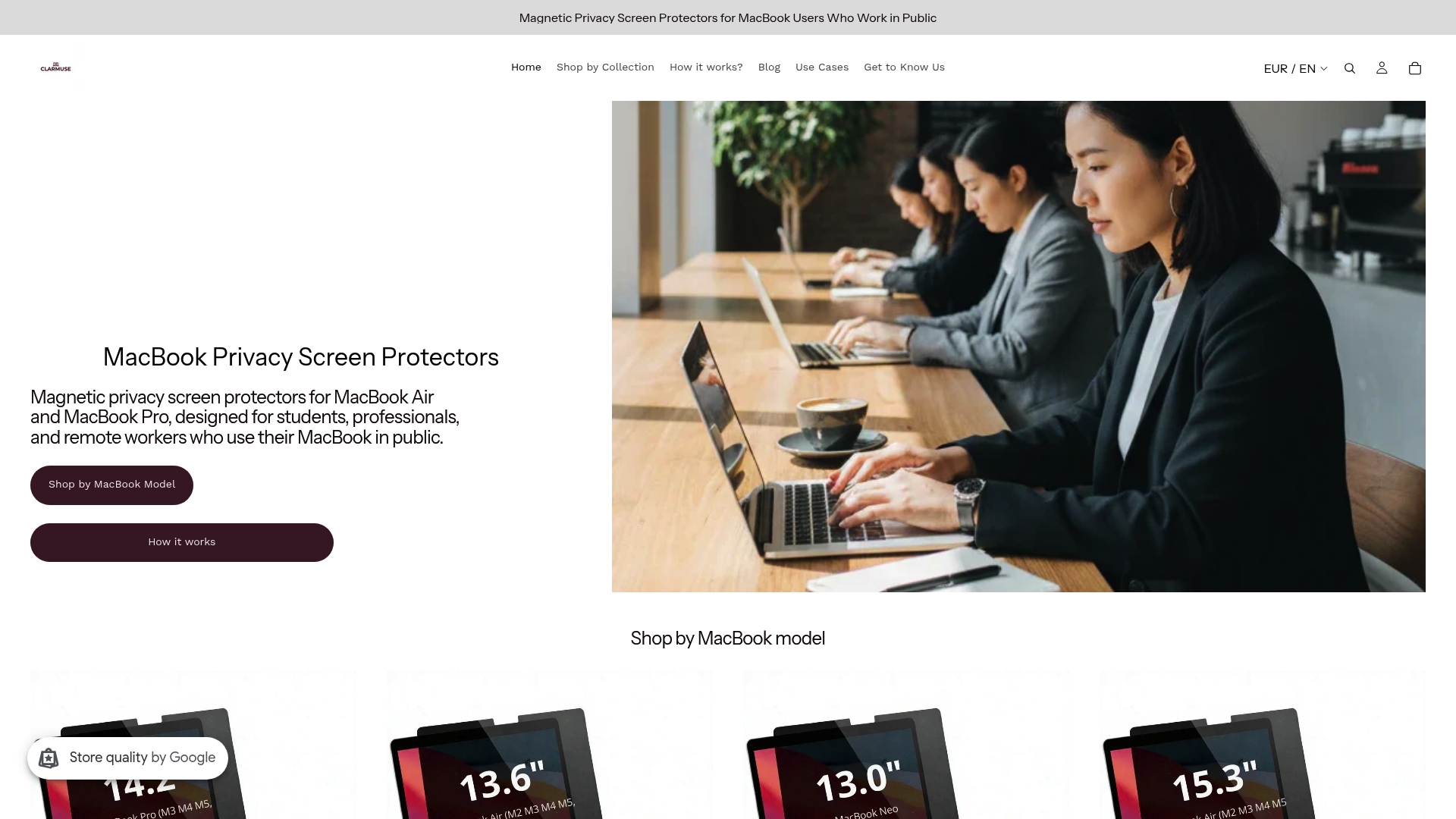
Clarmuse designs magnetic privacy screens built to exact MacBook Air and MacBook Pro dimensions. The magnetic attachment means you can apply or remove the screen in seconds, with no adhesive, no residue, and no tools. Whether you work from a MacBook Pro 16.2" or a MacBook Air 13.6", Clarmuse offers a model-specific fit that generic filters cannot match. The full range of MacBook privacy screen protectors covers the most popular MacBook models used by remote workers today.
FAQ
What is the main benefit of a privacy screen for remote workers?
A privacy screen blocks side-angle views of your display, preventing shoulder surfing and accidental exposure of sensitive data in shared spaces like cafés, coworking offices, and transit.
Do privacy screens affect battery life?
Yes. Compensating for louver dimming requires raising screen brightness, which reduces battery life by approximately 5–8% over a typical workday.
How do I know if my privacy screen is installed correctly?
Check that the louver orientation aligns vertically with your screen. Incorrect louver alignment eliminates side-angle protection, so always verify orientation before use.
Are privacy screens enough on their own for remote work security?
No. Physical screens work best when combined with software controls like screen timeouts, VPNs, and notification management for complete protection.
What type of privacy screen works best for MacBook users?
Magnetic privacy screens cut to exact MacBook model dimensions offer the best fit and easiest daily use, with no adhesive residue and fast attachment for workers who move between environments.


