

Shared workspace screen privacy is the practice of protecting your MacBook display from unauthorized viewing by people seated nearby in cafés, coworking spaces, libraries, airports, or open offices. The industry term for the most common threat is shoulder surfing, where someone reads your screen from the side or behind without your knowledge. Addressing this requires a combination of physical privacy filters, digital security habits, and deliberate seating choices. Privacy tools like screens and quiet zones directly improve focus and job satisfaction in shared environments. This guide covers every layer of the problem so you can work with confidence wherever you open your MacBook.
What are the common visual privacy challenges in shared workspaces?
Visual exposure in shared offices is more frequent than most people expect. Open floor plans remove the physical barriers that private offices provide, leaving your screen visible to anyone walking past or seated at an angle. The result is not just a security risk. It is also a source of constant cognitive distraction that drains concentration over time.
Shoulder surfing and accidental onlookers
Shoulder surfing is the act of reading someone else’s screen without permission. It happens in cafés when a stranger sits at the next table, in coworking spaces when a neighbor glances over, and in airports when seating rows face each other. The person doing it is often not malicious. They simply see what is in front of them. The damage, whether to confidential data or your own focus, is the same either way.
Seat positioning and open floor plans
Where you sit determines how exposed your screen is. Sitting with your back to an open aisle gives anyone behind you a clear view of your display. Sitting back to a wall reduces visual exposure and lowers the cognitive effort your brain spends monitoring who is behind you. That reduction in background vigilance directly improves concentration.
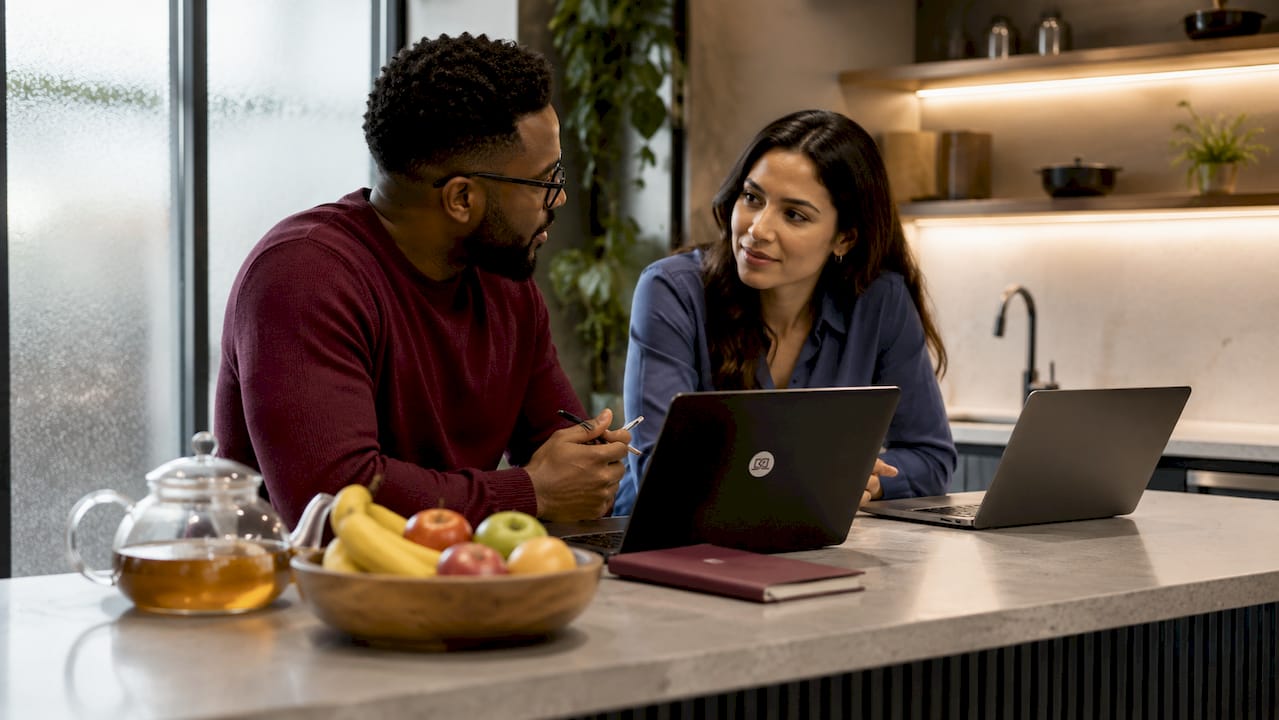
Open floor plans present the highest visual risk. They maximize collaboration but offer no natural screen barriers. Private offices sit at the opposite end of the spectrum. Most shared workspaces fall somewhere in between, with hot desks, benching systems, and open tables that leave screens exposed from multiple angles.
Other overlooked exposure points
Screen reflections on glass partitions or windows can project your display content to people across the room. Printed documents left on desks add a second layer of visual risk that no digital tool addresses. Poor visual and acoustic privacy increase errors, delays, and dissatisfaction in open offices. That finding means the cost of ignoring screen privacy shows up not just in data security but in the quality of your work.
Pro Tip: Arrive early at a shared space and claim a seat with your back against a solid wall or partition. That single habit eliminates rear-angle exposure before you open your laptop.
How do physical privacy screens and filters protect your MacBook display?
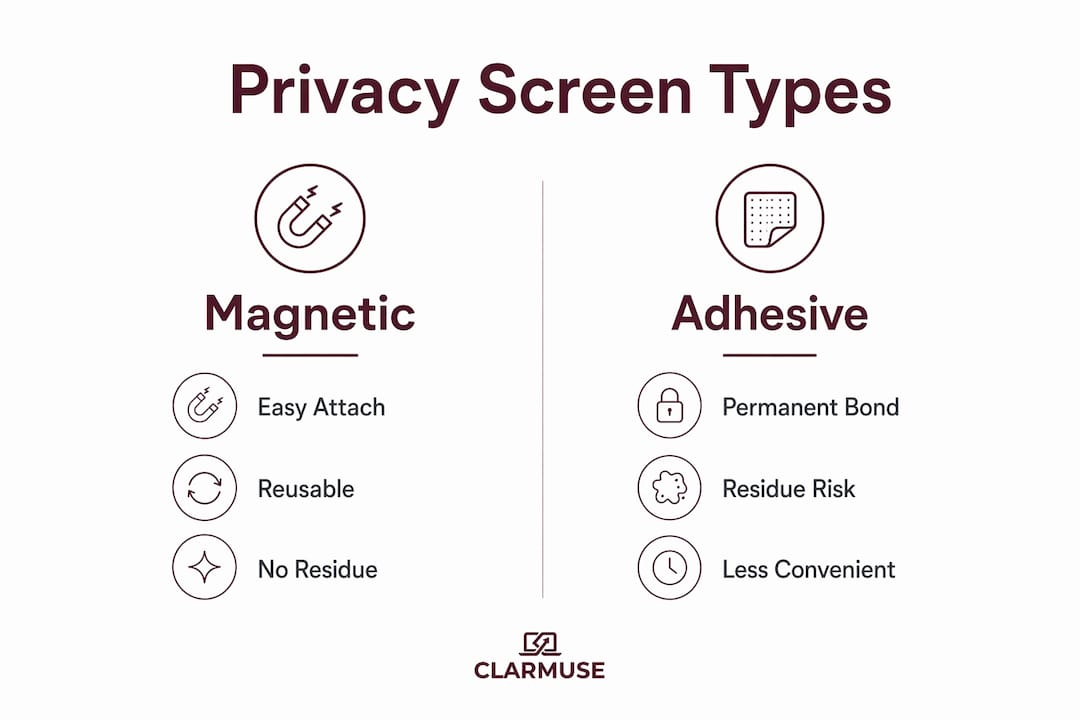
A physical privacy screen is a thin filter that attaches to your laptop display and restricts the viewing angle. Privacy filters use micro-louvers to block side views from screen content. Micro-louvers are tiny vertical slats embedded in the filter material. They work like window blinds: the person sitting directly in front sees a clear image, while anyone at a side angle sees only a darkened screen.
Why MacBook-specific fit matters
Generic privacy filters cut to approximate sizes often leave gaps at the edges or cover the MacBook’s camera notch incorrectly. A poor fit reduces the filter’s effectiveness because the micro-louver array must align precisely with the display panel. Clarmuse designs its magnetic privacy screens specifically for MacBook Air and MacBook Pro models, accounting for exact display dimensions and the magnetic attachment points built into each model’s bezel.
Magnetic attachment vs. adhesive filters
Adhesive filters bond to the screen surface and are difficult to remove without leaving residue. Magnetic filters attach and detach in seconds without touching the display glass. That difference matters for people who move between private and shared settings throughout the day. You can remove the filter for a video call in a private room and reattach it before returning to the open floor.
Comparing screen privacy accessory types
| Accessory type | Viewing angle blocked | Attachment method | Reusable |
|---|---|---|---|
| Magnetic privacy filter | 60° each side | Magnetic, no adhesive | Yes |
| Adhesive privacy filter | 60° each side | Adhesive strip | Limited |
| Clip-on privacy filter | 60° each side | Clip frame | Yes |
| Privacy hood or shroud | Near 180° | Friction fit | Yes |
Magnetic filters offer the best balance of protection and convenience for daily use. Privacy hoods block more angles but add bulk that makes them impractical for travel or café work.
Pro Tip: When evaluating a privacy filter, hold it at arm’s length and look through it from a 45° angle. If you can read text clearly, the micro-louver density is too low for effective shoulder surfing protection.
The screen privacy benefits for remote workers extend beyond data protection. Workers using privacy filters report higher confidence and fewer interruptions from curious neighbors.
Which digital and behavioral strategies enhance screen privacy in shared environments?
Physical filters address visual exposure. Digital habits address data exposure through the network and device itself. Both layers are necessary. A privacy filter does not protect data sent over an unsecured public Wi-Fi connection.
-
Lock your screen every time you step away. Set your MacBook to require a password after 30 seconds of inactivity. A momentary trip to the coffee counter is enough time for someone to photograph or read an open document. Locking your screen and using a VPN on shared Wi-Fi are the two most critical digital security habits for public work environments.
-
Use a VPN on every public or shared network. A VPN encrypts your internet traffic so that other users on the same network cannot intercept it. Free café Wi-Fi and coworking guest networks are the most common interception points. A paid VPN service adds a consistent layer of protection regardless of which network you connect to.
-
Switch to a mobile hotspot for sensitive work. Mobile hotspots and VPNs are recommended for secure connectivity in shared spaces. A hotspot from your phone creates a private cellular connection that bypasses shared Wi-Fi entirely. This is the right choice when handling financial data, legal documents, or client communications.
-
Enable two-factor authentication on all work accounts. Two-factor authentication means a stolen password alone cannot grant access to your accounts. It is the single most effective account security measure available without specialized hardware.
-
Use “public network” mode on macOS when connecting to shared Wi-Fi. This setting limits device discovery and file sharing on the local network. It prevents other devices on the same network from seeing your MacBook in Finder or AirDrop.
Situational awareness is a behavioral skill that complements all of the above. Knowing who is seated around you, where the high-traffic walking paths are, and which direction your screen faces takes less than 30 seconds to assess when you arrive. The nomad workspace privacy challenges that remote workers face are largely manageable with this kind of deliberate environmental assessment before settling in.
What workspace setups best support screen privacy?
Not all shared spaces offer the same level of visual protection. The physical design of the space determines how much privacy is structurally available before you apply any personal tools or habits.
Private offices, phone booths, and focus pods
Private offices provide the highest privacy level in any shared building. They offer full visual isolation and, when constructed with solid walls, acoustic separation as well. Most coworking memberships include limited hours in private offices, making them worth reserving for calls or sensitive document work.
Phone booths and focus pods are single-person enclosures designed for short sessions. They block side-angle views completely and reduce ambient noise. High-performance acoustic booths deliver over 45 dB of sound isolation, which prevents speech from being intelligible outside the enclosure. That level of isolation makes them suitable for confidential calls as well as focused screen work.
Meeting rooms vary widely. Glass-walled meeting rooms offer visual privacy from the open floor but expose your screen to anyone in the corridor. Solid-wall rooms with opaque glass or blinds provide genuine isolation.
Evaluating a shared space before you commit
The construction quality of privacy spaces matters more than their marketing labels. A “focus pod” made from thin fabric panels offers minimal acoustic or visual protection. Before booking a coworking membership, visit the space and sit inside a privacy pod with a colleague outside. If they can hear your normal speaking voice clearly, the acoustic isolation is insufficient for confidential work.
Dedicated privacy spaces provide physical and acoustic isolation that standard open seating cannot match. Spaces that invest in proper construction signal a broader commitment to member privacy, which also tends to reflect in their data and network security policies.
Space type comparison
| Space type | Visual privacy | Acoustic privacy | Best use |
|---|---|---|---|
| Open hot desk | Low | Low | General tasks, no sensitive data |
| Dedicated desk with divider | Medium | Low | Focused work, light confidentiality |
| Phone booth or focus pod | High | Medium to high | Calls, sensitive documents |
| Private office | High | High | Confidential work, long sessions |
| Meeting room (solid walls) | High | High | Team calls, presentations |
Choosing the right space type for the task is as important as any tool you bring with you.
Key takeaways
Effective screen privacy in shared workspaces requires physical filters, digital security habits, and deliberate space selection working together as a single system.
| Point | Details |
|---|---|
| Physical filters block side views | Micro-louver privacy screens prevent shoulder surfing from angles beyond 60° on each side. |
| Seating position reduces exposure | Sitting back to a wall cuts rear-angle visibility and lowers cognitive vigilance. |
| VPNs protect network-level data | A VPN encrypts traffic on shared Wi-Fi, closing the gap that a physical filter cannot address. |
| Space type determines baseline privacy | Phone booths and private offices provide structural isolation that open desks cannot replicate. |
| Locking your screen is non-negotiable | A 30-second auto-lock setting prevents unauthorized access during any brief absence. |
What I’ve learned from working in shared spaces every day
The most common mistake I see is treating screen privacy as a single-tool problem. Someone buys a privacy filter, attaches it, and considers the job done. The filter handles shoulder surfing. It does nothing for the unsecured Wi-Fi connection, the unlocked screen during a bathroom break, or the glass partition reflecting their display to the room behind them.
The second mistake is underestimating how much visual exposure affects concentration, not just security. Workers with access to privacy tools report higher job satisfaction and better focus. That result makes sense. When you know your screen is visible, part of your brain monitors who is looking. That background process costs attention you could spend on actual work.
The fix is a short checklist, not a complicated system. Seat with your back to a wall. Attach your privacy filter. Connect to your VPN or hotspot. Set a 30-second screen lock. Those four steps take under two minutes and cover the majority of shared workspace privacy risks. The portable workspace privacy mindset is about building these habits until they are automatic, not about carrying a bag full of gear.
The one thing most articles skip: evaluate the space itself before you open your laptop. A well-designed coworking space with proper focus pods and solid-wall meeting rooms does half the work for you. Choosing the right seat in the right room is the highest-leverage privacy decision you make each day.
— Gabriel
Clarmuse magnetic privacy screens for MacBook users
Clarmuse makes magnetic privacy screen protectors built specifically for MacBook Air and MacBook Pro models. Each filter attaches with magnets in seconds and removes just as fast, with no adhesive residue on your display.
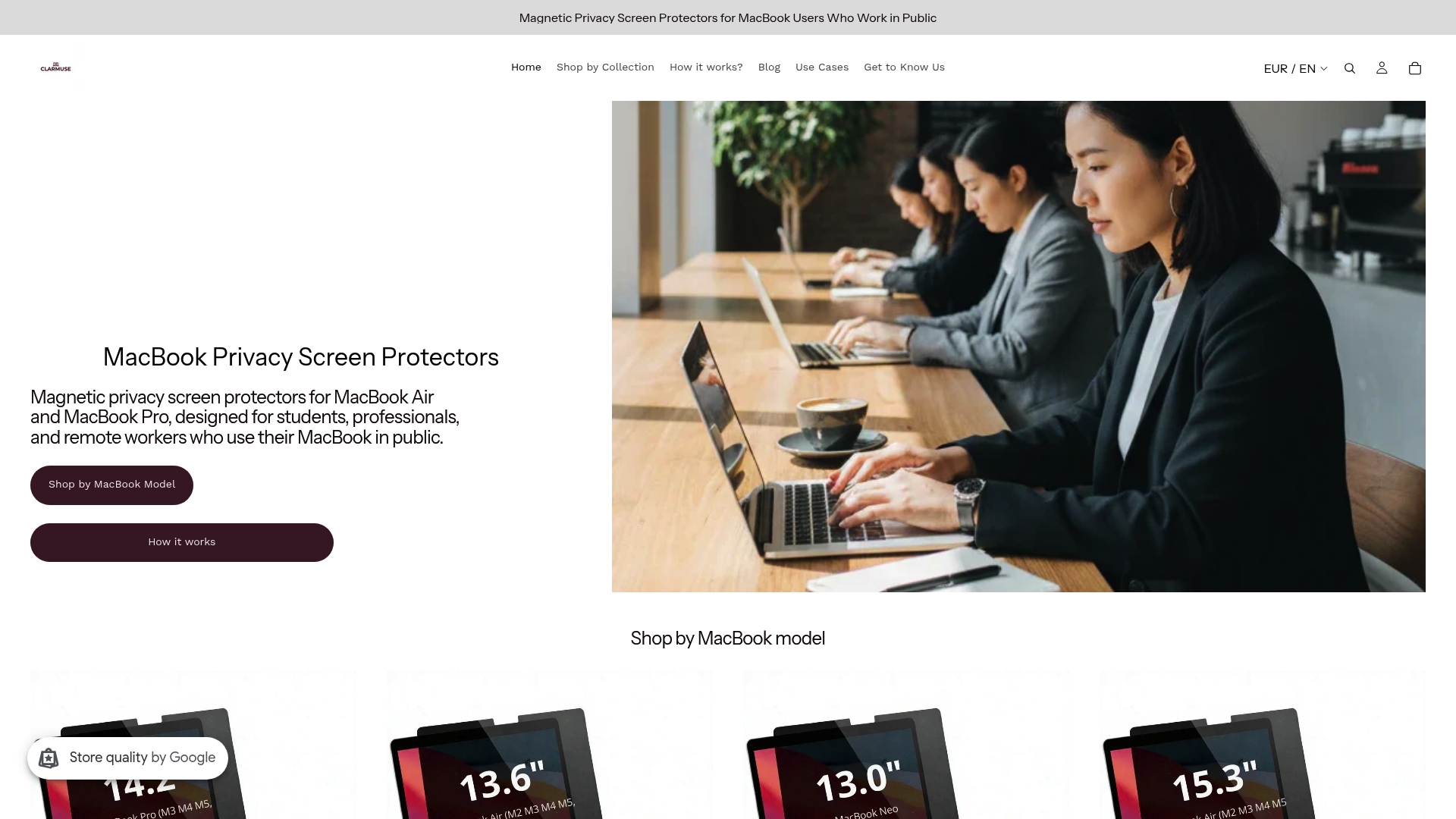
The micro-louver technology blocks side-angle views while keeping your display clear from directly in front. Models are available for MacBook Air 13.6" and 15.3", MacBook Pro 14.2" and 16.2", and MacBook Neo 13.0". If you work in cafés, coworking spaces, libraries, or open offices, a Clarmuse filter is the fastest way to add a reliable layer of visual protection to your setup. Browse the full range of MacBook privacy screen protectors or go directly to the model that fits your machine: MacBook Pro 16.2" or MacBook Air 13.6".
FAQ
What is shoulder surfing in a shared workspace?
Shoulder surfing is the act of reading someone else’s screen without permission, typically from a side or rear angle. It is the primary visual privacy threat in open offices, cafés, and coworking spaces.
Do privacy screens reduce MacBook display quality?
A properly fitted micro-louver privacy filter reduces brightness slightly when viewed straight on, but does not distort color or resolution. Magnetic filters from brands like Clarmuse are designed to minimize this trade-off.
Is a VPN enough to protect my data in a shared office?
A VPN encrypts your network traffic but does not protect against shoulder surfing or an unlocked screen. Combining a VPN with a physical privacy filter and a screen lock habit covers both the digital and visual exposure risks.
Which shared workspace type offers the most screen privacy?
Private offices and solid-wall meeting rooms provide the highest visual and acoustic privacy. Phone booths and focus pods are the next best option for single-person work requiring confidentiality.
How do I know if my coworking space’s privacy pods are effective?
Sit inside the pod and have a colleague stand outside at normal conversation distance. If they can hear you clearly, the acoustic isolation is insufficient. For visual privacy, check whether the pod walls extend above seated eye level from all angles.


