

You run the latest macOS, you have a strong password, and your software is fully updated. Yet the moment you open your MacBook at a coffee shop or library, something shifts. You angle the screen. You glance around. You close tabs before getting up. That instinct is telling you something real. Device security and public privacy are two separate problems, and most advice only addresses one of them. This guide explains the full picture and gives you practical tools to work comfortably wherever you are.
Table of Contents
- The roots of feeling exposed in public spaces
- Visual and physical privacy: The power of what others can see
- Network and data threats: How Wi-Fi and permissions increase the risk
- Device privacy: Cameras, microphones, and acoustic concerns
- Layered strategies for real comfort: What actually works
- Perspective: Why privacy anxiety persists and what most guides miss
- Enhance your privacy and comfort with the right tools
- Frequently asked questions
Key Takeaways
| Point | Details |
|---|---|
| Visual exposure is primary | People observing your screen is the main reason MacBook use feels exposed in public. |
| Network risks persist | Public Wi-Fi introduces threats that device security can’t fully address. |
| Permissions require review | Camera and microphone settings can create privacy gaps if not frequently checked. |
| Layered defense works best | The most effective privacy comes from combining physical, digital, and behavioral strategies. |
The roots of feeling exposed in public spaces
The feeling of vulnerability in shared spaces is not irrational. It has several distinct causes, and understanding them helps you address each one directly rather than guessing at solutions.
Visual exposure is the most immediate concern. Screen visibility in shared spaces is consistently identified as the primary source of privacy discomfort for laptop users. Anyone seated at an angle, walking behind you, or standing in line can read your display without you noticing. This is sometimes called “shoulder surfing,” and it happens constantly in cafes, airports, and coworking spaces.
Network threats add another dimension. Public Wi-Fi creates data vulnerabilities that macOS cannot fully protect against on its own. Your traffic can be intercepted on unsecured networks. Even networks that appear legitimate can be spoofed.
Camera and microphone anxiety is also well-founded. Browsers and apps request access to your inputs regularly, and not every request is clearly labeled or easy to audit.
Acoustic leakage is less talked about but real. Your keyboard clicks, your voice on calls, and your screen audio all broadcast information to those nearby. None of these exposures require a hacker. Most require only proximity.
Here is a summary of the main exposure types and their sources:
| Exposure type | Primary source | Visibility to others |
|---|---|---|
| Screen content | Anyone within sight angle | High |
| Network traffic | Public Wi-Fi interception | Medium |
| Camera/mic access | App and browser permissions | Low to medium |
| Acoustic data | Nearby listeners | Medium |
| Behavioral signals | Keyboard sounds, call audio | Low |
The mismatch between how secure your device feels and how exposed you actually are in a shared space is the core tension. You can set up your MacBook for privacy on the device side and still be broadly visible to anyone nearby.

Visual and physical privacy: The power of what others can see
Visual exposure in shared spaces is the single most significant factor in public privacy discomfort. It is also one of the most practical to address.
What is visual leakage? Visual leakage means that anyone positioned off to your side, behind you, or at an angle in front of you can see your screen content with little effort. In many public setups, your display is visible from a wide arc. Even if the person nearby is not trying to snoop, you cannot know that, and the uncertainty creates real discomfort.
Privacy screens reduce side-angle visibility by filtering the light emitted from your display. The screen appears clear to you, sitting directly in front of it, but becomes dark or unreadable to anyone viewing from roughly 30 degrees or more to either side. This is the same principle used in ATM screens and airport check-in terminals.
Here is a direct comparison of common visual privacy strategies:
| Strategy | Effectiveness | Convenience | Cost |
|---|---|---|---|
| Privacy screen filter | High | High (magnetic attach/remove) | Moderate |
| Seat positioning only | Medium | Low (depends on venue) | Free |
| Screen brightness reduction | Low | High | Free |
| Physical barrier (bag, jacket) | Low | Very low | Free |
| Both filter and positioning | Very high | High | Moderate |
Seat positioning helps but is unreliable. Cafes fill up. Train seats rotate. You cannot always control your environment. Privacy screens for students and those working in open offices face this constantly, moving between unpredictable spaces where you have no control over who sits nearby.
The key insight is that physical solutions and positioning work best together. A privacy screen blocks the wide arc of visibility, and choosing a seat with your back to a wall eliminates exposure from behind. Using both is significantly more effective than either alone.
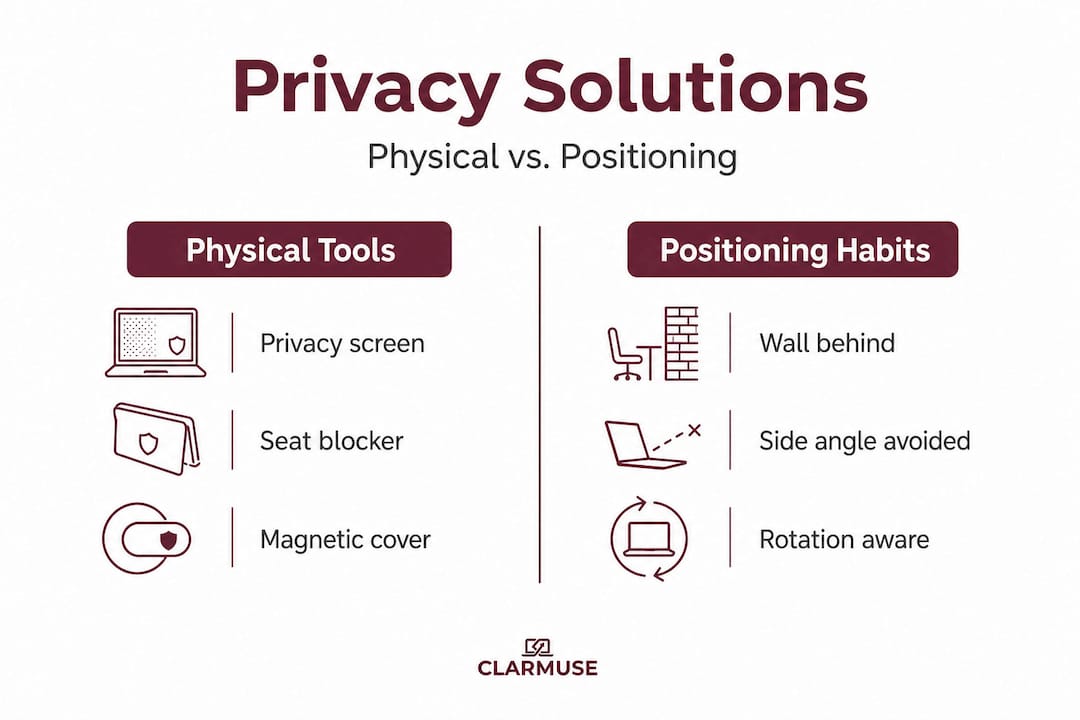
Pro Tip: When choosing a seat in a public space, prioritize positions where the wall is behind you. Pair that with a privacy filter on your display and you eliminate the two most common angles of visual exposure simultaneously.
Privacy screens for public spaces are specifically designed for the MacBook form factor, with magnetic attachment that makes them easy to add or remove within seconds, which matters when your environment changes throughout the day. You can learn more about how privacy filters work if you want a technical breakdown before deciding.
Network and data threats: How Wi-Fi and permissions increase the risk
Your screen is not the only exposure vector. Your internet connection can be just as revealing.
Mac users on public Wi-Fi face risks that macOS cannot resolve on its own. The macOS firewall and system-level protections are solid, but they do not encrypt your outbound traffic. An attacker on the same network can potentially intercept that traffic, especially on networks without proper security protocols.
Here are the most important steps to safer public connectivity:
- Use a VPN. A virtual private network (VPN) encrypts your traffic between your device and a server before it reaches the public network. It does not make you anonymous, but it does protect the content of your data from interception.
- Use your phone as a hotspot. Mobile data connections are significantly more secure than open Wi-Fi because they use cellular encryption rather than a shared local network. This is the strongest practical alternative.
- Disable auto-join for public networks. Your MacBook will automatically reconnect to networks it has joined before. Turn this off in network settings to avoid connecting to spoofed networks with familiar names.
- Use HTTPS-only browsing. Modern browsers can be set to prefer or require HTTPS connections, which adds a layer of encryption at the website level even on an unsecured network.
- Avoid sensitive tasks on public networks. Banking, filing documents, accessing HR systems, and similar activities should wait for a secure connection. If they cannot wait, use your hotspot.
Reviewing app permissions regularly is also recommended. Many apps request access to your location, camera, microphone, and contacts at install time, and those permissions remain active unless you revoke them. Go to System Settings on your Mac and review what each app has access to.
A useful physical addition when using USB-C accessories in public is a data blocker for public charging. These small adapters pass power but block data transfer, preventing “juice jacking,” a method where malicious data is transferred through a public charging port.
Pro Tip: If you travel frequently, consider dedicating one browser profile entirely to public network use. Keep it cleared of saved passwords and session cookies so that even if traffic is intercepted, the attacker gets very little usable data.
When you optimize your MacBook setup for business travel, network security is one of the first areas to address because travel consistently puts you on unfamiliar, unverified networks.
Device privacy: Cameras, microphones, and acoustic concerns
Beyond what others see on your screen and what travels over your network, your MacBook’s own input devices can become privacy weak points in shared spaces.
Browser-level exploits have demonstrated that web content can request camera and microphone access and, under specific conditions, bypass standard permission dialogs. This is not a theoretical edge case. Microsoft researchers identified an active vulnerability called CVE-2024-44133 (known as HM Surf) that allowed unauthorized camera and microphone access through Safari on macOS. Apple patched it, but the pattern repeats with each new browser and OS cycle.
Laptop microphones can capture both spoken conversations and keystroke sounds at sufficient resolution to reconstruct what was said or typed. Research in acoustic data recovery shows that keyboard typing patterns can be analyzed from audio recordings and cross-referenced against language models to identify typed text. This is sophisticated, but it represents a real edge of the threat model.
Practical steps to reduce device-level exposure:
- Review permissions regularly. On macOS, go to System Settings, then Privacy and Security, and audit which apps have camera and microphone access. Revoke any that do not clearly need it.
- Use the camera indicator light. The MacBook hardware indicator light turns on when the camera is active. If it activates unexpectedly, close all browser tabs and apps immediately.
- Keep Safari and macOS updated. The HM Surf exploit was patched within days of disclosure, but it only protects you if the update is installed.
- Use headphones on calls in public. This reduces acoustic leakage from your speakers and keeps your voice input more directional.
- Consider a physical camera cover. Simple sliding covers attach to the bezel and block the camera lens at the hardware level, independent of software permissions.
For managing sensitive information more broadly, protecting confidential data when using AI tools is worth reading if you regularly use AI assistants. Many users paste sensitive content into AI prompts without considering where that data is processed or stored.
Review MacBook privacy setup tips for a full walkthrough of the system settings worth adjusting before your next public session.
Layered strategies for real comfort: What actually works
The most effective approach combines visual, network, and device controls. No single measure is sufficient on its own.
A layered privacy approach is what experts consistently recommend: address visual exposure first, then network security, then device permissions. Here is a practical workflow:
- Before you leave home: Enable your VPN, check that permissions are current, and pack your privacy filter.
- Choosing a spot: Find a seat with a wall or solid barrier behind you. Avoid open seating in the center of a space.
- Connecting: Use your mobile hotspot for anything sensitive. Use public Wi-Fi only for low-risk browsing with HTTPS active.
- Attaching your privacy filter: Place it before opening sensitive documents or logging into accounts.
- Wrapping up: Lock your screen when you step away. Never leave your device unattended in a public space, even briefly.
| Exposure source | Recommended solution |
|---|---|
| Screen visibility from side angles | Privacy screen filter |
| Exposure from behind | Wall seat positioning |
| Network interception | VPN or mobile hotspot |
| Camera/mic access | Permission audit, hardware cover |
| Acoustic leakage | Headphones, quieter keyboard |
| USB-C charging risk | Data blocker adapter |
Adjust for your specific environment. In a library or quiet coworking space, acoustic and visual risks are higher. In an airport or train, network risks increase significantly. For workspace-specific guidance on device preparation, resources on how to secure your device before recycling also cover how data persists on devices in ways many users overlook.
Use the privacy filter guide to understand the technical mechanics behind how angle-of-view restriction works on modern MacBook displays.
Perspective: Why privacy anxiety persists and what most guides miss
Most guides on public laptop privacy focus entirely on technical fixes. Update your software. Use a VPN. Manage permissions. That advice is correct and worth following. But it misses something.
There is a consistent mismatch between perceived and actual exposure. Security features cannot replace trust in your environment. You can be technically protected and still feel observed, because the discomfort is not only about whether data is being stolen. It is about the experience of being seen.
Feeling watched changes how you work. You self-censor. You close tabs. You rush through tasks you would otherwise take time with. You choose less comfortable seats because they face a wall. Privacy anxiety has a real productivity cost that no software update addresses.
The fix for this is not more technical knowledge. It is building habits and environments that reinforce actual comfort. Choosing the right seat, attaching a privacy filter as a default part of setup, using a hotspot instead of asking whether this particular cafe network is trustworthy. These are low-effort habits that reduce the mental overhead of public work significantly.
The most useful shift is treating privacy as infrastructure rather than a response to specific threats. You do not put on a seatbelt because you expect to crash. You do it because it makes driving a routine you can do without monitoring the risk every moment. Privacy tools work the same way. Once they are part of the setup, they stop requiring active attention, and that is when genuine comfort in public spaces becomes possible. Real-world comfort strategies can help bridge the gap between knowing the risks and building habits that handle them without friction.
Enhance your privacy and comfort with the right tools
Knowing the risks is only the first step. Having the right tools in place makes the difference between working with constant low-level anxiety and working with genuine confidence.
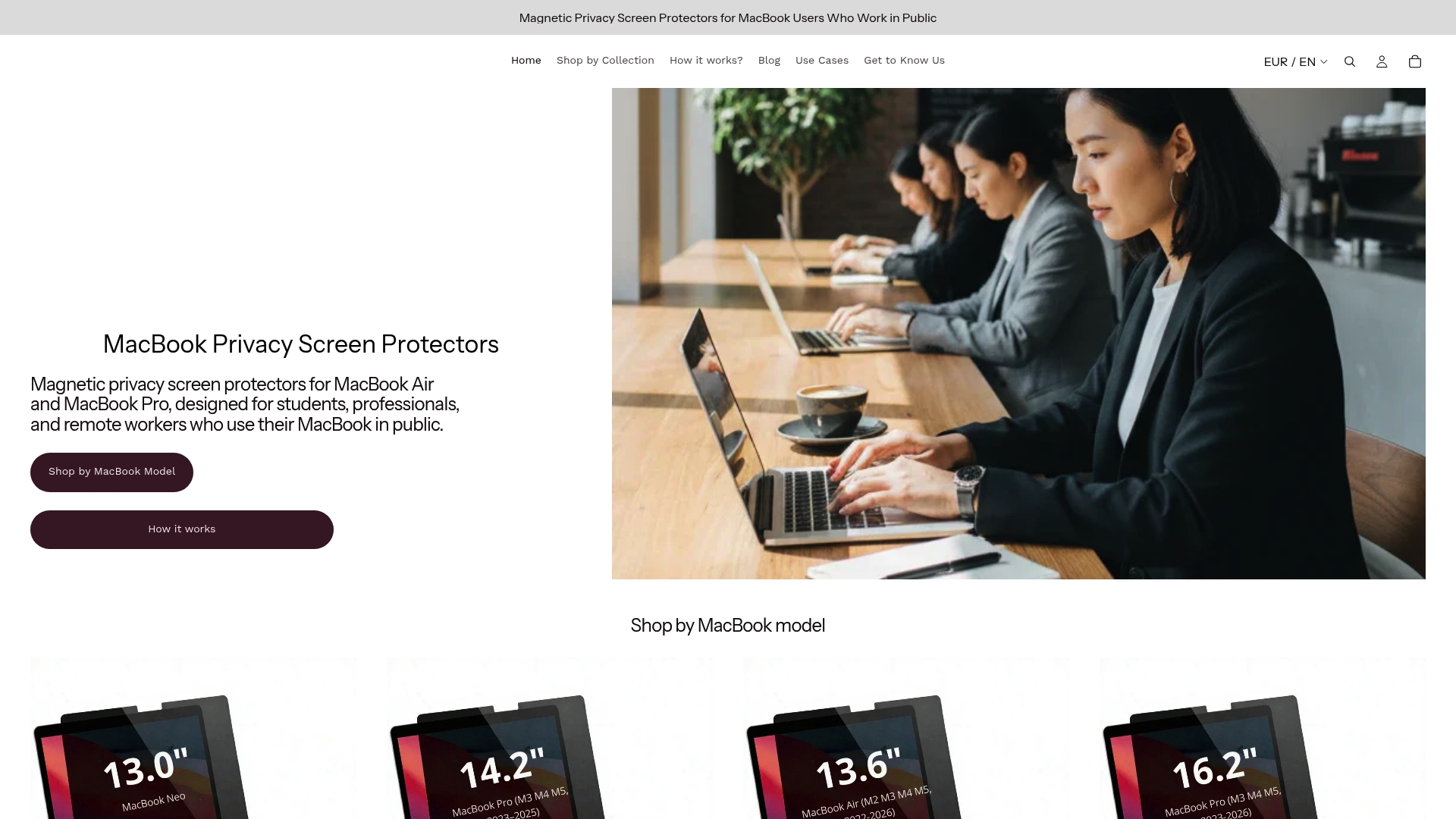
Clarmuse magnetic privacy screen protectors are designed specifically for MacBook Air and MacBook Pro models, with a secure magnetic fit that attaches and removes in seconds. There are no adhesives, no bulk, and no complicated setup. The filter narrows the viewing angle so your display is clear to you and unreadable from the side, addressing the most common and immediate privacy exposure in shared spaces. If you want to understand exactly how the technology works before buying, learn how privacy filters work for a full technical explanation.
Frequently asked questions
What is the biggest risk of using a MacBook in public?
Visual exposure is the most immediate and common risk. Anyone within a wide side angle can read your display without you being aware.
How can I stay safe on public Wi-Fi with my Mac?
Using a VPN and switching to a mobile hotspot provides protection that macOS built-in security alone cannot deliver on public networks.
Are privacy screen protectors worth it in public places?
Yes. Screen protectors that restrict viewing angles are one of the most direct and reliable methods to prevent shoulder surfing in shared spaces.
Can someone hack my MacBook microphone or camera in a public space?
Exploits like CVE-2024-44133 have demonstrated real camera and microphone vulnerabilities through macOS Safari, making software updates and permission audits essential.
What practical steps make me feel less exposed on my laptop in public?
Layering visual, network, and device controls together is consistently the most effective approach. No single measure covers all exposure types.


