

Las mejoras de confort en el espacio de trabajo para MacBook son herramientas, accesorios y cambios de asiento que mejoran la postura, reducen la fatiga y agudizan la concentración para los trabajadores remotos y estudiantes que utilizan MacBooks en espacios compartidos o públicos. La combinación adecuada de un soporte portátil, dispositivos de entrada ergonómicos y una pantalla de privacidad transforma una mesa de cafetería o un escritorio de biblioteca en una estación de trabajo funcional y cómoda. Ninguna solución única proporciona un confort total. Las mejoras que mejor funcionan son las que se eligen en conjunto, cada una reforzando a las demás.
1. ¿Cuáles son los mejores soportes para MacBook para un confort ergonómico?
Un soporte de calidad para MacBook eleva la pantalla a la altura de los ojos, que es la forma más eficaz de reducir la tensión en el cuello y los hombros durante largas sesiones. La altura del monitor a la altura de los ojos o ligeramente por debajo es el objetivo ergonómico estándar, y la mayoría de las personas que trabajan en una mesa plana se sientan muy por debajo de ese umbral. La diferencia entre un portátil plano y una pantalla correctamente elevada es a menudo de cuatro a seis pulgadas.
Para espacios públicos y compartidos, la portabilidad es el factor decisivo. El Majextand pesa 4.8 oz y se pliega hasta 0.066 pulgadas de grosor, lo que lo hace realmente de bolsillo. El soporte Roost, hecho de aluminio plegable, pesa poco más de 6 oz y ofrece un rango de altura más amplio. Ambos proporcionan una elevación ergonómica real sin añadir volumen al viaje.
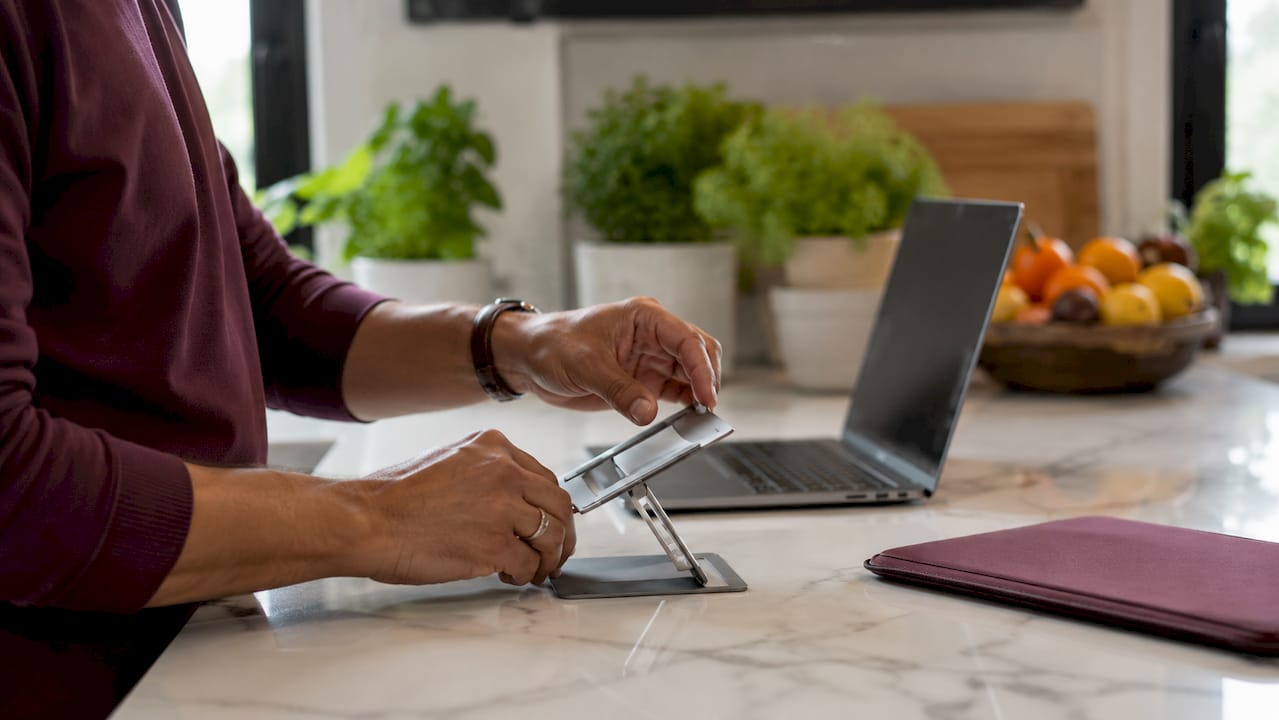
Consejo profesional: Verifique y ajuste la tensión de la bisagra de su soporte portátil antes de salir de casa. Los soportes de alta gama como Majextand incluyen una herramienta hexagonal para este propósito. Una bisagra suelta hace que el soporte se hunda a mitad de sesión en una cafetería, lo que es mucho más molesto que los 30 segundos que tarda el ajuste.
Criterios clave al elegir un soporte:
- Rango de altura: Busque al menos 80 mm de ajuste de elevación para mayor flexibilidad en diferentes alturas de escritorio.
- Peso: Menos de 6 oz mantiene el soporte práctico para el transporte diario.
- Estabilidad: Una base ancha o agarre adhesivo evita el bamboleo en superficies irregulares de cafetería.
- Velocidad de configuración: Los soportes que se despliegan en menos de 10 segundos son adecuados para entornos públicos donde una configuración lenta atrae la atención.
2. ¿Qué dispositivos de entrada ergonómicos funcionan mejor con un MacBook?
Elevar su MacBook en un soporte crea inmediatamente un problema. El teclado y el trackpad integrados ahora están demasiado altos para una escritura cómoda. Los dispositivos de entrada externos resuelven esto y son el complemento natural de cualquier configuración de accesorios ergonómicos para MacBook.
Los teclados divididos colocan cada mano a la altura de los hombros, lo que mantiene las muñecas en una posición neutra en lugar de inclinadas hacia adentro. Marcas como Kinesis, Logitech y Keychron ofrecen opciones inalámbricas compactas adecuadas para viajar. Para los ratones, los diseños verticales y los trackballs reducen la rotación del antebrazo que causa tensión repetitiva con el tiempo. El Logitech MX Vertical y el trackball Kensington Expert Mouse son dos opciones ampliamente utilizadas entre los profesionales remotos.
El argumento para usar dispositivos externos es claro. Escribir en un teclado de MacBook elevado fuerza los hombros hacia arriba y las muñecas a extenderse. Un teclado externo colocado plano sobre el escritorio mantiene los antebrazos paralelos al suelo, que es la posición que produce la menor carga articular durante una jornada laboral completa.
Principales categorías de dispositivos de entrada ergonómicos a considerar:
- Teclados divididos compactos (Kinesis Freestyle Edge, Logitech ERGO K860)
- Ratones verticales (Logitech MX Vertical, Anker Ergonomic Vertical Mouse)
- Ratones de trackball (Kensington Expert Mouse, Logitech MX Ergo)
- Teclados inalámbricos de perfil bajo para un peso mínimo en la bolsa (Keychron K3, Apple Magic Keyboard)
3. ¿Cómo mejora la concentración el asiento dinámico durante largas sesiones con el MacBook?
La postura estática es la causa oculta de la fatiga vespertina para la mayoría de los trabajadores de escritorio. Sentarse completamente quieto durante horas provoca tensión muscular, ralentiza el flujo sanguíneo y acumula cortisol. Los asientos dinámicos abordan esto fomentando pequeños movimientos continuos en lugar de bloquear el cuerpo en una posición fija.
La colección Kiaura de KI, basada en lo que KI denomina Tecnología Cognetica, es uno de los ejemplos más claros de este enfoque aplicado a los asientos de oficina. El diseño soporta micromovimientos pasivos que mantienen activas las vías neuronales y reducen la acumulación de cortisol. Los micromovimientos sentados reducen la ansiedad en un 30% y disminuyen mediblemente la fatiga en la parte baja de la espalda durante sesiones de trabajo prolongadas. Eso no es una ganancia marginal. Es la diferencia entre terminar un bloque de trabajo de cuatro horas enérgico o agotado.
“El futuro confort del espacio de trabajo depende de diseños de asientos que fomenten movimientos sutiles y naturales en lugar de una postura estática.” — Informe de Morningstar sobre los asientos de rendimiento humano de KI
La LiberNovo Omni es otra silla construida sobre principios basados en el movimiento, que ofrece un asiento flexible que responde a los cambios del cuerpo. Para estudiantes y trabajadores remotos que no siempre pueden elegir su asiento, un cojín de soporte lumbar colocado en una silla de cafetería crea un sustituto parcial al mantener la curva de la parte baja de la espalda que las sillas estáticas colapsan.
4. ¿Qué accesorios de privacidad y confort de pantalla son esenciales para uso público?
La visibilidad de la pantalla es un problema tanto de comodidad como de seguridad. Trabajar en una cafetería o biblioteca con la pantalla expuesta te obliga a autocensurarte, reposicionarte constantemente o sentirte observado. Las tres respuestas reducen la concentración y aumentan el estrés. Un protector de pantalla de privacidad magnético elimina esa fricción al estrechar el ángulo de visión para que solo la persona directamente enfrente de la pantalla pueda verla claramente.
La fijación magnética es la característica clave para el uso público. Los filtros adhesivos son permanentes y poco prácticos. Los filtros de clip añaden volumen y rayan el bisel de la pantalla. Los protectores magnéticos se colocan y quitan en segundos, lo que significa que solo los usas cuando los necesitas y los guardas planos en una funda de bolsa el resto del tiempo.
La filtración de luz azul es un beneficio secundario que vale la pena señalar. El tiempo prolongado frente a la pantalla en entornos de cafetería brillantes causa fatiga ocular que se acumula durante un día completo. Un filtro que reduce la emisión de luz azul disminuye esa carga acumulativa. Para una descripción completa de cómo funcionan estos protectores, la guía de Clarmuse sobre cómo funcionan los filtros de privacidad cubre la óptica claramente.
Beneficios principales de los protectores de pantalla de privacidad magnéticos para el uso público de MacBook:
- Estrecha la visibilidad lateral para proteger el trabajo sensible
- Reduce el deslumbramiento de la iluminación superior de cafeterías y bibliotecas
- Filtra la luz azul para reducir la fatiga visual en sesiones largas
- Se acopla y se retira sin herramientas ni adhesivos
- Diseñado para dimensiones específicas de pantalla de MacBook Air y Pro para un ajuste perfecto
5. Cómo optimizar la configuración de tu MacBook según tu entorno
La configuración adecuada para un espacio de coworking no es la misma que la adecuada para un tren o una habitación de hotel. La comodidad efectiva proviene de la integración de componentes que se adaptan al entorno específico, en lugar de aplicar una configuración fija única en todas partes.
Para cafeterías y bibliotecas, prioriza la velocidad y el perfil bajo. Un soporte ligero, un teclado Bluetooth compacto y una pantalla de privacidad cubren las tres mayores carencias de comodidad sin necesidad de desempacar todo. Para espacios de coworking donde tienes un escritorio dedicado, añade un ratón vertical y un cojín lumbar. Para uso doméstico, un monitor externo completo, una silla de calidad y un reposamuñecas se convierten en inversiones prácticas.
Consejo profesional: Utiliza una aplicación como Time Out (macOS) o una extensión del navegador para automatizar la regla de descanso ocular 20/20/20. Cada 20 minutos, mira algo a 20 pies de distancia durante 20 segundos. Confiar en la memoria para tomar estos descansos falla durante el trabajo profundo. Los activadores automáticos hacen que el hábito se mantenga.
Para rutinas con muchos viajes, la guía de equipo para nómadas de MacBook cubre configuraciones portátiles que se guardan en una sola bolsa sin sacrificar la función ergonómica.
Consejos adicionales específicos del entorno:
- Cafeterías: Usa un soporte con base antideslizante. Las mesas de cafetería suelen ser irregulares y ligeramente pegajosas, lo que desestabiliza los soportes ligeros.
- Bibliotecas: Un teclado dividido compacto mantiene el ruido bajo. Los interruptores mecánicos son demasiado ruidosos para espacios silenciosos.
- Espacios de coworking: Invierte en una configuración ergonómica completa ya que probablemente usarás el mismo escritorio repetidamente.
- Trenes y aviones: Un soporte de perfil bajo y una pantalla de privacidad son los dos elementos de mayor impacto para el trabajo móvil. Evita el ratón externo en mesas de bandeja estrechas.
- Habitaciones de hotel: Usa el soporte lumbar de la silla del escritorio, o empaca un pequeño cojín lumbar inflable que pese menos de dos onzas.
6. Por qué los microajustes frecuentes importan más que una posición perfecta
La idea de encontrar una posición ergonómica perfecta y mantenerla es incorrecta. Los usuarios que reportan la mayor productividad oscilan la inclinación del teclado y la altura de la pantalla con frecuencia en lugar de fijarse en una configuración. Pequeños y regulares cambios evitan que una sola articulación o grupo muscular soporte la carga durante demasiado tiempo.
En la práctica, esto significa inclinar ligeramente el teclado hacia adelante o hacia atrás cada hora, subir o bajar el soporte un punto cuando cambias de tarea y ponerte de pie durante cinco minutos entre largos periodos de asiento. Ninguno de estos ajustes lleva más de 10 segundos. Juntos, evitan el bloqueo articular y la fatiga muscular que se acumulan invisiblemente a lo largo de una jornada laboral.
Los accesorios ergonómicos premium con una vida útil de 5 o más años ofrecen un mejor valor a largo plazo que las opciones económicas reemplazadas cada año. Las matemáticas son sencillas. Un soporte de $120 que dura seis años cuesta menos por año que un soporte de $40 reemplazado dos veces. Más importante aún, un soporte de calidad mantiene la tensión de su bisagra y el ajuste de altura de manera confiable, lo que significa que realmente lo usas todos los días en lugar de dejarlo en casa porque es frustrante.
Puntos clave
Las mejoras más efectivas para la comodidad del espacio de trabajo con MacBook combinan un soporte portátil, dispositivos de entrada externos, asientos dinámicos y una pantalla de privacidad, cada uno elegido para adaptarse a su entorno y rutina de trabajo específicos.
| Punto | Detalles |
|---|---|
| Eleve la pantalla primero | Un soporte que eleva su MacBook al nivel de los ojos es la mejora individual de mayor impacto para la postura. |
| Combine un soporte con entrada externa | Un MacBook elevado requiere un teclado y un ratón externos para mantener las muñecas en un ángulo neutro. |
| Elija asientos dinámicos | Las sillas que permiten micromovimientos reducen la ansiedad y la fatiga lumbar durante las sesiones largas. |
| Añada una pantalla de privacidad para uso público | Los protectores de privacidad magnéticos reducen la exposición visual y la fatiga ocular sin necesidad de fijación permanente. |
| Ajuste con frecuencia, no una sola vez | Los cambios pequeños y frecuentes en la altura de la pantalla y la inclinación del teclado previenen la fatiga articular mejor que mantener una posición fija. |
Lo que he aprendido de años de configuraciones móviles de MacBook
El error más común que veo cometer a los trabajadores remotos es comprar un buen accesorio y detenerse ahí. Un soporte de calidad sin un teclado externo es una solución a medias. Un gran teclado en una mesa plana todavía te deja el cuello inclinado hacia adelante. Las mejoras solo ofrecen todo su beneficio cuando trabajan juntas.
El segundo error es comprar barato para probar el concepto. Entiendo la lógica, pero un soporte endeble que se hunde a mitad de una reunión o un teclado que se desconecta en un tren no te enseña nada útil sobre ergonomía. Solo te enseña que el accesorio era malo. Los accesorios de escritorio premium construidos para el uso diario se sienten diferentes desde el primer día. Dejas de pensar en la herramienta y empiezas a pensar en tu trabajo.
La mejora que consistentemente subestimé antes de probarla fue la silla dinámica. Asumí que los micromovimientos eran un concepto de marketing. Después de cambiar a una silla construida sobre principios de movimiento, la diferencia en la energía de la tarde fue inmediata y medible. La investigación sobre los asientos con Tecnología Cognetica coincide con lo que experimenté. Permanecer ligeramente en movimiento mantiene la mente más aguda que sentarse perfectamente quieto.
Mi consejo práctico: empieza con un soporte y un teclado inalámbrico compacto. Añade una pantalla de privacidad si trabajas en público regularmente. Luego, aborda el asiento. Esa secuencia te da la mejora visible más rápida con el menor costo inicial.
— Gabriel
Protege tu pantalla y tu privacidad con Clarmuse
Trabajar en cafeterías, bibliotecas y espacios de coworking significa que tu pantalla siempre está visible para las personas a tu alrededor. Clarmuse fabrica protectores de pantalla de privacidad magnéticos diseñados específicamente para modelos MacBook Air y MacBook Pro, con un ajuste preciso para cada tamaño de pantalla y una fijación magnética que se aplica o retira en segundos.
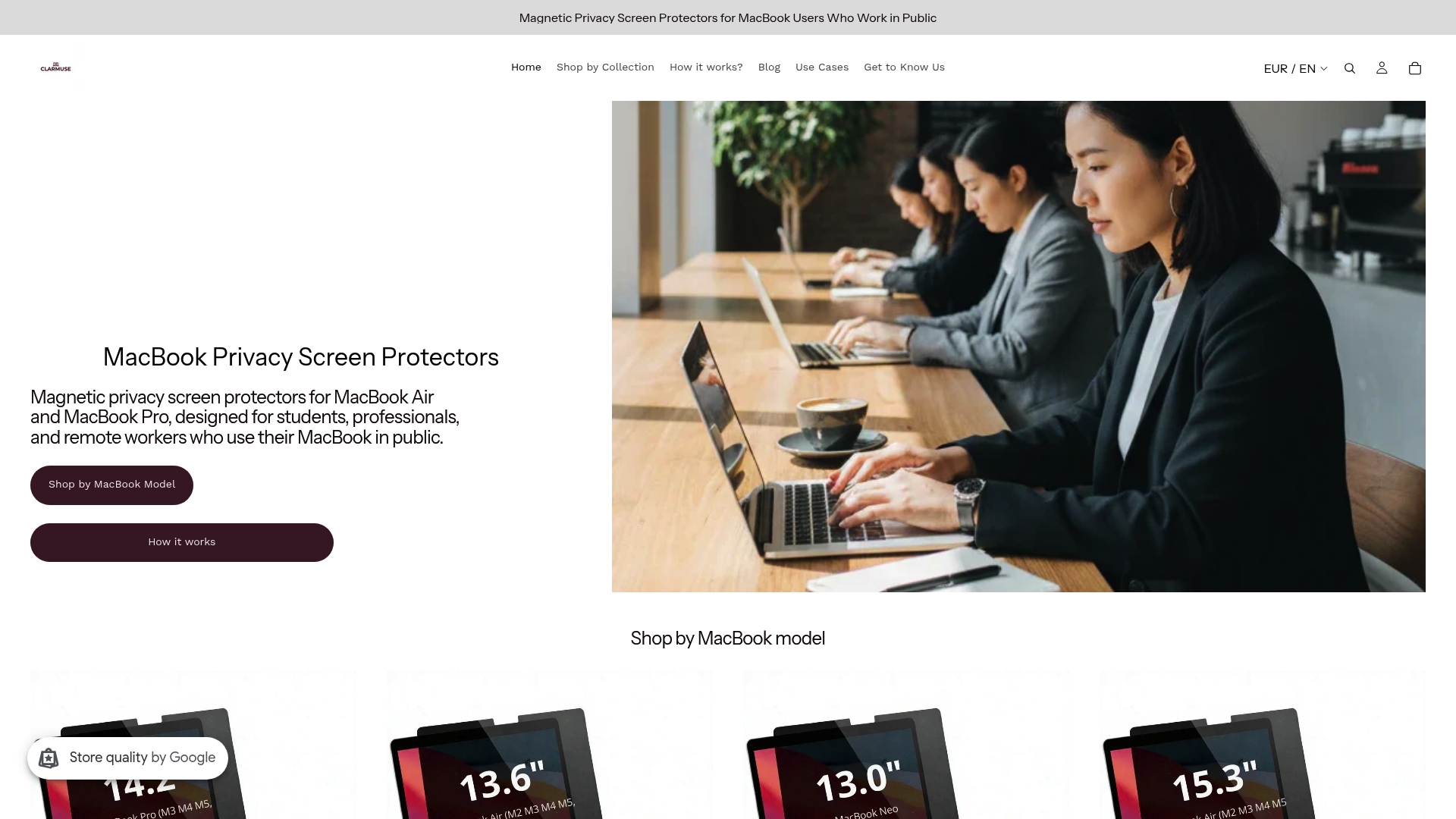
Cada protector reduce la visibilidad lateral, disminuye el deslumbramiento de la iluminación superior y filtra la luz azul para reducir la fatiga visual durante sesiones prolongadas. El diseño se mantiene limpio y minimalista, sin clips, sin adhesivos y sin volumen añadido a tu bolso. Clarmuse cubre toda la línea de MacBook, incluyendo el MacBook Air 13.6" y el MacBook Pro 16.2". Explora la gama completa de filtros de privacidad para MacBook Pro para encontrar el ajuste perfecto para tu modelo.
Preguntas frecuentes
¿Qué son las mejoras de comodidad para el espacio de trabajo de MacBook?
Las mejoras de comodidad para el espacio de trabajo de MacBook son accesorios y cambios en el asiento que mejoran la postura, reducen la fatiga y aumentan la concentración durante el uso prolongado de MacBook. Ejemplos comunes incluyen soportes portátiles, teclados externos, ratones ergonómicos y protectores de pantalla de privacidad.
¿Qué soporte para MacBook es el mejor para espacios públicos?
El Majextand y el Roost son las dos opciones más prácticas para uso público. Ambos pesan menos o poco más de 6 oz, se pliegan para viajar y elevan la pantalla del MacBook a una altura ergonómica cómoda.
¿Necesito un teclado externo si uso un soporte para MacBook?
Sí. Elevar su MacBook en un soporte desplaza el teclado incorporado demasiado alto para una posición neutral de la muñeca. Un teclado externo colocado plano sobre el escritorio mantiene los antebrazos paralelos al suelo y reduce la tensión articular.
¿Cómo mejora el confort un protector de pantalla de privacidad?
Un protector de pantalla de privacidad magnético reduce el deslumbramiento, filtra la luz azul y estrecha la visibilidad lateral. Los tres factores reducen la fatiga ocular y la autoconsiencia que se acumulan durante largas sesiones en espacios compartidos.
¿Con qué frecuencia debo ajustar mi configuración ergonómica del MacBook?
Pequeños ajustes en la altura de la pantalla y la inclinación del teclado cada hora previenen la fatiga articular mejor que mantener una posición fija. Los usuarios que realizan microajustes frecuentes informan de una mayor productividad y menos molestias al final del día.
Recomendado
- Accesorios para MacBook para la productividad en espacios compartidos – Clarmuse
- Consejos de configuración de MacBook para privacidad y comodidad en espacios compartidos – Clarmuse
- Cómo optimizar la configuración de tu MacBook para viajes de negocios – Clarmuse
- Visibilidad de la pantalla del MacBook explicada para espacios de trabajo compartidos – Clarmuse


