

Los filtros de privacidad son superposiciones físicas de pantalla que estrechan el ángulo de visión de tu pantalla, asegurando que solo la persona sentada directamente enfrente pueda leer lo que está en pantalla. Las pantallas de inicio de sesión son el momento más expuesto en cualquier sesión de computación. Escribes las credenciales a la vista, a menudo en una cafetería, aeropuerto o espacio de coworking, y una tasa de éxito de piratería visual del 91% sin una pantalla de privacidad confirma que los "fisgones" no son una amenaza teórica. Los filtros de privacidad estándar cuestan entre $20 y $80, lo que los convierte en una de las defensas más rentables disponibles. Entender por qué las pantallas de inicio de sesión necesitan filtros de privacidad comienza por reconocer que la exposición física es tan peligrosa como una vulnerabilidad de software.
Por qué las pantallas de inicio de sesión necesitan filtros de privacidad: el riesgo principal
Las pantallas de inicio de sesión muestran el momento más sensible de una sesión. Nombres de usuario, direcciones de correo electrónico y contraseñas aparecen en pantalla antes de que cualquier capa de cifrado o autenticación pueda protegerlos. Una persona parada a dos pies a tu lado puede leer cada carácter que escribas si tu pantalla no tiene restricción de ángulo.

El término de la industria para esta amenaza es piratería visual, definida como la captura no autorizada de información sensible en pantalla mediante la observación directa. El estudio de 3M y Ponemon Institute encontró que la piratería visual tiene éxito el 91% de las veces cuando no hay protección de pantalla. Esa cifra se aplica específicamente a entornos públicos y semi-públicos, que ahora describen la mayoría de los lugares donde operan los trabajadores del conocimiento.
La importancia de los filtros de privacidad en la etapa de inicio de sesión es distinta de la privacidad general de la pantalla. La mayoría de los usuarios bloquean sus pantallas al alejarse, pero rara vez piensan en la ventana de exposición durante el acto de iniciar sesión. Esa ventana de 10 segundos, repetida varias veces al día en espacios compartidos, es donde las credenciales corren mayor riesgo. Los filtros de privacidad físicos cierran esa ventana sin requerir ningún cambio de comportamiento por parte del usuario.
Consejo profesional: Configura tu dispositivo para que se bloquee automáticamente después de 60 segundos de inactividad y combínalo con un filtro de privacidad. El filtro maneja la ventana de exposición al inicio de sesión; el bloqueo automático maneja el riesgo de la pantalla desatendida.
¿Cómo funcionan los filtros de privacidad para proteger las pantallas de inicio de sesión?
Los filtros de privacidad utilizan tecnología de microláminas o nanoláminas para controlar el ángulo en el que la luz sale de la pantalla. Las microláminas son ranuras verticales microscópicas incrustadas en el material del filtro. Bloquean la luz que viaja en ángulos laterales más allá de 30 a 60 grados desde el centro, mientras permiten que la luz pase directamente al espectador que está directamente enfrente. El resultado es una pantalla que se ve clara para ti y oscura para cualquiera que esté a tu lado.
Filtros de dos vías vs. de cuatro vías
La distinción entre los tipos de filtros es importante específicamente para la protección de la pantalla de inicio de sesión.
Los filtros de dos vías bloquean solo las vistas laterales horizontales, lo que significa que protegen contra alguien sentado a tu izquierda o derecha. Los filtros de cuatro vías añaden bloqueo vertical, protegiendo contra espectadores por encima o por debajo del plano de la pantalla. Para los usuarios de computadoras portátiles, un filtro de dos vías cubre la mayoría de los ángulos de amenaza del mundo real. Para los usuarios de tabletas que rotan sus dispositivos, un filtro de cuatro vías es la elección correcta.
| Tipo de filtro | Ángulo de visión bloqueado | Ideal para | Costo aproximado |
|---|---|---|---|
| Bidireccional (2 vías) | Solo izquierda y derecha | Portátiles, pantallas de orientación fija | $20 a $50 |
| Cuadridireccional (4 vías) | Todos los ángulos laterales | Tabletas, dispositivos giratorios | $40 a $80 |
| Pantalla integrada | Varía según el hardware | Función integrada del dispositivo | Costo del dispositivo |

La compensación de brillo es real. Las pantallas de privacidad reducen el brillo percibido entre un 30 y un 50%, lo que empuja a los usuarios a aumentar los niveles de retroiluminación y acelera el consumo de batería. Esto es más importante para el uso en exteriores, donde la luz ambiental ya compite con la salida de la pantalla.
Consejo profesional: Reduce la temperatura de color de tu pantalla junto con un filtro de privacidad. Los tonos más cálidos son más fáciles de leer con menos brillo, lo que compensa la reducción de luz del filtro sin afectar la batería.
¿Quién se beneficia más de la protección de privacidad de la pantalla de inicio de sesión?
Los beneficios de la privacidad en la pantalla de inicio de sesión no se distribuyen de manera uniforme. Algunos usuarios se enfrentan a consecuencias regulatorias si sus credenciales son comprometidas visualmente; otros se enfrentan al robo de identidad personal. El perfil de riesgo determina con qué urgencia un filtro de privacidad debe formar parte de tu configuración.
Los trabajadores de la salud, las finanzas y el gobierno se enfrentan a los mayores riesgos. Las violaciones de HIPAA provocadas por la visualización no autorizada de credenciales de inicio de sesión de pacientes conllevan multas que comienzan en $100 por violación. Los empleados del sector financiero que inician sesión en plataformas de negociación o portales de clientes en oficinas compartidas se enfrentan a una exposición similar bajo los marcos SOC 2 y FINRA. Un filtro de privacidad en estos contextos no es un equipo opcional. Es un control de cumplimiento.
El segundo grupo lo componen los trabajadores remotos y los viajeros habituales en transporte público. El cambio al trabajo híbrido ha trasladado la actividad de inicio de sesión a cafeterías, vestíbulos de hoteles, salas de aeropuertos y vagones de tren. Estos entornos carecen de un perímetro de seguridad físico. Cualquiera que esté cerca puede observar tu pantalla, y a diferencia de una oficina corporativa, no existe una política de TI que imponga la ubicación de la pantalla o la orientación del escritorio.
Los estudiantes representan un tercer grupo de alto riesgo que rara vez se menciona. Las bibliotecas universitarias, los laboratorios de computación compartidos y las aulas crean una proximidad constante con extraños. Iniciar sesión en portales de ayuda financiera, sistemas de registros de salud o correos electrónicos universitarios en estos espacios sin un filtro expone las credenciales a cualquier persona con línea de visión.
La accesibilidad es una dimensión menos obvia pero igualmente importante. El diseño accesible de la pantalla de inicio de sesión reduce las consultas de soporte entre un 25 y un 35% y afecta directamente al 26% de los adultos estadounidenses que viven con discapacidades. Los filtros de privacidad que mantienen la claridad frontal mientras bloquean los ángulos laterales apoyan a los usuarios que necesitan colocar sus pantallas en ángulos no estándar sin sacrificar la seguridad.
Limitaciones y desafíos del uso de filtros de privacidad
Los filtros de privacidad no son una solución de seguridad completa. Tratarlos como tal crea una falsa sensación de protección que puede llevar a peores resultados que no usar ningún filtro.
La limitación más significativa es la visibilidad en exteriores. La misma reducción de brillo que bloquea a los espectadores de ángulos laterales también hace que la pantalla sea más difícil de leer bajo la luz solar directa. Una reducción del 40% del brillo en una pantalla de 400 nits te deja con unos efectivos 240 nits en exteriores, lo que está por debajo del umbral de lectura cómoda en la mayoría de las condiciones de luz diurna.
La postura del usuario crea un segundo problema. Los filtros de privacidad funcionan bajo la suposición de que el usuario autorizado se sienta directamente frente a la pantalla. Cualquiera que incline la pantalla de su computadora portátil hacia atrás para reducir el resplandor, o que trabaje en ángulo debido a las limitaciones de los asientos, encontrará su propia vista degradada. Esto no es un inconveniente menor. Hace que los usuarios retiren el filtro por completo, lo que anula el propósito.
Los filtros bidireccionales fallan contra dispositivos girados, una limitación que importa a cualquiera que use una computadora portátil en una orientación no estándar o que comparta una pantalla brevemente con un colega. Girar el dispositivo 90 grados mueve el ángulo de amenaza de horizontal a vertical, lo que un filtro bidireccional no aborda.
Las pantallas de privacidad integradas en hardware, como la del Samsung Galaxy S26 Ultra, ofrecen un enfoque complementario. Estas pantallas de privacidad integradas utilizan polarización controlada por software en lugar de una superposición física, lo que evita la penalización de brillo de los filtros adicionales. Sin embargo, no son un reemplazo completo para las pantallas de privacidad dedicadas, porque el nivel de protección es menor y la función aún no está disponible en la mayoría de los factores de forma de computadoras portátiles.
Los filtros de privacidad tampoco hacen nada contra las amenazas digitales. El malware de grabación de pantalla, el acceso remoto al escritorio y las herramientas de captura de pantalla eluden completamente los filtros físicos. Por eso, las pantallas de privacidad son herramientas especializadas para entornos físicos de alto riesgo, no sustitutos del software de seguridad de punto final.
Mejores prácticas para asegurar las pantallas de inicio de sesión más allá del filtro
Las medidas de seguridad físicas y digitales funcionan juntas. Un filtro de privacidad maneja la ventana de exposición física. Los controles de software manejan la digital. Usar ambos es el enfoque correcto para cualquiera que inicie sesión regularmente en espacios compartidos.
Configura tu pantalla de inicio de sesión para que muestre menos
Ocultar nombres de usuario y direcciones de correo electrónico en la pantalla de bloqueo es un paso fundamental de costo cero. Windows, macOS y la mayoría de las distribuciones de Linux permiten a los administradores suprimir la información de usuario mostrada en la pantalla de inicio de sesión. Esto significa que un "fisgón" que vea tu pantalla no obtendrá ningún identificador de cuenta, solo un campo de contraseña. Combinado con un filtro de privacidad, esto elimina dos de las tres piezas de información que necesita un atacante.
Usa herramientas de enmascaramiento digital durante el uso compartido de pantalla
Herramientas como StreamShield detectan y enmascaran automáticamente campos de entrada sensibles durante la captura de pantalla o las sesiones de uso compartido. Esto es importante porque compartir la pantalla durante las videollamadas es un vector creciente para la exposición de credenciales. Es posible que compartas tu pantalla para demostrar algo y expongas accidentalmente un campo de inicio de sesión. StreamShield bloquea esa captura a nivel de software, complementando lo que el filtro físico hace en el entorno físico.
Combina con la autenticación multifactor
Un filtro de privacidad reduce el riesgo de robo de credenciales. La autenticación multifactor (MFA) limita el daño si las credenciales son robadas de todos modos. Los autenticadores basados en FIDO2 como YubiKey o los autenticadores de plataforma como Face ID y Touch ID de Apple añaden un segundo factor que no puede ser capturado visualmente. Incluso si un "fisgón" lee tu contraseña, no podrá completar el inicio de sesión sin el segundo factor.
| Medida de seguridad | Amenaza abordada | Costo | Complejidad |
|---|---|---|---|
| Filtro de privacidad | Robo visual de credenciales | $20 a $80 | Bajo |
| Ocultar información de la pantalla de inicio de sesión | Enumeración de cuentas | Gratis | Bajo |
| StreamShield | Exposición al compartir pantalla | Gratis (código abierto) | Medio |
| MFA (YubiKey, Face ID) | Uso de credenciales robadas | $25 a $60 | Medio |
Explora las consideraciones sobre las aplicaciones web con prioridad en la privacidad si deseas extender este enfoque por capas al navegador y al nivel de la aplicación. Las capas físicas y digitales se refuerzan mutuamente de manera más efectiva cuando ambas están activas simultáneamente.
Consejo profesional: Verifica si la pantalla de inicio de sesión de tu MacBook muestra tu nombre completo o dirección de correo electrónico. En macOS, ve a Ajustes del Sistema, Usuarios y Grupos, y desactiva "Mostrar nombre completo en la ventana de inicio de sesión". Esto toma 30 segundos y elimina una información clave de cualquier persona que eche un vistazo a tu pantalla.
Puntos clave
Los filtros de privacidad protegen las pantallas de inicio de sesión al bloquear las vistas laterales de las credenciales, y su eficacia depende de la combinación de filtros físicos con controles de software y MFA.
| Punto | Detalles |
|---|---|
| La piratería visual es omnipresente | El 91% de los intentos de piratería visual tienen éxito sin una pantalla de privacidad. |
| El tipo de filtro determina la cobertura | Los filtros bidireccionales protegen los portátiles; los filtros cuadridireccionales son necesarios para los dispositivos giratorios. |
| La compensación de brillo es real | Los filtros reducen el brillo de la pantalla entre un 30 y un 50%, lo que afecta la usabilidad en exteriores. |
| Los controles de software multiplican la protección | Ocultar los nombres de usuario de la pantalla de inicio de sesión y usar StreamShield cierra las brechas que los filtros no pueden abordar. |
| Las industrias de alto riesgo se enfrentan a riesgos de cumplimiento | Los trabajadores de la salud y las finanzas se enfrentan a sanciones legales si las credenciales de inicio de sesión se ven comprometidas visualmente. |
Mi opinión sobre los filtros físicos frente a la seguridad de inicio de sesión digital
Los filtros de privacidad físicos resuelven un problema específico y bien definido: impiden que la persona de al lado lea tu pantalla. Eso es realmente útil, y la tasa de éxito del 91% de la piratería visual sin uno es un número que vale la pena tomar en serio. Pero he visto a demasiadas personas tratar un filtro de privacidad como una postura de seguridad completa, y ahí es donde la lógica se rompe.
El filtro no hace nada una vez que tus credenciales abandonan la pantalla. Si tu contraseña es débil, reutilizada o almacenada en un archivo de texto sin formato, el filtro es irrelevante. Si compartes tu pantalla durante una llamada de Zoom sin herramientas de enmascaramiento, el filtro es irrelevante. La seguridad física y la seguridad digital operan en diferentes capas de amenaza, y confundirlas crea puntos ciegos.
Lo que me parece más interesante es la categoría emergente de alternativas de privacidad de hardware que integran funciones de privacidad a nivel de pantalla. El enfoque de Samsung con el Galaxy S26 Ultra es un adelanto de hacia dónde va esto. Cuando la tecnología de pantallas de privacidad se convierta en estándar en el hardware de clase MacBook, el mercado de filtros adicionales se desplazará hacia los usuarios con el mayor riesgo de exposición física, que es exactamente el segmento de atención médica y finanzas que ya lo considera un requisito de cumplimiento.
Por ahora, el modelo mental correcto es este: un filtro de privacidad es un control de perímetro físico, de la misma manera que una puerta con cerradura es un control de perímetro físico. Todavía necesitas una cerradura en la puerta, un sistema de seguridad y una política sobre quién tiene las llaves. El filtro es una capa, no todo el sistema. Aplícalo donde el riesgo físico sea real, configura tu software para reducir lo que el filtro no puede cubrir, y usa MFA para limitar el daño si algo sale mal.
— Gabriel
Protege la pantalla de inicio de sesión de tu MacBook con Clarmuse
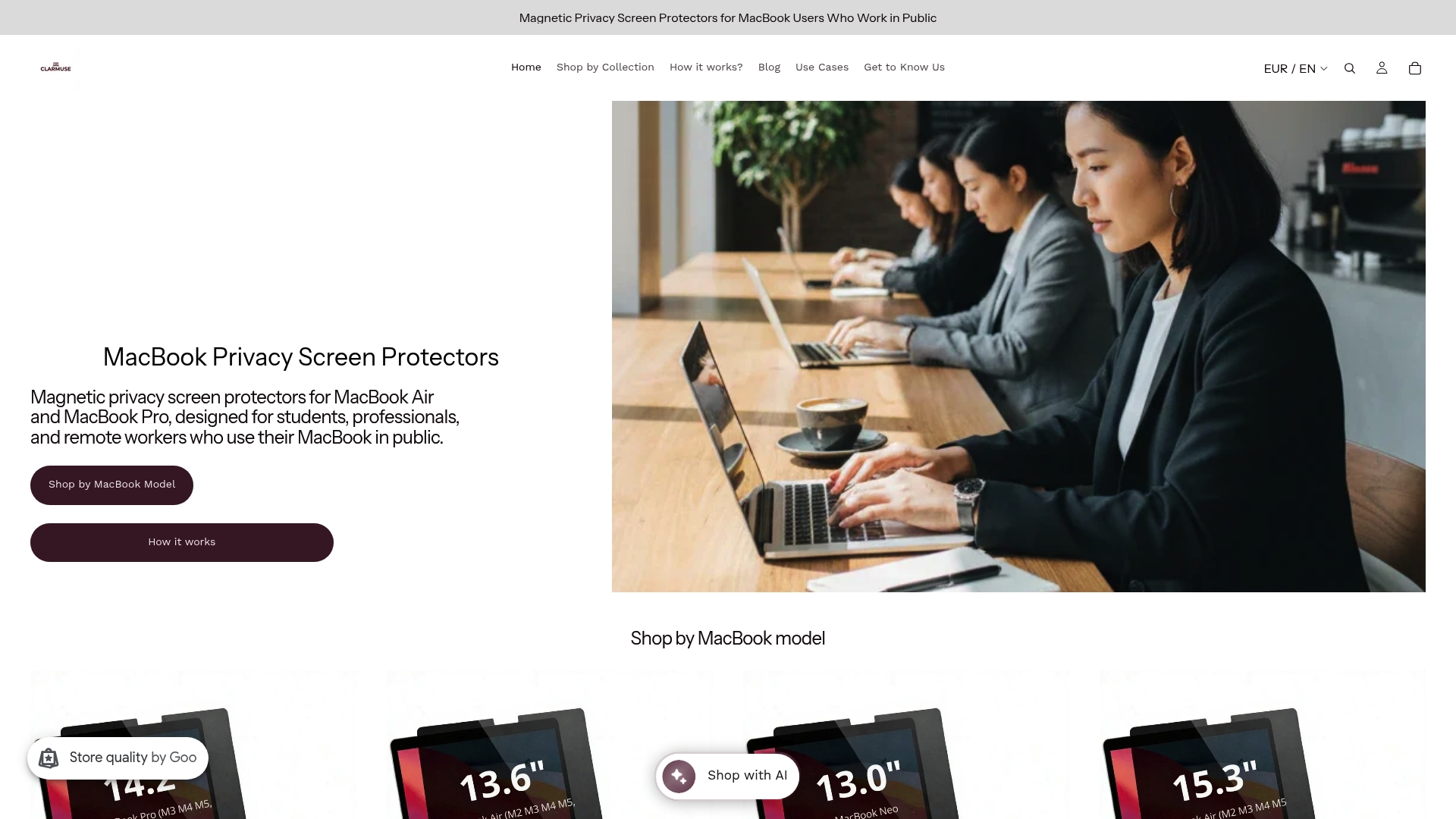
Clarmuse diseña pantallas de privacidad magnéticas creadas específicamente para los modelos MacBook Air y MacBook Pro, abarcando tamaños desde 13,6 pulgadas hasta 16,2 pulgadas. El sistema de fijación magnética significa que no hay adhesivo, ni residuos, ni torpes clips en una cafetería o en la puerta de un aeropuerto. Lo colocas antes de abrir tu portátil y lo retiras en segundos cuando ya no lo necesitas.
Explora la colección completa de pantallas de privacidad para MacBook Pro o ve directamente al filtro para MacBook Air de 13,6" si trabajas principalmente en un modelo M2, M3, M4 o M5. Combina cualquier filtro de Clarmuse con los pasos de configuración de la pantalla de inicio de sesión mencionados anteriormente para una configuración completa de privacidad física y de software.
Preguntas Frecuentes
¿Qué hace realmente un filtro de privacidad en una pantalla de inicio de sesión?
Un filtro de privacidad estrecha el ángulo de visión de la pantalla utilizando tecnología de microláminas, impidiendo que cualquier persona sentada a más de 30 a 60 grados de los lados lea tus credenciales. La persona directamente enfrente ve una pantalla normal; todos los demás ven una pantalla oscurecida.
¿Necesitan las pantallas de inicio de sesión filtros de privacidad si uso una contraseña fuerte?
La fortaleza de la contraseña no previene la observación visual. Una contraseña fuerte escrita a la vista en un espacio público sigue siendo legible para cualquiera que esté cerca. Los filtros de privacidad abordan el riesgo de exposición física que la complejidad de la contraseña no puede resolver.
¿Cuál es la diferencia entre un filtro de privacidad de 2 y 4 vías?
Los filtros de dos vías bloquean las vistas laterales izquierda y derecha, lo que cubre la mayoría de los casos de uso de portátiles. Los filtros de cuatro vías también bloquean los ángulos superior e inferior, lo que los convierte en la opción correcta para tabletas o cualquier dispositivo utilizado en orientaciones giratorias.
¿Son suficientes los filtros de privacidad para proteger completamente una pantalla de inicio de sesión?
No. Los filtros de privacidad bloquean la observación física, pero no protegen contra el software de grabación de pantalla, las herramientas de acceso remoto o las sesiones de pantalla compartida. La combinación de un filtro con cambios en la configuración de la pantalla de inicio de sesión y la autenticación multifactor proporciona una cobertura completa tanto en vectores de amenazas físicos como digitales.
¿Cuánto cuestan los filtros de privacidad para MacBook?
Los filtros de privacidad estándar cuestan entre 20 y 80 dólares, según el tamaño de la pantalla y el tipo de filtro. Los modelos de fijación magnética diseñados para dimensiones específicas de MacBook, como los de Clarmuse, se encuentran dentro de este rango y evitan la complejidad de instalación de las alternativas adhesivas.
Recomendado
- 7 señales claras de que necesitas privacidad en la pantalla de tu MacBook – Clarmuse
- Cómo los filtros de pantalla mejoran la privacidad y la comodidad del MacBook – Clarmuse
- Consejos de privacidad para portátiles en el campus para estudiantes en 2026 – Clarmuse
- Seguridad visual del portátil: Protegiendo tu MacBook en espacios públicos – Clarmuse


