

Shared campus spaces are convenient. They are also full of people who can see exactly what is on your screen, intercept your Wi-Fi traffic, or walk off with your laptop in the 90 seconds you spend grabbing a refill. Campus laptop privacy tips matter more than most students and professionals realize until something goes wrong. A May 2026 cyberattack exposed over 600,000 student and staff records at UC Berkeley alone, a reminder that campus environments carry real risk. Here is how to protect yourself.
Table of Contents
- Key Takeaways
- 1. Understanding what campus privacy threats actually look like
- 2. Physical privacy practices that prevent visual exposure
- 3. Digital security best practices for campus networks
- 4. Comparing the top privacy tools for campus laptop users
- 5. Recommended practices for specific campus locations
- My take on what actually works in 2026
- Protect your MacBook screen from the side angle
- FAQ
Key Takeaways
| Point | Details |
|---|---|
| Layer physical and digital protection | Using a privacy screen alongside a VPN covers both shoulder surfing and network-level threats. |
| Biometrics beat passwords in shared spaces | Fingerprint or facial recognition prevents unauthorized access faster and more reliably than typed passwords. |
| Cable locks deter, not defend | Kensington-style locks slow opportunistic theft but can be cut; never treat them as your only safeguard. |
| Verify Wi-Fi before you connect | Rogue access points mimic campus networks; always confirm the correct SSID before joining. |
| Habits matter more than tools | Consistent screen-locking, safe positioning, and network awareness protect you more than any single device. |
1. Understanding what campus privacy threats actually look like
Before you can apply the right campus laptop privacy tips, you need a clear picture of what you are defending against. The threats fall into two categories: physical and digital.
Physical threats include shoulder surfing (someone reading your screen from nearby), opportunistic theft when you step away, and data interception through shared charging ports. Digital threats include rogue Wi-Fi access points, unsecured network traffic, and unauthorized access to your device if it is lost or stolen.
The key evaluation criteria for any privacy measure you choose:
- Protection level: Does it address shoulder surfing, theft, or network interception, or all three?
- Usability: Will you actually use it every day, or will it slow you down enough that you skip it?
- Campus compatibility: Does it conflict with any campus network policies or device registration requirements?
- Cost: Is it a one-time purchase, a subscription, or free?
Pro Tip: Check whether your campus IT department offers free VPN access or device registration programs. Many universities provide these at no cost, and most students never find out.
2. Physical privacy practices that prevent visual exposure
The most overlooked category in laptop security tips for students is what other people can see. Screen content is readable from several feet away at an angle, especially in open libraries, lecture halls, and campus cafés.
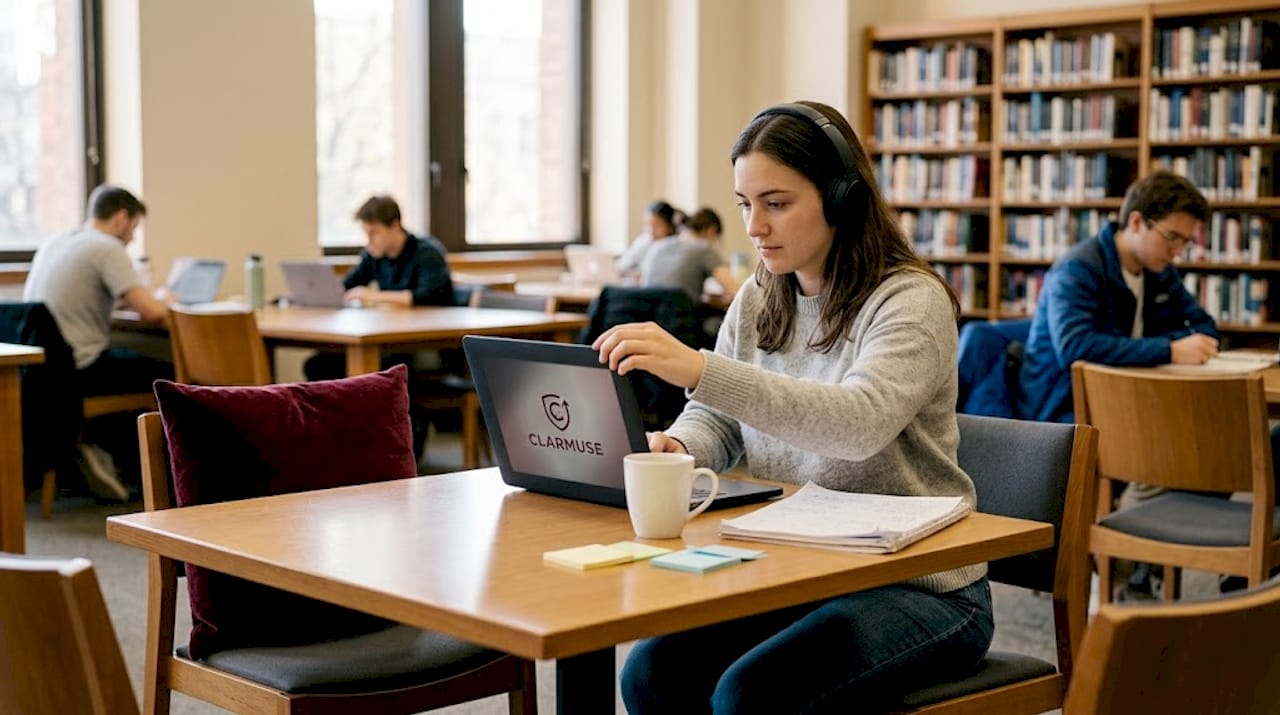
The most direct fix is a physical privacy filter. These narrow the viewing angle so that only the person directly in front of the screen can read it. Sitting with your back to a wall eliminates the angle problem from behind, which is where most opportunistic shoulder surfers operate.
Here is what works in practice:
- Privacy screen filters: Reduce side-angle visibility significantly. Magnetic versions attach and detach in seconds without tools or residue.
- Strategic seating: Corner seats or wall-facing desks cut the number of possible viewing angles from four to one or two.
- Screen tilt: Tilting your screen slightly downward narrows the visible angle from above without affecting your own viewing experience.
- Laptop locks: Kensington-style cable locks can be cut with basic tools quickly. Use them for deterrence, not dependable security.
Pro Tip: Never leave your laptop unattended at a library desk, even for a few minutes. If you must step away, take it with you or ask a trusted neighbor to watch it. Theft takes seconds.
You can also find detailed guidance on MacBook screen positioning for shared spaces, which covers angles and seating strategies in more depth.
3. Digital security best practices for campus networks
Physical protection handles what people can see. Digital protection handles what they can intercept or access. These two areas together form the full picture of protecting your laptop on campus.
Start with access control. Biometric authentication, including fingerprint readers and facial recognition, provides higher resistance to unauthorized access than typed passwords. It also removes the risk of someone watching you type a password over your shoulder.
Key digital practices to implement now:
- Lock your screen immediately every time you step away, even for 30 seconds. On macOS, use Command + Control + Q. On Windows, use Windows + L.
- Enable full-disk encryption. BitLocker on Windows and FileVault on macOS protect your data if your device is lost or stolen. Back up your recovery key to a secure location separate from the laptop itself.
- Verify network SSIDs. Rogue access points mimic legitimate campus networks. Always confirm the exact network name with campus IT before connecting.
- Use a VPN on shared Wi-Fi. VPN encrypts your traffic on public networks but is not a standalone solution. Combine it with strong passwords and two-factor authentication.
- Disable Bluetooth and auto-connect when you are not actively using them. Turning off auto-connect reduces accidental connections to malicious devices in crowded spaces.
- Keep your firewall and antivirus active. Outdated security software is effectively no security software.
Pro Tip: Avoid USB-C charging at unknown public ports. Unknown USB charging ports can be used for data interception. Carry your own charger or use a data-blocking cable if you must use a shared port.
4. Comparing the top privacy tools for campus laptop users
Not every tool fits every situation. Here is how the main options stack up across the factors that matter most for campus use.
| Tool | Protection type | Ease of use | Cost | Key limitation |
|---|---|---|---|---|
| Privacy screen filter | Visual (shoulder surfing) | High | Low to mid | Reduces screen brightness slightly |
| Biometric authentication | Access control | Very high | Free (built-in) | Requires compatible hardware |
| Cable lock (Kensington) | Physical theft deterrence | High | Low | Can be cut with basic tools |
| VPN | Network traffic encryption | Medium | Free to mid | Does not protect against device theft |
| Full-disk encryption | Data protection if stolen | High | Free (built-in) | Recovery key loss = permanent data loss |
| Screen lock shortcut | Access control | Very high | Free | Only effective if used consistently |
The best privacy practices for students are not about picking the most advanced tool. They are about using the right combination of tools consistently. A privacy screen and biometric login together address the two most common campus threats, visual exposure and unauthorized access, with almost no friction added to your daily workflow.
5. Recommended practices for specific campus locations
Different campus environments call for different approaches. The library requires different habits than a campus café, and your dorm common room presents different risks than a lecture hall.
Libraries and quiet study rooms: These spaces typically have predictable seating. Choose a corner position or face a wall. A privacy screen is especially useful here because sessions tend to be long and the risk of extended shoulder surfing increases with time.
Campus cafés and social spaces: These are the highest-risk environments for both visual exposure and network threats. Campus café laptop privacy explained simply is this: treat every open network as hostile until confirmed otherwise. Use a VPN, sit facing outward, and use your privacy filter.
Dorm common rooms: The risks in dorm common rooms include people you actually know. Casual curiosity from roommates or hallmates can expose private messages, grades, or financial information just as effectively as a stranger’s prying eyes.
Lecture halls and classrooms: Screen glare and side-angle viewing are the main issues here. Biometric login and a privacy filter are your best tools. Avoid working on sensitive material during class if you cannot control who sits beside you.
A few additional tips that apply across all locations:
- Use a mobile hotspot for sensitive transactions like banking or accessing private records. Cellular data is far safer than shared campus Wi-Fi for high-stakes sessions.
- Register your laptop with campus security if your institution offers it. Device registration improves recovery odds significantly after theft.
- Keep a record of your laptop’s serial number in a secure location separate from the device itself.
Pro Tip: If your campus IT department publishes a list of approved SSIDs, save that list. When you connect to Wi-Fi in any campus building, verify the network name against the list before entering any credentials.
My take on what actually works in 2026
I have watched students and professionals set up elaborate security configurations and then walk away from their laptop at a coffee shop for five minutes without locking the screen. The technical setup means nothing without the habits to back it up.
In my experience, the two highest-return moves are biometric login combined with a physical privacy screen. Biometrics eliminate the password shoulder-surfing problem entirely, and biometric TPM-based authentication in 2026 is reliable enough to use as your primary layer without hesitation. A privacy screen removes the ambient anxiety of working in public and lets you focus on what you are doing instead of wondering who is reading over your shoulder.
The uncomfortable truth about cable locks is that most people use them as a psychological comfort rather than a real security measure. They signal “this is attended property” to opportunistic thieves, which has value. But if you treat a cable lock as protection against a determined person, you are miscalculating the risk.
What I keep coming back to is this: privacy is a habit, not a product. The students and professionals who maintain good privacy on campus are the ones who lock their screen reflexively, check the network name before connecting, and position themselves thoughtfully in shared spaces. They are not running 12 different privacy apps. They are consistent.
— Gabriel
Protect your MacBook screen from the side angle
If you use a MacBook in libraries, cafés, classrooms, or coworking spaces, the physical exposure problem is one you can solve directly. Clarmuse makes magnetic privacy screens designed specifically for MacBook Air and MacBook Pro models, sized to fit precisely without cutting off your display or cluttering your setup.
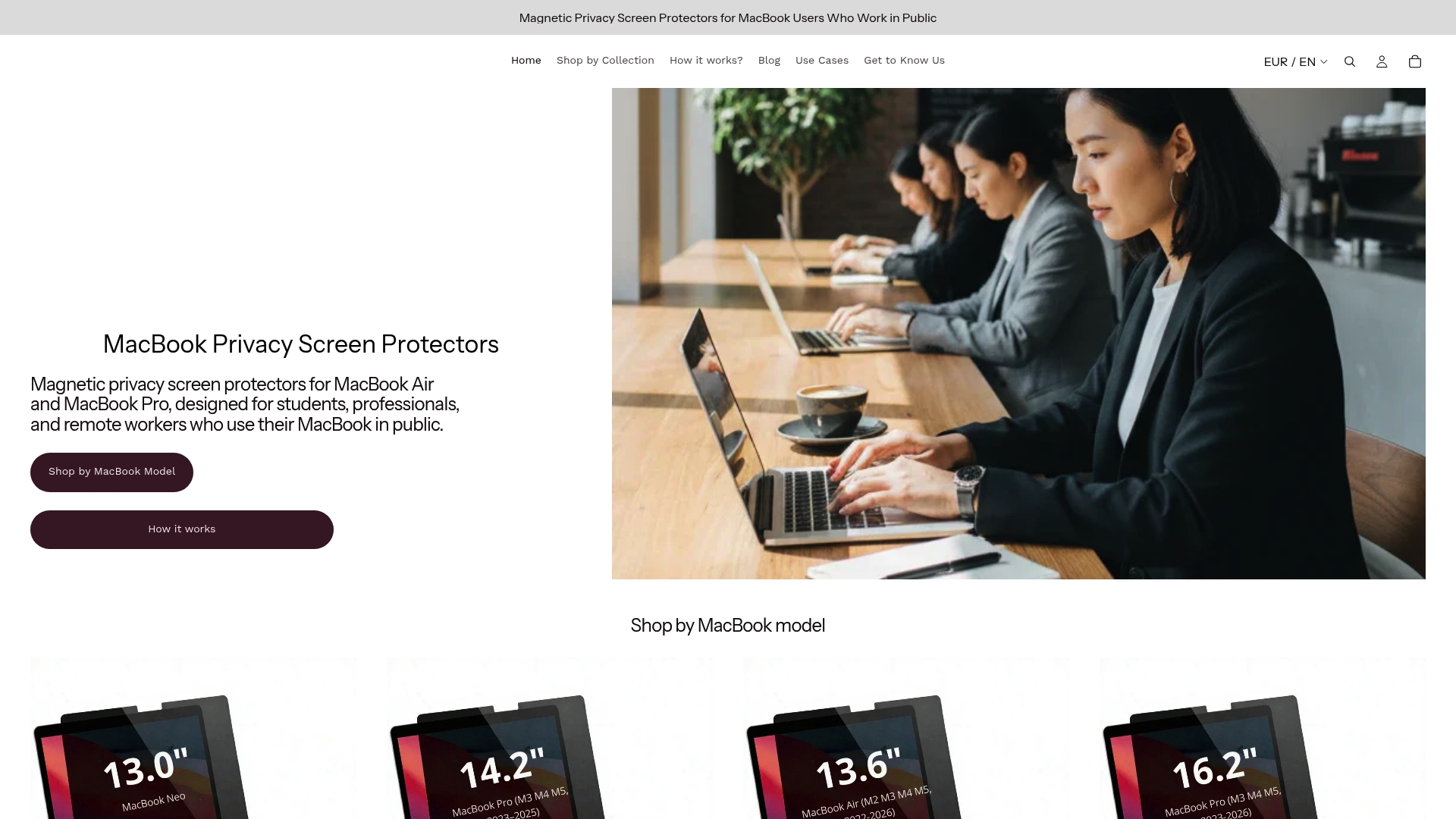
The magnetic attachment means the filter goes on and comes off in seconds. No adhesive, no residue, no awkward frames. If you want to share your screen with a colleague, you remove it in one motion. For everyday solo work in shared spaces, it stays on and narrows the side-angle viewing window significantly. Browse the full range of MacBook Pro magnetic filters to find the right fit for your model, or check the MacBook Air 15.3" option if that is your setup.
FAQ
What are the most effective campus laptop privacy tips?
The most effective combination is a physical privacy screen to block side-angle viewing, biometric authentication to secure device access, and a VPN on shared networks. Consistent screen-locking habits reinforce all three.
Is public campus Wi-Fi safe to use for sensitive work?
Not without precautions. Rogue access points can mimic campus networks, so always verify the SSID and use a VPN. For banking or confidential work, a mobile hotspot using cellular data is a safer choice.
Do laptop cable locks actually prevent theft?
Cable locks deter opportunistic theft but can be cut quickly with basic tools. They are most effective as a visible deterrent, not as a standalone security solution for valuable devices.
How does a privacy screen protect your data on campus?
A privacy screen narrows the display’s viewing angle so that only the person directly in front of the screen can read it. This prevents shoulder surfing in libraries, cafés, and other shared campus spaces.
Should students use biometric login or passwords on campus?
Biometric login, such as fingerprint or facial recognition, is the better option on campus. It prevents someone from watching you type your password and provides faster, more reliable access control than traditional passwords.


