

Cleaning a MacBook screen without damage means using a soft, lint-free microfiber cloth with distilled water or 70% isopropyl alcohol applied to the cloth first, never directly to the display. Apple’s screen coatings, including the oleophobic and anti-reflective layers, are the primary targets of damage when users reach for the wrong materials. The right method takes under five minutes and preserves both your screen’s clarity and your warranty. This guide covers every step, from tools to technique, including special protocols for nano-texture glass found on select MacBook Pro models.
What tools do you need to clean a MacBook screen safely?
Safe MacBook screen cleaning starts with two items: a clean microfiber cloth and distilled or filtered water. Apple ships a polishing cloth with select MacBook Pro models, and WHOOSH sells a screen-cleaning kit that pairs a microfiber cloth with a solution formulated for display coatings. Either option works for standard glass screens.
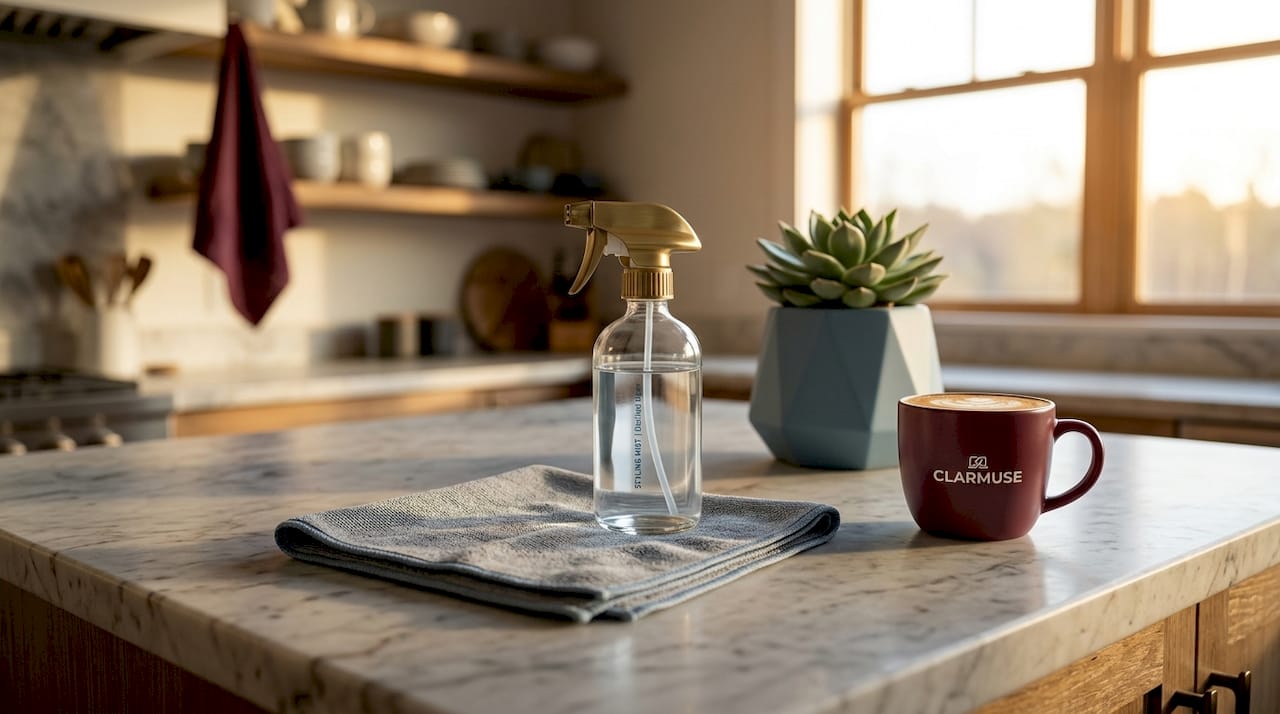
Here is a clear breakdown of what is allowed and what causes damage:
| Cleaning agent | Safe to use? | Notes |
|---|---|---|
| Distilled or filtered water | Yes | Apply to cloth only, never spray on screen |
| 70% isopropyl alcohol | Sparingly | Spot treatment only; repeated use wears coatings |
| Apple polishing cloth | Yes | Required for nano-texture glass |
| WHOOSH screen cleaner | Yes | Apply to cloth, not directly to display |
| Paper towels or tissues | No | Abrasive fibers scratch the coating |
| Window cleaner (Windex) | No | Contains ammonia, destroys anti-reflective layer |
| Household cleaners | No | Banned by Apple for display use |
| Compressed air | No | Forces debris into display edges |
| Acetone or hydrogen peroxide | No | Dissolves oleophobic coating permanently |
The list of banned products is longer than most users expect. Acetone, ammonia, aerosol sprays, and solvents are all explicitly off-limits. These chemicals do not just leave streaks. They strip the coatings that make your screen fingerprint-resistant and glare-free, and that damage is irreversible.
Pro Tip: Keep a dedicated microfiber cloth stored in a small zip-lock bag inside your laptop bag. A cloth that picks up grit from a bag pocket becomes a scratch risk the next time you use it.
How to prepare your MacBook before cleaning the screen
Preparation prevents the most common cleaning mistakes. Power off your MacBook completely and unplug all cables and peripherals before you touch the display. A black screen makes smudges, dust, and fingerprints far easier to see, which means you clean more precisely and miss fewer spots.
Follow these steps before you pick up the cloth:
- Shut down completely. Sleep mode is not enough. A fully powered-off screen is cooler and shows debris more clearly.
- Unplug the charger and all accessories. Removing power eliminates any electrical risk from moisture near ports.
- Place the MacBook on a flat, stable surface. Cleaning a screen held at an angle increases the chance of applying uneven pressure, which can stress the display.
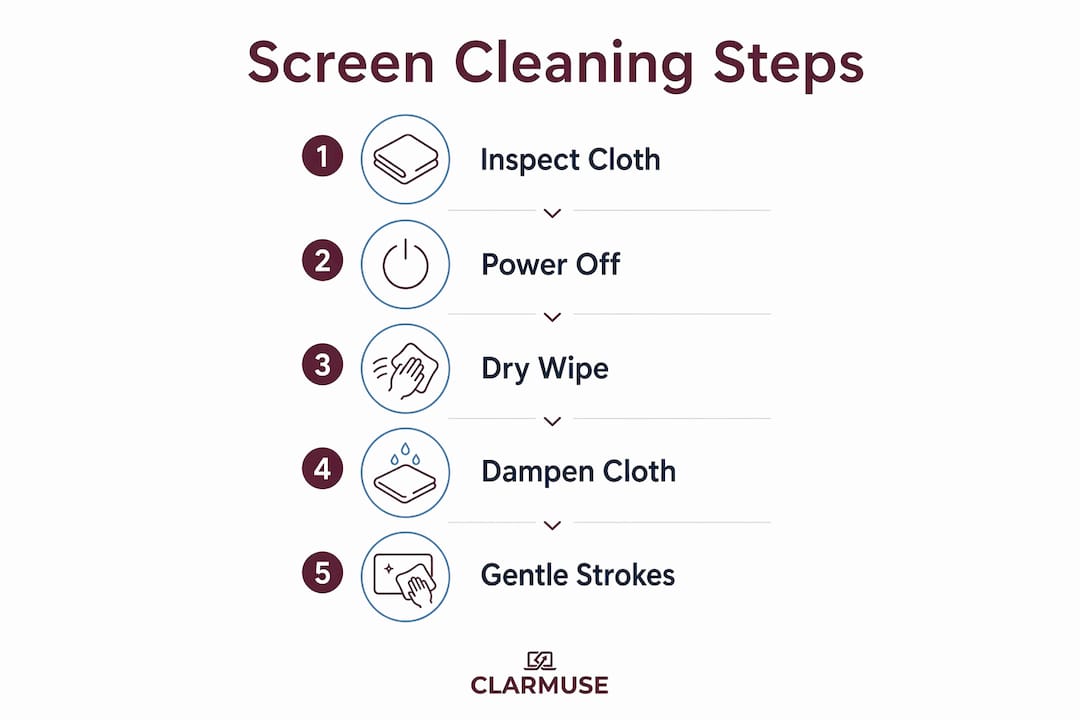
- Inspect your cloth before use. Run your fingers across the cloth surface. Any grit or debris embedded in the fibers will scratch the screen on contact.
- Use good lighting. A desk lamp angled toward the screen reveals smudges that overhead lighting misses entirely.
Pro Tip: Check the cloth under a lamp before every cleaning session. A cloth that looks clean can still carry fine particles from your last use or from sitting in a dusty environment.
The preparation step most people skip is the cloth inspection. A single grain of sand caught in a microfiber cloth can leave a permanent scratch across a MacBook display. Thirty seconds of inspection prevents that outcome.
Step-by-step method to clean your MacBook screen without damage
This is the core process. Follow the order exactly. Skipping steps, especially the dry wipe, is where most screen damage originates.
-
Dry wipe first. Take a clean, dry microfiber cloth and gently wipe the screen in straight horizontal lines from top to bottom. This removes loose dust and particles. Trapped grit on a cloth can scratch the display if you skip this step and go straight to a damp wipe.
-
Dampen the cloth, not the screen. Apply a small amount of distilled water to one corner of the cloth. The cloth should feel barely damp, not wet. Managing moisture at a microphone-level dampness is the standard. Excess liquid pools at the screen edges and seeps under the bezel, reaching internal components.
-
Wipe gently in straight lines. Use light, even pressure across the screen. Work from the top edge downward in overlapping horizontal passes. Avoid circular scrubbing motions on stubborn spots. Pressure does not remove smudges faster. It compresses particles against the coating.
-
Buff dry immediately. Flip to the dry side of the cloth and go over the screen again with the same straight-line motion. Do not let moisture sit on the display. Applying liquid to the cloth instead of the screen prevents liquid from running toward the edges, but prompt drying adds a second layer of protection.
-
Treat stubborn spots with 70% isopropyl alcohol. For fingerprints or marks that distilled water cannot remove, apply a small amount of 70% isopropyl alcohol to the cloth and wipe the specific spot only. Use alcohol sparingly and only when necessary. Do not use it as a routine cleaner.
-
Dry the treated area immediately. After any alcohol application, use the dry side of the cloth to remove all moisture from the treated spot within seconds.
-
Wait before closing or powering on. Give the screen thirty seconds to air dry completely before closing the lid or restarting. This eliminates any residual moisture risk.
Pro Tip: Never wipe in a circular scrubbing pattern on a stubborn smudge. Straight, light passes with a barely damp cloth will lift the smudge without grinding particles into the coating.
What mistakes damage a MacBook screen during cleaning?
The most destructive cleaning mistakes share one pattern: applying the wrong substance with too much force. Understanding what goes wrong helps you avoid it.
- Spraying liquid directly on the screen. Even water can seep under the bezel and reach the display electronics. Always apply liquid to the cloth first.
- Using household cleaners. Products like Windex, 409, or multi-surface sprays contain ammonia and solvents. These chemicals are explicitly banned by Apple because they destroy the anti-reflective and oleophobic coatings.
- Using paper towels or tissues. Both materials contain wood fibers that are abrasive at a microscopic level. A single wipe with a paper towel can leave fine scratches across the display surface.
- Using compressed air near the display edges. Compressed air forces debris and moisture into gaps along the bezel, causing internal damage that is not immediately visible.
- Cleaning while the MacBook is on and warm. Heat accelerates chemical reactions between cleaning agents and screen coatings, increasing the risk of coating degradation.
The oleophobic coating that makes your screen fingerprint-resistant is a thin, applied layer. Once it degrades from chemical exposure or abrasion, it cannot be restored without professional screen replacement.
Avoiding these mistakes is not complicated. The pattern is consistent: use less, use softer, and apply to the cloth first. Every shortcut in this process costs you coating life.
How do you clean a MacBook with nano-texture glass?
Nano-texture glass, found on select high-end MacBook Pro configurations, requires a completely separate cleaning protocol. Apple’s guidance stresses use of the included polishing cloth only. Standard microfiber cloths, even clean ones, are not approved for nano-texture surfaces.
The nano-texture finish is a microscopic etching across the glass surface that reduces glare by scattering light. Regular microfiber cloths can flatten or damage this texture with repeated use. The Apple polishing cloth is designed with a specific weave that cleans without disrupting the nano-texture pattern.
Follow these rules for nano-texture screens:
- Use only the Apple polishing cloth included with the device.
- For stubborn marks, moisten the polishing cloth sparingly with 70% isopropyl alcohol and wipe gently.
- Apply minimal pressure. The nano-texture is more sensitive to mechanical abrasion than standard glass.
- After cleaning, wash the polishing cloth by hand with mild soap and allow it to air dry completely before reuse. Proper cloth maintenance keeps it effective and prevents it from becoming a contamination source.
- Never use a substitute cloth, even temporarily.
Pro Tip: If you own a MacBook Pro with nano-texture glass, store the Apple polishing cloth in its original sleeve and treat it as a dedicated tool. Using it for eyeglasses or other surfaces introduces oils and particles that can then transfer to your display.
The difference between standard and nano-texture cleaning protocols is significant. Check your MacBook’s specifications before choosing your cleaning method. Using the wrong cloth on nano-texture glass can cause permanent surface damage that Apple’s warranty does not cover if caused by improper cleaning.
Key takeaways
Safe MacBook screen cleaning requires a lint-free microfiber cloth, distilled water applied to the cloth only, and 70% isopropyl alcohol reserved strictly for stubborn spots, with all harsh chemicals and abrasive materials excluded entirely.
| Point | Details |
|---|---|
| Dry wipe before any moisture | Remove loose particles first to prevent grit from scratching the coating during damp cleaning. |
| Apply liquid to cloth, not screen | Moisture on the screen surface can seep under the bezel and damage internal components. |
| Avoid banned chemicals | Ammonia, acetone, hydrogen peroxide, and household cleaners permanently degrade screen coatings. |
| Nano-texture needs special care | Use only the Apple polishing cloth; standard microfiber damages the nano-texture surface. |
| Alcohol is a spot treatment only | Repeated isopropyl alcohol use wears the oleophobic coating over time, so limit it to stubborn marks. |
What I have learned from cleaning MacBook screens the right way
The single most underestimated variable in MacBook screen care is cloth condition, not cleaning solution choice. Most people focus on what liquid to use and ignore whether their cloth is actually clean. I have seen screens scratched by a microfiber cloth that looked fine but had picked up a grain of sand from a laptop bag. The solution was right. The cloth was the problem.
For daily users and frequent travelers, I recommend the WHOOSH screen cleaner kit. It pairs a purpose-formulated solution with a high-quality microfiber cloth, and the solution is safe for all MacBook display types. It removes the guesswork around water quality and cloth compatibility. For anyone who uses their MacBook in cafés, coworking spaces, or airports, the screen accumulates fingerprints and smudges faster than home users realize. A quick weekly clean with the right tools takes three minutes and keeps the display performing at full clarity.
The frequency question matters more than most guides acknowledge. A screen cleaned monthly with the correct method stays in better condition than one cleaned weekly with the wrong materials. Patience and technique preserve coatings far longer than any cleaning product alone. You can find a detailed breakdown of the most common screen mistakes worth reviewing before your next cleaning session.
— Gabriel
Protect your screen between cleanings with Clarmuse
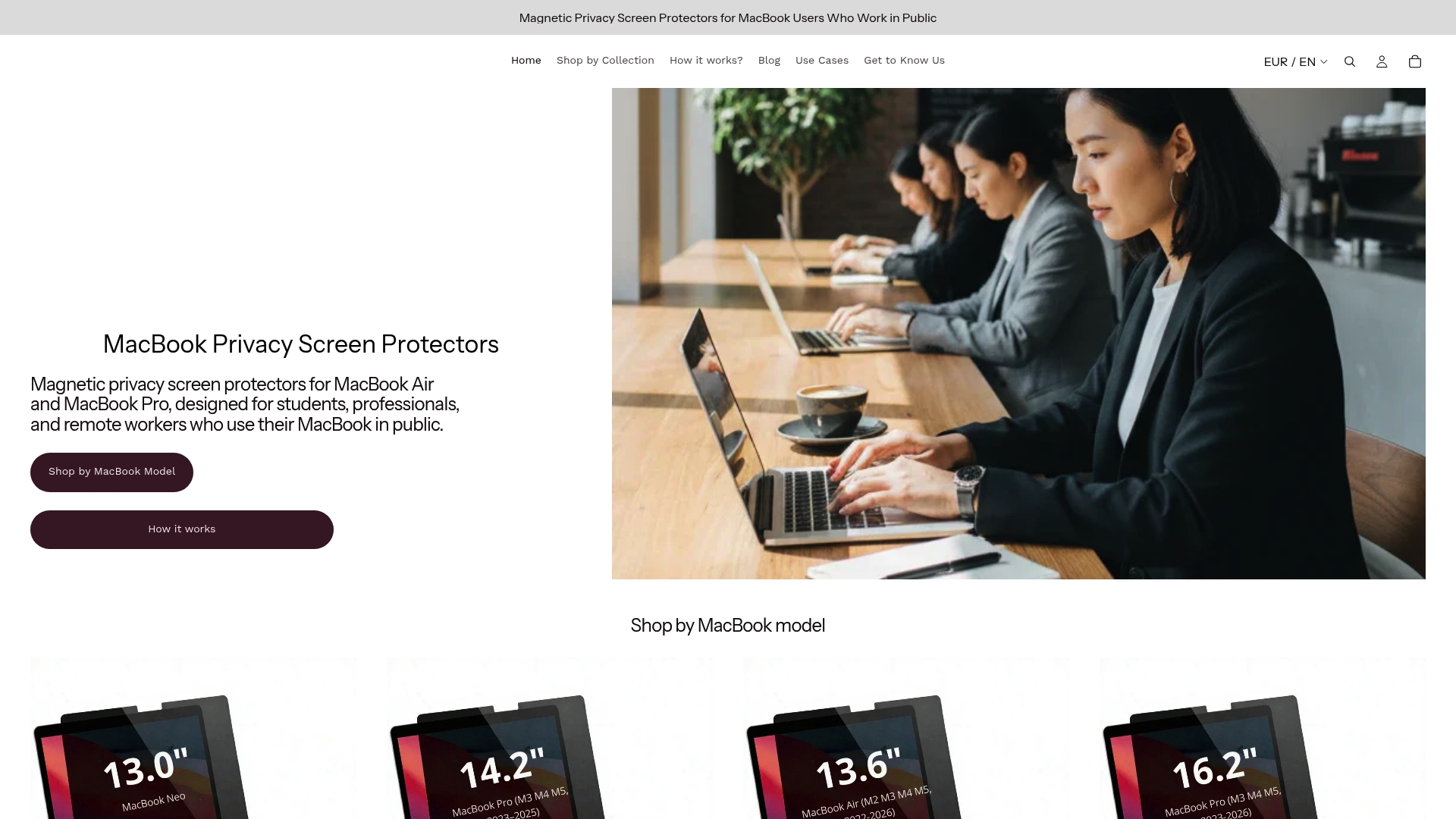
Cleaning your MacBook screen correctly extends its life. Protecting it between cleanings extends it further. Clarmuse magnetic privacy screen protectors attach without adhesive, fit MacBook Air and MacBook Pro models precisely, and reduce the fingerprints and smudges that make frequent cleaning necessary in the first place. The magnetic attachment means no residue on your display and no risk of coating damage from adhesive removal.
For anyone working in cafés, libraries, airports, or open offices, a Clarmuse filter also blocks side-angle visibility, so your screen stays private and cleaner. Browse the full range of MacBook Pro privacy filters or explore screen protectors for all MacBook models to find the right fit for your device.
FAQ
What is the safest way to clean a MacBook screen?
The safest method uses a soft, lint-free microfiber cloth dampened with distilled water, applied to the cloth only and never sprayed directly on the screen. Wipe gently in straight lines, then buff dry immediately with the dry side of the cloth.
Can I use isopropyl alcohol on my MacBook screen?
70% isopropyl alcohol is allowed as a spot treatment for stubborn marks, applied to the cloth first and never directly to the screen. Avoid using it routinely, as repeated application wears the oleophobic coating over time.
What cleaners should I never use on a MacBook screen?
Avoid any product containing ammonia, acetone, hydrogen peroxide, solvents, or aerosol sprays. Window cleaners, household multi-surface sprays, and abrasive materials like paper towels all damage MacBook screen coatings permanently.
How do I clean a MacBook with nano-texture glass?
Use only the Apple polishing cloth included with the device. For hard-to-remove marks, moisten the polishing cloth sparingly with 70% isopropyl alcohol. Standard microfiber cloths are not approved for nano-texture surfaces and can damage the finish.
How often should I clean my MacBook screen?
For daily users, a light dry wipe every few days and a full damp clean once a week is sufficient. Travelers and café workers may need more frequent cleaning due to higher fingerprint and dust accumulation.


