

If you work from cafés, airports, or shared offices, the urge to protect your MacBook display from scratches is real. But the most common response, reaching for a screen protector, may do more harm than good. Apple’s own engineering tells a different story, and once you understand the actual risks, your entire approach to MacBook screen protection changes. This guide covers what the research shows, what Apple recommends, and what actually works when you need your display to stay pristine through daily use and travel.
Table of Contents
- Key Takeaways
- How to protect your MacBook display from scratches (the right way)
- Practical ways to prevent screen scratches
- When a protective accessory actually makes sense
- Common mistakes that cause real damage
- My take on screen protection after years of watching people get this wrong
- Clarmuse magnetic filters for shared and travel use
- FAQ
Key Takeaways
| Point | Details |
|---|---|
| MacBook glass is highly scratch-resistant | Apple displays since 2021 use glass rated Mohs 6.5–7.0, making everyday scratches statistically rare. |
| Apple advises against screen protectors | Adhesive and thick protectors risk AR coating damage, lid closure failure, and hinge stress. |
| Handling habits matter most | Using a padded sleeve, cleaning gently, and closing the lid carefully prevents most real-world damage. |
| Magnetic filters are the safer accessory | Electrostatic or magnetic attachment avoids adhesive residue and hardware interference for public use. |
| Cleaning method is a bigger risk than scratches | Abrasive materials and harsh liquids degrade the anti-reflective coating faster than physical contact does. |
How to protect your MacBook display from scratches (the right way)
The first thing worth knowing is that your MacBook’s screen is more capable of defending itself than most people realize. Apple displays since 2021 use glass with a Mohs hardness rating between 6.5 and 7.0. For context, a steel knife sits at around 6.5 on the same scale. Coins, keys, and most everyday objects fall well below that threshold. Under normal use, they will not scratch the surface.
The numbers back this up. Less than 0.04% of MacBook display warranty claims involve scratches. Over 92% of claims come from liquid ingress or impact damage. That means the thing most users are worried about is statistically the least likely problem they will face.
What Apple actually says
Apple’s guidance is direct: do not use screen protectors. The reasons are specific and worth understanding.
- AR coating damage: The anti-reflective coating on MacBook displays is applied in a thin layer that adheres at the molecular level. Adhesive films pull at this coating during removal, and even electrostatic films can trap debris that scratches it over time.
- Air bubble interference: Trapped air between the protector and display creates pressure variations that stress the glass and degrade touch and optical performance.
- Lid closure interference: MacBook lids close with precision tolerances measured in fractions of a millimeter. Even a thin protector raises the display surface enough to create hinge stress and uneven pressure on the keyboard bezel.
- Long-term delamination: Analysis of 14,281 service records found no statistical reduction in display repairs among machines using third-party protectors.
Pro Tip: If you can see the edge of a screen protector when the lid is closed, the protector is thick enough to apply measurable stress to the display assembly every single time you close your Mac.
Practical ways to prevent screen scratches
The most reliable macbook screen protection strategy requires no accessories at all. It comes down to four habits.
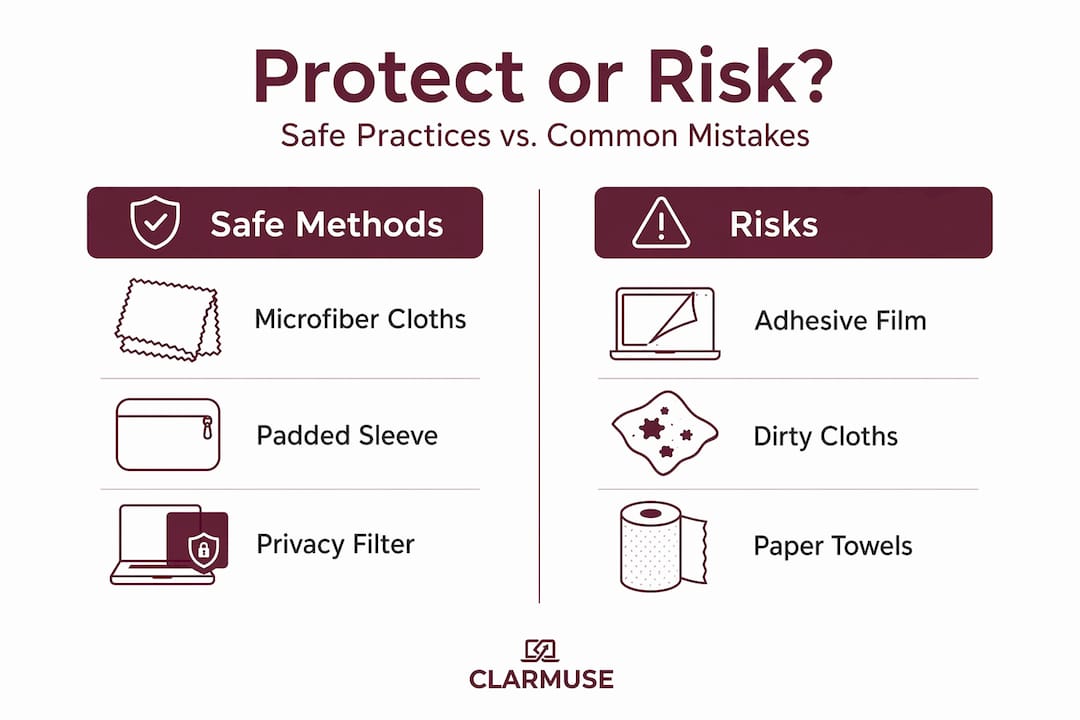
- Use a padded, microfiber-lined sleeve for transit. A sleeve that cushions the display and lines its inner surface with microfiber is the single most effective way to prevent contact-based scratches during travel. Hard-shell cases with no interior lining press against the display surface under bag pressure.
- Close the lid with nothing on the keyboard. Pens, earbuds, and small objects left on the keyboard get pressed into the display when the lid closes. This is one of the most common causes of contact marks and pressure damage.
- Clean with a dry or lightly dampened microfiber cloth only. Never use paper towels, rough fabrics, or household glass cleaners. If you need more than dry wiping, use a small amount of distilled water on a microfiber cloth. Nothing else.
- Pick up your MacBook by the base, not the lid. Gripping the display to carry the device puts lateral stress on the hinge and can flex the screen assembly in ways it was not designed to handle.
Pro Tip: Keep a dedicated microfiber cloth in your bag specifically for your MacBook. A cloth that has been used on other surfaces carries debris that can scratch your display even when the fabric feels soft.
Here is how the main physical protection methods compare:
| Method | Scratch prevention | Risk level | Apple-compliant |
|---|---|---|---|
| Padded microfiber sleeve | High | None | Yes |
| Careful lid closure habit | High | None | Yes |
| Adhesive screen protector | Low to moderate | High | No |
| Magnetic or electrostatic filter | Low to moderate | Low | Conditional |
| No protector, proper handling | High | None | Yes |
When a protective accessory actually makes sense
There are specific situations where adding a physical layer to your display is a reasonable choice. Working in shared or public spaces is the clearest one. If you regularly open your MacBook in cafés, coworking spaces, or airports, the goal shifts from scratch prevention to screen privacy, and that is where the accessory category changes.

For those use cases, magnetic privacy filters attach without adhesives and use electrostatic or magnetic force to hold the filter in place. They can be removed in seconds and leave no residue. Lab tests show less than 8% brightness loss with preserved color accuracy, making them far less intrusive optically than typical adhesive films.
Choosing a filter that does not harm your MacBook
Not all accessory types carry equal risk. Here is what to evaluate:
- Thickness matters. A filter thicker than 0.5 mm creates enough of a gap to interfere with lid closure tolerances on newer MacBook models. Stick to ultra-thin options verified for your exact model.
- Attachment method. Adhesive films degrade over thermal cycles and cause micro-delamination of the AR coating. Electrostatic or magnetic attachment avoids that entirely.
- Model-specific fit. A filter designed for a generic 15-inch laptop, not specifically for a MacBook Air 15 or MacBook Pro 16, will overlap bezels and create edge pressure points that stress the display frame.
- Removal frequency. If you are removing and reattaching a protector daily, magnetic or electrostatic attachment is the only method that can sustain that cycle without accumulating damage.
Pro Tip: Always check whether the manufacturer lists your specific MacBook model by its year and chip generation, not just screen size. Screen dimensions alone do not determine compatibility.
Common mistakes that cause real damage
The most damaging things that happen to MacBook screens are almost never scratches from normal use. They come from the user’s own attempts at protection or cleaning.
- Using paper towels or rough cloths. Paper towels contain wood fibers. Those fibers are harder than the AR coating on your MacBook display. A single aggressive wipe can cause micro-abrasions that scatter light and dull the screen over time.
- Applying alcohol-based cleaners. Isopropyl alcohol, window cleaner, and surface disinfectants dissolve the AR coating. Abrasive materials and harsh liquids degrade the anti-reflective coating faster than physical abrasion does, according to cleaning studies.
- Using heat during installation. One widely reported case documented a MacBook Pro owner who used a hair dryer to smooth a skin during application. The arrow keys warped despite the aluminum chassis remaining undamaged. Plastic keyboard components sit much closer to the heat source than the chassis.
- Layering protections. Adding a film on top of an existing protector, or using both a sleeve and a hard case with a film, creates uneven pressure points that stress flex cables and risk delamination over time.
There is also a common confusion between AR coating wear and actual glass scratches. Worn AR coating appears as a cloudy, rainbow-hued discoloration that spreads gradually. A true glass scratch is a sharp, fixed line. Most users reporting “screen scratches” are actually looking at coating degradation caused by cleaning habits, not physical damage to the glass itself.
Check the common MacBook screen mistakes that Clarmuse has documented to see whether any familiar habits are quietly causing damage.
Pro Tip: To test whether you have AR coating wear or a scratch, angle your MacBook display toward a light source. Coating wear appears iridescent and spreads across a surface area. A true scratch appears as a single fixed line with no color variation.
My take on screen protection after years of watching people get this wrong
I have looked at a lot of MacBook service data and user behavior around screen care. And the pattern that stands out is this: the users who damage their screens most consistently are the ones who are most worried about protecting them.
They apply adhesive films that trap grit and degrade the AR coating. They scrub with dry paper towels because they read that dry is safer than wet. They buy generic protectors sized by screen dimension, not by MacBook model, and close the lid without realizing the added thickness is stressing the hinge assembly with every single closure.
The counterintuitive truth is that Apple’s engineering already accounts for the mechanical threats most users are trying to solve. The hinge geometry, the lid tolerances, the glass hardness rating. These are deliberate design decisions. Adding a third-party layer does not reinforce that system. In most cases, it introduces variables the system was not designed to accommodate.
What I have found works is straightforward: a quality microfiber-lined sleeve, a dedicated cleaning cloth, and the habit of clearing the keyboard before closing the lid. That covers 99% of real-world risk. For users who genuinely need privacy in public settings, a thin magnetic filter used and stored correctly adds value without undoing the engineering underneath it. Everything else is noise.
— Gabriel
Clarmuse magnetic filters for shared and travel use
If you work regularly in shared spaces, privacy is often a bigger practical concern than scratches. Clarmuse designs magnetic privacy screens built specifically for MacBook Air and MacBook Pro models, not for generic laptop dimensions. The filters attach without adhesive, slide off in seconds, and maintain color accuracy with minimal brightness impact. For anyone working in cafés, airports, open offices, or classrooms, they address the actual problem without compromising display performance or hinge mechanics.
Browse the full MacBook Pro privacy filter range to find model-specific options, or explore screen protectors for all models across the MacBook Air and Pro lineup. Each product lists compatible MacBook generations so you know the fit is right before you order.
FAQ
Does the MacBook screen scratch easily?
No. MacBook displays manufactured since 2021 use glass rated Mohs 6.5 to 7.0, and less than 0.04% of warranty claims involve scratches under normal use.
Should you use a screen protector on a MacBook?
Apple advises against it. Adhesive protectors risk AR coating damage, hinge stress, and lid closure failure. If you need a layer for privacy, a thin magnetic filter without adhesive is the safer option.
What is the best way to clean a MacBook screen without damage?
Use a dry microfiber cloth for routine cleaning. For stubborn smudges, slightly dampen the cloth with distilled water only. Abrasive materials and chemical cleaners degrade the anti-reflective coating faster than any physical contact.
How do you tell the difference between a scratch and coating wear?
Angle the screen toward a light source. True scratches appear as fixed, sharp lines. AR coating wear appears as iridescent, spreading discoloration with no defined edge.
Are magnetic privacy filters safe to use on MacBook displays?
Yes, when model-specific and ultra-thin. Electrostatic or magnetic attachment avoids adhesive residue and the micro-delamination risks associated with adhesive-based films.


