

Strong passwords, encrypted drives, and VPNs get most of the attention when people talk about laptop security. But there is a threat that no software patch can fix: the person sitting next to you at the coffee shop, reading every word on your screen. MacBook users who work or study in public spaces face real risks from visual data leaks, and most never think about it until it is too late. This article breaks down exactly what laptop visual security means, how privacy screen technology works, and what to look for when choosing the right accessory for your MacBook model and workflow.
Table of Contents
- What is laptop visual security?
- How privacy screens work: The technology explained
- Benefits and trade-offs of privacy screens for MacBook users
- Choosing the right privacy screen: Removable and magnetic options
- A practical reality: Visual privacy is just one layer of security
- Find the best privacy screens for your MacBook
- Frequently asked questions
Key Takeaways
| Point | Details |
|---|---|
| Visual privacy defined | Laptop visual security protects screen content from nearby onlookers. |
| Micro-louver technology | Privacy screens use micro-louver tech to narrow viewing angles. |
| Benefits and trade-offs | Privacy screens offer comfort but may reduce brightness and require more battery. |
| Magnetic and removable designs | MacBook users can select magnetic screens for easy switching and full laptop closure. |
| Layered security | For complete protection, combine visual privacy with digital and physical safeguards. |
What is laptop visual security?
Laptop visual security refers to protecting the information displayed on your screen from being viewed by unauthorized people nearby. It is a physical, real-world concern rather than a digital one, and it applies any time you open your MacBook in a shared space.
The most common threat is called shoulder surfing: someone nearby, whether intentionally or casually, reads your screen without your knowledge. This can happen in a coworking space, on a train, in a library, or even at a hotel lounge. The viewer does not need to be a sophisticated attacker. A nearby colleague, a curious stranger, or someone using a camera phone at the right angle can all capture sensitive information without any hacking skills at all.
As Lenovo’s privacy filter glossary defines it, laptop visual security most commonly refers to using a privacy screen or filter to limit who can see your display. These accessories sit on top of your screen and restrict the viewing angle so that only the person directly in front can read the content clearly.
Common visual threats MacBook users face include:
- Shoulder surfing from adjacent seats in cafés, trains, and open offices
- Camera phones capturing screens at angles during video calls or in lounges
- Casual onlookers in libraries, classrooms, or airport terminals
- Conference room setups where screens face multiple people at once
It is important to note that a privacy screen is not a replacement for digital security. As ExpressVPN explains, privacy screens are a mitigation for casual visual interception, not a shield against malware, network attacks, or data breaches. They work alongside your other protections, not instead of them. Understanding how privacy filters work at a technical level helps you set realistic expectations.
“A privacy screen does one specific job well: it limits who can see your screen at any given moment. That is a meaningful layer of protection in public spaces, and it is one that software simply cannot replicate.”
How privacy screens work: The technology explained
Understanding what makes up laptop visual security, let’s explore how the technology behind privacy screens actually works.
The core technology in most privacy screens is called micro-louver technology. Think of it like a set of very small vertical blinds built into a thin film layer. Each louver is a tiny channel that directs light straight forward and blocks it at side angles. When you look at your screen from directly in front, you see a clear, normal image. When someone looks from the side, they see only a dark or blurred display.
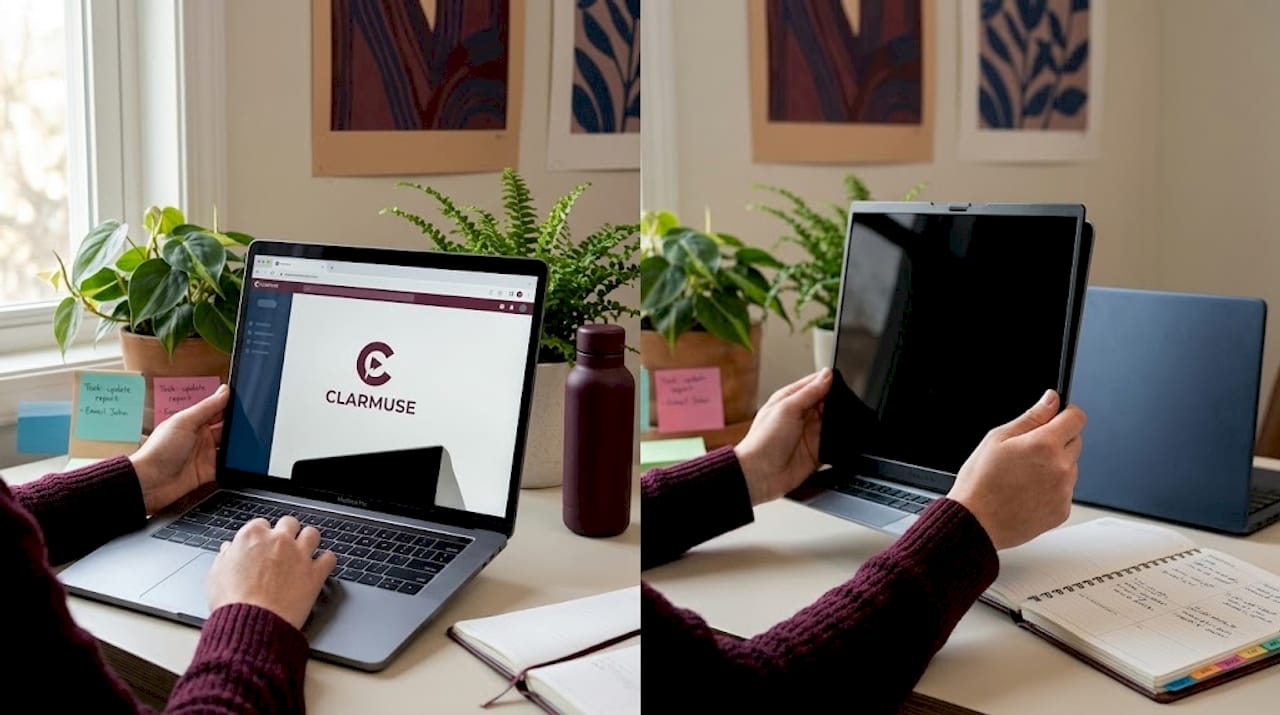
Kensington’s security blog confirms that privacy screens use micro-louver technology to narrow the viewing angle, making side views effectively unreadable. The precise angle cutoff matters a lot in practice.
ExpressVPN’s breakdown explains that Kensington and similar manufacturers limit the viewing angle to approximately plus or minus 30 degrees using this micro-louver approach. That means anyone sitting more than 30 degrees to your left or right sees a dark screen.
Here is how different viewing angles affect screen visibility:
| Viewing angle | Screen visibility | Practical scenario |
|---|---|---|
| 0 degrees (direct front) | Full clarity | You, the MacBook owner |
| 15 to 25 degrees off center | Slightly reduced | A nearby collaborator |
| 30 to 45 degrees off center | Heavily darkened | Adjacent seat at a café |
| 60 degrees or more | Essentially blacked out | Shoulder surfer across aisle |
Fit matters just as much as the filter technology itself. A privacy screen that does not match your specific MacBook model leaves gaps at the edges, which can allow partial side views and reduce the effectiveness of the blackout cone. This is why MacBook-specific sizing exists.
Key factors that affect real-world performance include:
- Screen size match to your exact MacBook model
- Edge coverage and how flush the filter sits on the display
- Screen clarity at your primary direct viewing angle
- Thickness of the micro-louver layer
If you are exploring MacBook privacy screen options for the first time, sizing accuracy should be your starting point before evaluating any other feature. For example, the Magnetic privacy screen for Air 15.3 is built to the exact dimensions of that specific display panel so the blackout zone covers the full screen area without gaps.
Benefits and trade-offs of privacy screens for MacBook users
With the technology understood, it is time to weigh the real-world benefits and trade-offs of using a privacy screen on your MacBook.
Benefits of using a privacy screen
The most obvious benefit is privacy itself. When you work on confidential documents, client data, financial records, or personal communications in a public space, a privacy screen gives you a practical layer of control over who sees that information. You do not have to constantly reposition yourself or lower your brightness to hide your work.
Beyond privacy, many users report genuine comfort improvements. Kensington’s security blog notes that added anti-glare and blue-light filtering features reduce reflections and eye fatigue. Working for several hours under café lighting or fluorescent office lights is harder on your eyes without these filters. Anti-glare coatings reduce light bounce from overhead sources, and blue-light filtering can ease the strain that comes from extended screen time.
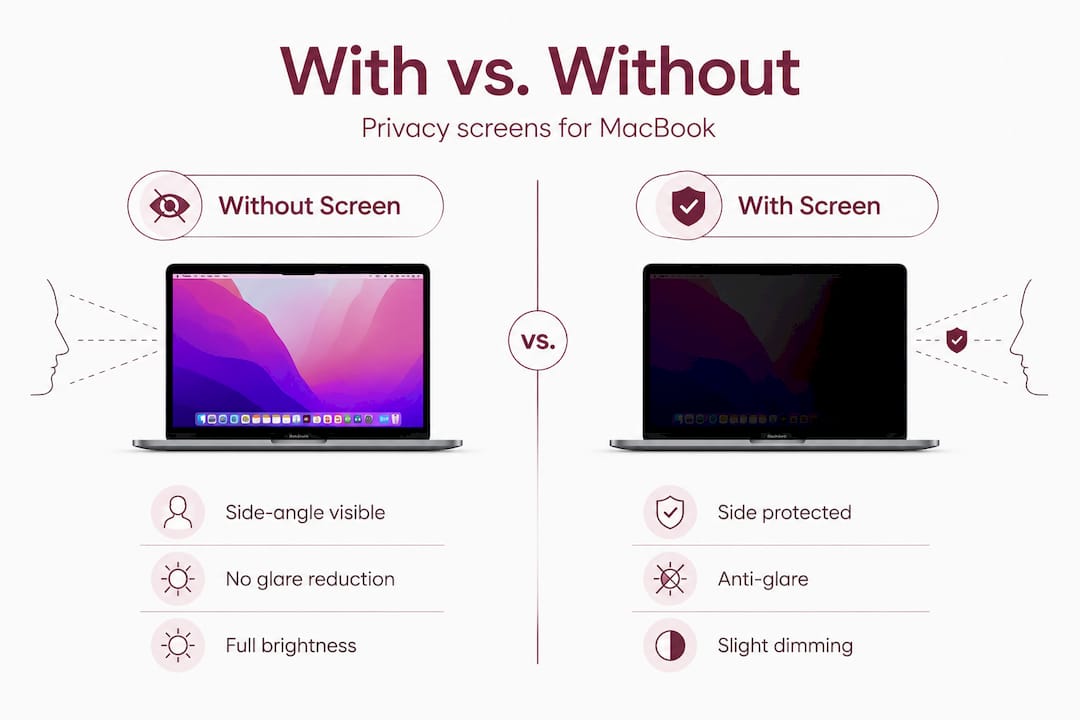
Here is a direct comparison of working with and without a privacy screen:
| Feature | Without privacy screen | With privacy screen |
|---|---|---|
| Side-angle visibility | Fully visible to neighbors | Blocked beyond 30 degrees |
| Glare from overhead lights | High in bright environments | Reduced by anti-glare coating |
| Blue-light output | Standard display output | Filtered for reduced exposure |
| Screen brightness | Full display brightness | Slightly reduced at front view |
| Setup time | None required | Seconds with magnetic attachment |
Trade-offs to consider
Kensington’s security blog also notes that privacy screens may slightly reduce brightness due to the microlouver layer. In very bright outdoor settings, this can mean you need to increase your display backlight to maintain comfortable visibility. This draws slightly more battery power over a long session.
The key trade-offs to account for:
- Brightness reduction: Expect a modest dimming effect at your direct viewing angle. Increase backlight by one or two steps to compensate.
- Color accuracy: Some filters alter color temperature slightly. For most office and writing work this is not a problem, but design professionals should test carefully.
- Screen texture: Anti-glare coatings add a matte texture to the display surface that some users prefer, while others find it reduces sharpness.
- Collaboration limits: In situations where you want a colleague to view your screen from the side, you will need to remove or angle the screen.
Pro Tip: In bright public spaces like airport lounges or outdoor café terraces, raise your MacBook backlight by two to three steps after attaching your privacy screen. This offsets the filter’s light reduction and keeps your display comfortable without affecting your battery significantly during a short session.
You can review full privacy filter details to understand exactly how each feature affects your daily viewing experience. If you use multiple MacBook models, check screen protectors for all models to find the right fit for each device.
Choosing the right privacy screen: Removable and magnetic options
Now that you understand both benefits and drawbacks, let’s break down how to select the best privacy screen features for your needs as a MacBook user.
The single most important practical feature for everyday MacBook users is removability. If you work in a mix of private and collaborative settings throughout the day, you need a filter you can take off quickly without leaving residue, scratching your display, or losing the accessory entirely.
Magnetic privacy screens address this directly. As Kensington’s MagPro Elite product page explains, magnetic privacy screens attach and detach without adhesives and allow your MacBook to fully close and enter sleep mode while the screen is still attached. That is a significant practical advantage for anyone who moves between meetings, desks, or transport throughout the day.
Key factors to evaluate when choosing a MacBook privacy screen:
- Model-specific fit: Verify the filter matches your exact MacBook Air or MacBook Pro screen size. Even a few millimeters off will leave gaps in the blackout zone.
- Magnetic vs. adhesive attachment: Magnetic options allow clean, fast removal. Adhesive options are lower cost but less convenient for daily on-and-off use.
- Anti-glare finish: Useful for bright environments. Matte coatings are especially helpful in café or open-plan office settings.
- Blue-light filtering: A practical feature for extended work sessions. Check whether the filter is built in or requires a secondary product.
- Storage: Some magnetic designs include a case or frame that makes carrying the screen easy during travel.
Pro Tip: Always verify the screen size designation of your MacBook before purchasing. Apple names MacBook screens by diagonal display size, but older and newer models with the same size designation may have different physical dimensions due to bezel changes. Check the model year and chip generation alongside the screen size.
For MacBook Pro users, the magnetic screen for Pro 14.2 is built to match the Pro 14.2-inch display geometry precisely. For MacBook Air users across different generations, both the magnetic screen for Air 13.3 and the magnetic screen for Air 13.6 are available as model-specific options that account for the dimensional changes between those generations.
A practical reality: Visual privacy is just one layer of security
Having explored the practical applications of privacy screens, it is worth stepping back and placing visual security in its proper context within a complete approach to protecting sensitive work.
The common assumption is that owning a privacy screen means your MacBook sessions in public are secure. That belief is worth examining carefully. A privacy screen does one thing: it makes your display hard to read from the side. It does not encrypt your data, lock your device, protect your network connection, or prevent someone from walking off with your laptop while you are at the counter ordering coffee.
Kensington’s security blog frames privacy screens clearly as useful low-tech physical controls for public work, but positions them as complementary to stronger cybersecurity practices rather than standalone solutions. That framing matters. The most secure approach layers multiple controls together.
ExpressVPN’s analysis reinforces this, noting that privacy screens mitigate shoulder surfing but do not protect against device theft or hidden camera recording. A well-placed camera on a shelf behind you, angled at your keyboard, captures keystrokes regardless of what is on your screen.
A practical layered security approach for public MacBook use looks like this:
- Visual layer: Privacy screen for side-angle display blocking
- Digital layer: Password manager, VPN on public networks, encrypted storage
- Physical layer: Never leaving your device unattended, cable locks in fixed workspaces
- Behavioral layer: Screen lock on sleep, awareness of surroundings, avoiding sensitive work on crowded transport
Visual privacy screens for office work fit into the visual layer of this stack. They are not optional if you regularly work in open environments. But they work best when the other layers are active too.
The uncomfortable truth is that most people who buy a privacy screen stop thinking about security after that purchase. The filter gives a sense of control that can actually lower overall vigilance. Treat the privacy screen as the starting point of your public-space security setup, not the end of it.
Find the best privacy screens for your MacBook
If you work, study, or travel with your MacBook in shared spaces, Clarmuse offers magnetic privacy screens built specifically for MacBook Air and MacBook Pro models. Each screen is sized to your device, attaches without adhesives, and removes cleanly when you need to share your display with others.
Whether you use a MacBook Pro or Air, Clarmuse has model-specific options designed for everyday use in cafés, coworking spaces, airports, libraries, and open offices. Browse MacBook Pro privacy screens or explore the full MacBook Air privacy screens collection to find the right fit for your device and workflow. The Pro 14.2 privacy screen is a good starting point for MacBook Pro users looking for a precise-fit magnetic option.
Frequently asked questions
Do privacy screens affect MacBook brightness?
Yes, most privacy screens slightly reduce display brightness due to the microlouver layer, so you may need to raise your backlight one or two steps in bright environments.
Can you use a privacy screen with a MacBook closed or in sleep mode?
Magnetic privacy screens are designed so your MacBook can fully close and enter sleep mode while the screen remains attached, as confirmed for magnetic screen designs that do not require removal before closing.
Does a privacy screen protect against recording or device theft?
Privacy screens reduce side-angle visibility but, as ExpressVPN notes, they do not stop hidden camera recording or protect your device from physical theft.
What features should I look for when choosing a MacBook privacy screen?
Prioritize an exact model fit, magnetic attachment for easy removal, and built-in anti-glare and blue-light filtering to reduce reflections and eye fatigue during long sessions.


