

Minimalist MacBook setup design is defined by one principle: every accessory must consolidate function, not add complexity. The role of MacBook accessories in a minimalist setup is to replace a tangle of cables and adapters with a small number of multifunctional devices that handle power, display, data, and ergonomics together. A USB-C hub, a laptop stand, and a disciplined cable strategy are the three categories that separate a clean, productive workspace from a cluttered one. This article covers how to select and integrate each category for shared spaces, mobile work, and fixed desks alike.
How do USB-C hubs and docks enable minimalist MacBook workstations?
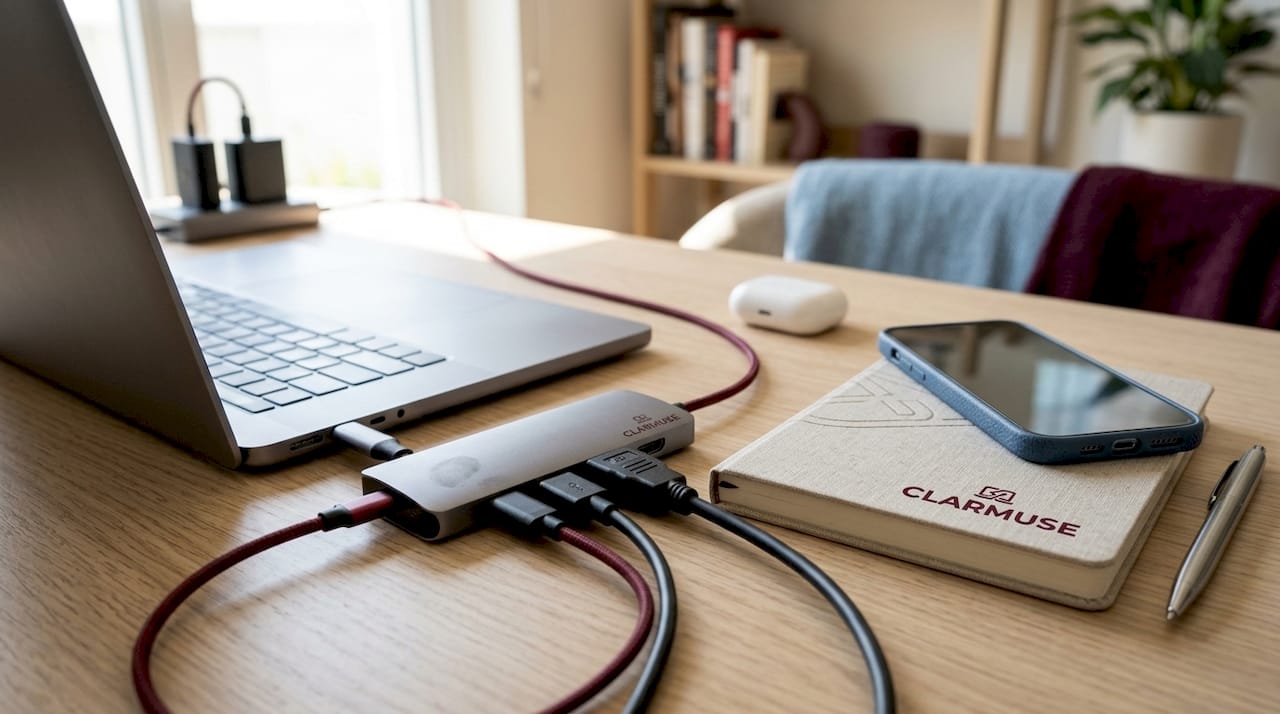
A single-cable workstation is the defining feature of a minimalist MacBook desk. One Thunderbolt or USB-C cable connects the MacBook to a hub or dock, which then distributes power, display output, keyboard, mouse, and storage. That single connection replaces five or six individual cables plugged directly into the laptop. The result is a desk that looks clear and resets in seconds when you need to leave.
Portable hubs versus full docking stations
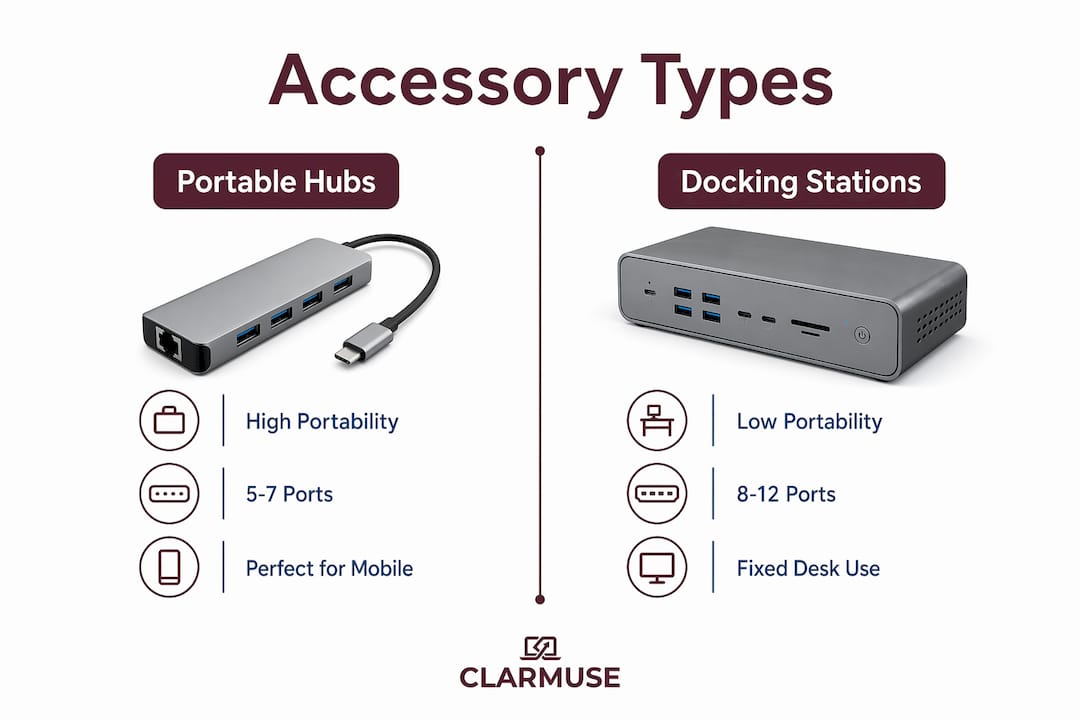
The choice between a portable hub and a full docking station comes down to how often you move. Portable hubs, such as the Essential Connection Kit Pro Hub, are compact units that bundle video, data, and charging into a device small enough to carry in a bag. They typically offer HDMI output, two to three USB-A ports, an SD card reader, and 100W Power Delivery charging. A full docking station, such as the Manhattan 7-in-1 dock, sits permanently on a desk and adds Ethernet, more USB ports, and sometimes dual display support. It is heavier and not designed for daily transport.
| Feature | Portable Hub | Docking Station |
|---|---|---|
| Portability | High | Low |
| Port count | 5-7 | 8-12 |
| Power Delivery | Up to 100W | Up to 100W+ |
| Dual monitor support | Limited | Often available |
| Best for | Mobile or shared work | Fixed desk setups |
Power Delivery at 100W is the threshold that matters. Anything below 60W will charge a MacBook Pro slowly or not at all under load. Confirm the hub’s PD wattage before purchasing.
Pro Tip: If you work from cafés or coworking spaces more than three days a week, choose a portable hub over a dock. The Essential Connection Kit Pro Hub fits in a jacket pocket and handles 4K HDMI output plus full charging without requiring a power brick.
One underrated option for fixed desks is an under-desk dock mount. The SlideUnder Standard, for example, delivers 100W charging and 40Gbps bandwidth while hiding the MacBook entirely beneath the desk surface. The laptop becomes invisible, cables are routed out of sight, and the desk surface stays completely clear.
Why ergonomic accessories matter in minimalist MacBook setups
Ergonomics in a minimalist MacBook setup is not about adding more gear. It is about treating the accessories you already have as a coordinated system. A laptop stand raises the screen to eye level, which prevents neck strain during long sessions. But raising the screen only works if you also add an external keyboard and mouse, because the built-in keyboard becomes too low once the screen is elevated. Changing one accessory affects keyboard position, mouse placement, screen alignment, and cable routing simultaneously.
The practical checklist for an ergonomic minimalist setup:
- Screen height: The top of the external monitor or elevated MacBook screen should sit at or just below eye level.
- Keyboard position: Wrists should be flat or slightly declined, not bent upward. Apple Magic Keyboard is thin enough to maintain this angle naturally.
- Mouse placement: The mouse should sit at the same height as the keyboard, directly beside it, without requiring a reach.
- Cable routing: Cables should run behind the stand or desk edge, not across the work surface where they create visual noise and physical obstruction.
- Hub placement: The hub or dock should sit off the main work surface when possible, either mounted under the desk or placed on a secondary shelf.
The integrated accessory approach treats the setup as a single ergonomic unit rather than a collection of independent purchases. This matters because most neck and wrist strain in laptop users comes from compensating for one misaligned component, not from the laptop itself.
Pro Tip: Before buying a laptop stand, measure the height of your monitor. The stand should bring the MacBook screen to within two inches of that height. Mismatched screen heights force constant head movement, which defeats the ergonomic purpose of the stand entirely.
What cable management strategies support minimalist MacBook setups?
Cable management is the difference between a setup that looks minimalist and one that actually functions as one. The goal is not to hide cables for aesthetic reasons alone. Poorly routed cables create connector stress, shorten the lifespan of USB-C ports, and make it harder to move or reconfigure the workspace quickly.
Four practical strategies that work across desk types:
- Design slack for movement. Sit-stand desks that travel 12 to 18 inches vertically require cables with enough slack to accommodate the full range of motion. Flexible cable solutions prevent tension at the connector point, which is where most cable failures begin.
- Use Velcro ties, not zip ties. Velcro allows reconfiguration without cutting. Zip ties are permanent and create pressure points that degrade cable insulation over time.
- Route cables behind the monitor arm or desk edge. Most monitor arms include built-in cable channels. Use them. Cables that run across the desk surface are the single largest visual source of clutter in otherwise clean setups.
- Keep the hub stationary. A stationary dock with a single cable to the MacBook means you dock and undock the laptop, not the cables. This prevents the adapter chain confusion that accumulates when you move individual cables each time you sit down.
Avoid hanging a hub directly from the MacBook’s USB-C port without support. The weight of a hub loaded with cables creates lateral stress on the port over time. A short cable between the hub and the laptop, with the hub resting on the desk surface, eliminates this problem entirely.
How to choose the best accessories for a minimalist MacBook setup?
Selecting accessories for a streamlined MacBook workspace starts with an honest assessment of your actual port needs. Most minimalist users need HDMI output, two USB-A ports for peripherals, Power Delivery charging, and an SD card slot. That covers 90% of daily use cases without requiring a large dock.
Follow this decision sequence:
- Identify your monitor situation. One external monitor works with any USB-C hub on any Apple Silicon Mac. Two external monitors on an M1 or M2 MacBook Air require a DisplayLink dock and driver installation, because Apple Silicon Macs have native display limits that no standard dock can override.
- Decide on mobility. If the setup moves between locations, a portable hub weighing under 100 grams is the right choice. If the desk is fixed, a docking station with more ports and better thermal management is worth the size.
- Match the stand to the hub. A compact hub sitting beside a tall laptop stand looks mismatched and creates cable routing problems. Choose accessories that work together physically, not just functionally.
- Limit total accessory count. The most common mistake in minimalist setups is buying one adapter for each gap rather than one hub that covers all gaps. Three separate adapters create more clutter than the single hub they were meant to replace.
- Check Thunderbolt versus USB-C compatibility. Thunderbolt and USB-C differ in bandwidth and feature support. A Thunderbolt 4 hub supports 40Gbps data transfer and daisy-chaining. A standard USB-C hub supports 10Gbps and no daisy-chaining. For most minimalist setups with one monitor and basic peripherals, USB-C is sufficient.
For shared or commuter environments, the nomad-oriented gear approach prioritizes weight and pack size over port count. A hub that fits in a small pouch with a folding stand and a compact wireless keyboard covers every scenario from airport lounges to hotel desks without adding bulk.
Key takeaways
A minimalist MacBook setup works because one multifunctional hub, a properly positioned stand, and disciplined cable routing replace every redundant adapter and loose cable on the desk.
| Point | Details |
|---|---|
| Hub as the foundation | One USB-C or Thunderbolt hub consolidates power, display, and data into a single cable connection. |
| Ergonomics as a system | Changing one accessory affects screen height, keyboard angle, and cable routing simultaneously. |
| Cable slack for movement | Sit-stand desks require designed cable slack to prevent connector stress and port damage. |
| Display limits are chip-dependent | Dual monitors on Apple Silicon Macs require DisplayLink docks, not standard USB-C hubs. |
| Fewer accessories, more function | One hub covering all port needs outperforms three separate adapters in both clarity and reliability. |
What I’ve learned from building minimalist MacBook setups
The biggest mistake I see in minimalist setups is treating each accessory as an independent purchase. Someone buys a stand, then a hub, then realizes the cable between them is too short, then adds a cable extension, and suddenly the desk has more objects on it than before they started. Planning the full accessory set before buying anything is the only way to avoid this.
Cable management deserves more attention than most guides give it. The visual cleanliness of a setup is almost entirely determined by how cables are routed, not by how many accessories are present. A desk with five accessories and hidden cables looks cleaner than a desk with two accessories and cables running across the surface.
For shared spaces and mobile work, I’d advocate for the smallest hub that covers your actual needs, not your hypothetical ones. Most people use HDMI, two USB-A ports, and charging. That is a 5-in-1 hub, not a 12-port dock. Buying for edge cases creates permanent clutter for everyday use. Simplicity in accessory selection is a decision, not a default.
— Gabriel
Keep your MacBook setup clean and private with Clarmuse
A clean MacBook setup is not complete if the screen is visible to everyone around you. Clarmuse designs magnetic privacy screens built specifically for MacBook Air and MacBook Pro models, attaching without adhesive and removing in seconds. The fit is model-specific, the design stays low-profile, and the filter reduces side-angle visibility without affecting your own view of the screen. For anyone working in cafés, coworking spaces, airports, or open offices, it is the one accessory that completes a minimalist setup by protecting what matters most: your work. Explore the full range of MacBook-specific privacy filters at Clarmuse.
FAQ
What is the role of accessories in a minimalist MacBook setup?
MacBook accessories in a minimalist setup consolidate power, display, and data connections into one or two multifunctional devices, reducing cable clutter and simplifying the workspace. The goal is fewer objects with more function, not more objects with specialized roles.
Do I need a Thunderbolt hub or will USB-C work?
For most minimalist setups with one external monitor and standard peripherals, a USB-C hub is sufficient. Thunderbolt 4 hubs are worth the cost only if you need 40Gbps data transfer, daisy-chaining, or dual monitor support on a compatible Mac model.
Can I run two monitors from a MacBook Air with a hub?
Apple Silicon MacBook Air models support only one external monitor natively. Running two monitors requires a DisplayLink dock and the installation of DisplayLink drivers, because the chip’s native display output limit cannot be bypassed by a standard hub.
How do I prevent cable damage in a sit-stand desk setup?
Design cable slack that matches the full vertical travel range of the desk, typically 12 to 18 inches. Cables routed without slack will tension at the connector point during height adjustments, which causes port damage and cable failure over time.
What accessories are best for minimalist shared or mobile work?
A portable USB-C hub under 100 grams, a folding laptop stand, and a compact wireless keyboard cover the core needs for shared and mobile environments. Adding a magnetic privacy screen protects screen visibility in public spaces without adding bulk to the setup.


