

Working in a café, library, or coworking space sounds simple until your neck hurts, your screen is visible to everyone nearby, and your MacBook’s single USB-C port forces you to choose between charging and plugging in a mouse. The right macbook accessories for productivity solve all three problems without turning your bag into a gear locker. 72% of Apple users report a 25% productivity increase after optimizing their workspace, yet nearly half still struggle with compatibility. This list cuts through that noise with specific, tested options built for real public work environments.
Table of Contents
- Key Takeaways
- 1. How to evaluate macbook accessories for productivity
- 2. Portable stands for posture and heat management
- 3. External keyboards that reduce fatigue over long sessions
- 4. Wireless mice optimized for macOS workflows
- 5. USB-C hubs and Thunderbolt docks for multi-device workflows
- 6. Privacy and security accessories for public workspaces
- My honest take on travel and public work setups
- Work more privately with Clarmuse
- FAQ
Key Takeaways
| Point | Details |
|---|---|
| Compatibility comes first | Accessories that match your MacBook’s ports and Apple ecosystem save time and prevent frustration. |
| Ergonomics reduce injury | Proper laptop elevation cuts neck strain by up to 30%, making stands non-negotiable for long sessions. |
| Privacy protects focus | A magnetic privacy screen blocks side-angle views in open spaces and reduces distracting glare. |
| Portability enables consistency | The best travel macbook accessory essentials weigh under 1 lb combined and set up in under 60 seconds. |
| Pairing matters | A stand without an external keyboard and mouse shifts strain rather than removes it. |
1. How to evaluate macbook accessories for productivity
Before buying anything, run each candidate through a short checklist. That framework prevents wasted money and gear that sits unused in a drawer.
Compatibility with your MacBook model. Not all hubs work equally across MacBook Air M2 and MacBook Pro M4. Check Thunderbolt version, MagSafe compatibility, and whether the accessory needs a driver. Accessory fit matters more than most buyers realize, especially for magnetic attachments and screen protectors.
Portability. If you work in shared spaces, weight and pack size are real constraints. An accessory you leave at home because it’s too bulky delivers zero value.
Ergonomics. Public seating is rarely designed for long work sessions. Accessories that correct posture or reduce repetitive strain pay back their cost in comfort within weeks.
Privacy. Cafés, airports, and open offices mean strangers can see your screen. This matters for client data, passwords, and basic focus.
Build quality and aesthetics. MacBooks are precision machines. Accessories that look like they were designed for a 2015 generic laptop clash visually and often fit poorly.
Pro Tip: Before traveling, cross-check every accessory against your specific MacBook model number, not just the chip generation. A hub rated for M2 MacBook Air may not deliver full power delivery to an M3 MacBook Pro.
2. Portable stands for posture and heat management
A stand is the single highest-impact ergonomic purchase for public work. Without one, you hunch toward a screen sitting flat on a café table, which is the exact posture that causes neck and shoulder fatigue within an hour.

The MOFT Z is a strong starting point. It folds flat enough to slide into a laptop sleeve and weighs as little as 3 oz, adding only 0.12 inches to your pack thickness. Setup takes about five seconds. The Roost Stand is the other heavyweight option in the lightweight category. It collapses to the size of a pen case and holds any MacBook steady at a fixed elevated angle. Both options do one job and do it without fuss.
For a permanent desk or coworking hotdesk, the Rain Design mStand offers aluminum construction that matches the MacBook’s finish. It doubles as a passive cooling riser, which keeps thermal throttling from slowing your machine during long editing or coding sessions.
Pro Tip: Using a stand without an external keyboard and mouse shifts strain from your neck to your wrists. Always pair a stand with at least one external input device.
Here is what to look for when comparing stands:
- Minimum pack height: Under 0.5 inches for travel options
- Weight: Under 5 oz for daily carry
- Stability: No wobble at typing height, especially on uneven café tables
- Ventilation: Open base design to allow airflow under the MacBook
3. External keyboards that reduce fatigue over long sessions
Your MacBook’s built-in keyboard is good. For four or more hours of typing, it is not good enough. Keyboards with mechanical or scissor switches reduce fatigue measurably over extended sessions, and the difference becomes obvious by hour three.
The Keychron B1 Pro is the go-to for MacBook users who want mechanical feedback without a heavy board. It connects over Bluetooth to three devices and switches between them with a single key press, which matters when you toggle between a MacBook and an iPad at a coworking desk. The Apple Magic Keyboard is the opposite bet: scissor switches, near-silent operation, and a form factor that disappears into any bag. It charges over USB-C now, which removes the awkward Lightning cable from your pack entirely.
For writers who travel often, the Logitech MX Keys Mini for Mac hits a middle ground. The keys have a slight dish shape that guides your fingers, and backlighting adjusts automatically based on ambient light, so it works in dim cafés as well as bright hotel lobbies.
When packing keyboards, position them facing away from the MacBook screen to prevent keycap marks on the display. A slim sleeve or dedicated pocket in your bag keeps keys from rubbing against anything.
4. Wireless mice optimized for macOS workflows
A trackpad is fine. A precision wireless mouse is faster for anything involving file management, design work, or extended browser sessions. The gap in speed is real and cumulative over a workday.
The Logitech MX Master 3S for Mac connects over Bluetooth or the included USB receiver, offers 8,000 DPI tracking on glass surfaces (useful on café tables without a mousepad), and has a horizontal scroll wheel that saves constant window-switching in spreadsheet work. It charges over USB-C to 70% in about 60 seconds, which is a practical feature when you are packing quickly.
For college students or anyone watching pack weight, the Apple Magic Mouse pairs instantly with a MacBook and supports Multi-Touch gestures that mirror what you already use on the trackpad. It is not the fastest mouse for power users, but it adds almost nothing to your bag.
One note: hard-shell cases for travel mice prevent accidental clicks that drain batteries and can trigger unintended actions. A small zip pouch works well and adds almost no weight.
5. USB-C hubs and Thunderbolt docks for multi-device workflows
A MacBook with two USB-C ports is genuinely limiting when you need HDMI out, a wired connection, SD card access, and charging simultaneously. A hub solves this. A Thunderbolt dock solves it more completely.
For travel, a 7-in-1 or 9-in-1 USB-C hub from Anker or Satechi gives you HDMI 4K output, USB-A ports, SD card slots, and pass-through charging in a package about the size of a lip balm case. Most cost between $35 and $80. They cover 90% of what a traveling MacBook user needs without the bulk of a full dock.
For a fixed coworking setup or home office, Thunderbolt 5 docks raise the ceiling considerably. The iVANKY FusionDock Ultra offers up to 20 ports and 140W power delivery, priced between $299 and $749 depending on the model. That is a significant investment, but it replaces an entire tangle of adapters and cables with a single connection.
| Dock Type | Port Count | Power Delivery | Best For | Price Range |
|---|---|---|---|---|
| USB-C travel hub | 7 to 9 | Up to 100W | Travel, café work | $35 to $80 |
| Thunderbolt 4 dock | 12 to 14 | 96 to 120W | Coworking, home office | $150 to $299 |
| Thunderbolt 5 dock | 16 to 20 | 140W+ | Power users, multi-display | $299 to $749 |
One design note worth knowing: high-end Thunderbolt 5 docks often have front-facing ports that create visual clutter on a minimalist desk. If clean workspace aesthetics matter to you, check port placement before buying.
Pro Tip: Look for a Kensington lock slot on any dock you plan to leave unattended at a coworking space. A cable lock costs $20 and prevents the whole setup from walking away.
6. Privacy and security accessories for public workspaces
Working in open spaces comes with a visibility problem that most people underestimate until they are typing a client proposal and notice someone reading along from two seats away. Privacy screen protectors address this directly.
A magnetic privacy screen attaches without adhesive, snaps on in seconds, and removes just as quickly when you are back in a private setting. It narrows the viewing angle so that only the person sitting directly in front of the screen can read it clearly. For anyone on the top macbook accessories open workspace list, this belongs at the top. You can read more about how these filters work in practice in this guide on setting up your MacBook for public use.
Beyond visibility, glare reduction is a secondary benefit that most users notice immediately. A matte privacy filter cuts reflections from overhead café lighting, which reduces eye strain over long sessions without requiring a dark corner seat.
Here are the features that distinguish a quality privacy filter from a generic one:
- MacBook-specific fit: Sized for your exact model, not a range of sizes that requires trimming
- Magnetic attachment: No adhesive residue, no repositioning struggles
- Matte finish: Reduces glare while maintaining color accuracy for design or photo work
- Anti-blue-light layer: Reduces eye fatigue during evening work sessions
Screen filters upgrade both privacy and comfort in a single accessory, which makes them one of the most efficient items on any macbook accessory essentials list.
My honest take on travel and public work setups
I have watched a lot of people build MacBook setups that look great on a desk and fall apart the moment they travel with them. The most common mistake is overbuilding. Someone buys a Thunderbolt dock, a full-size mechanical keyboard, a 27-inch monitor arm, and a laptop stand, then realizes it takes 20 minutes to set up and another 15 to pack down. The friction kills the habit.
What actually works for staying productive in shared spaces is a tight core kit. For me, that is a stand, a compact keyboard, a wireless mouse, a slim USB-C hub, and a privacy screen. That combination sets up in under two minutes, fits in the main pocket of a daypack alongside the MacBook, and covers every scenario I encounter in cafés, airport lounges, and hotel work areas.
The privacy screen is the piece most people skip, and it is the one they notice most once they have it. Not because of paranoia, but because knowing your screen is not visible to the person beside you changes how you work. You stop angling away from people. You stop minimizing windows out of habit. You just work.
Accessory quality matters more than quantity. One well-made hub beats three cheap ones that overheat or drop connections. And compatibility, confirmed against your specific MacBook model before purchase, saves the kind of frustration that makes people give up on optimizing their setup entirely.
— Gabriel
Work more privately with Clarmuse
If you work regularly in shared spaces, your screen is your most exposed surface. Clarmuse designs magnetic privacy screen protectors built specifically for MacBook Air and MacBook Pro models, with a fit precise enough that installation takes seconds and removal leaves no trace.
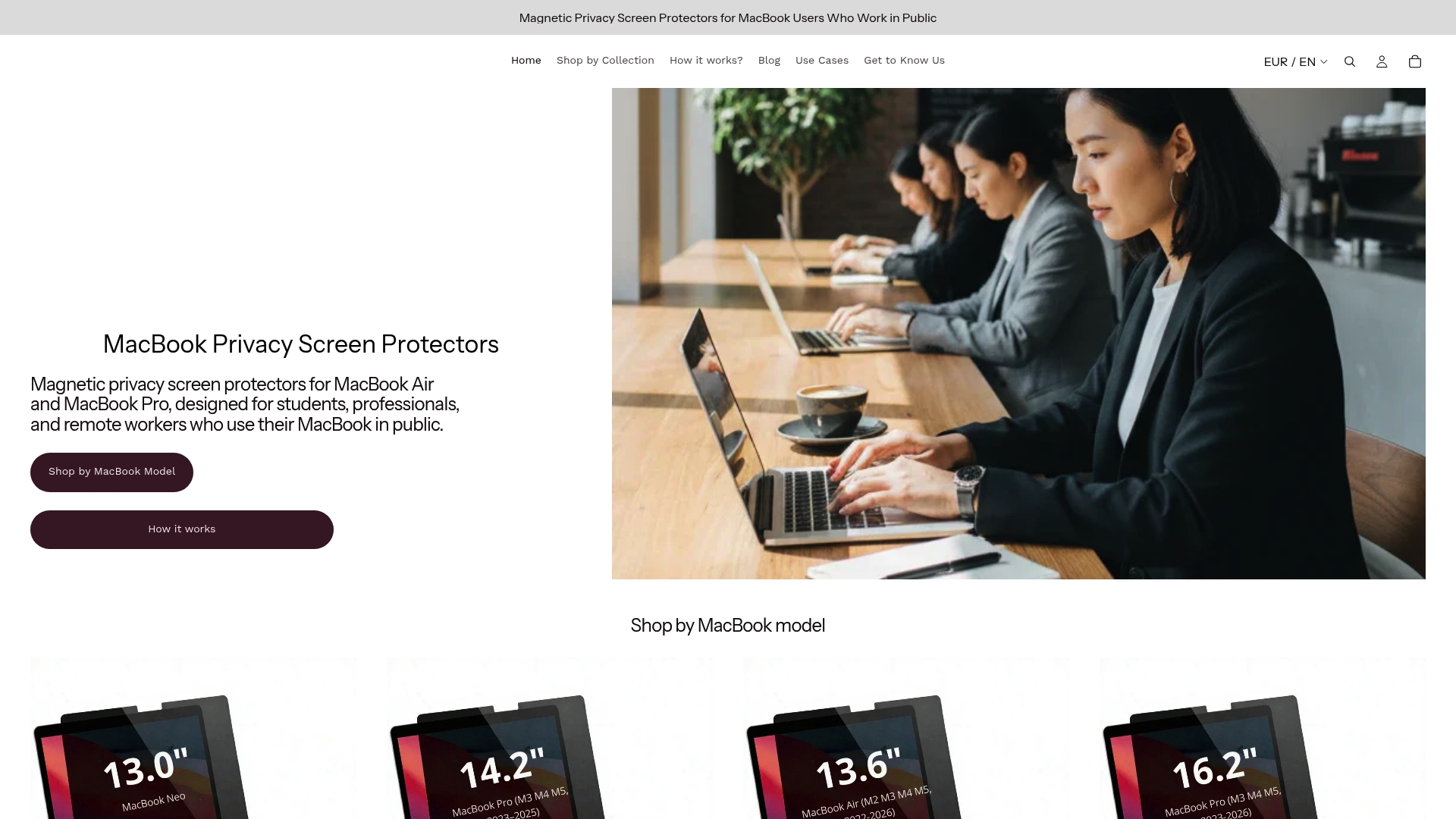
The Clarmuse MacBook privacy screen collection covers Air and Pro models across current and recent generations. Each filter uses magnetic attachment instead of adhesive, includes a matte finish that cuts glare, and narrows the viewing angle without distorting the display for the person using it. For anyone building out their MacBook Pro privacy setup, Clarmuse offers model-specific options with no guesswork on sizing. It is one accessory that replaces a habit of constantly repositioning your screen around other people.
FAQ
What are the best macbook accessories for productivity in public?
A portable stand, compact wireless keyboard, wireless mouse, USB-C hub, and a magnetic privacy screen cover the core needs for public and shared-space work. Together they address posture, connectivity, and screen visibility without adding significant weight to your bag.
Do I need a privacy screen if I already use a VPN?
A VPN protects your data in transit but does nothing about physical screen visibility. A privacy screen prevents people nearby from reading your display, which is a different and equally real risk in cafés, trains, and open offices.
How do I organize macbook accessories for travel?
Pack your hub and cables in a dedicated pouch, store your keyboard face-down away from the MacBook screen to avoid keycap marks, and keep your privacy screen flat against the MacBook inside its sleeve. This keeps everything accessible and prevents damage in transit.
Are Thunderbolt docks worth the price for a mobile setup?
For a fixed coworking desk or home office, yes. For pure travel use, a compact USB-C hub at $35 to $80 covers most needs with far less weight and bulk. An essential macbook accessory kit for travel starts with a hub, a wireless mouse, and a stand.
What should be on a student macbook accessories checklist?
Top macbook accessories college students should prioritize include a lightweight stand, a compact USB-C hub, a wireless mouse, noise-isolating earbuds, and a magnetic privacy screen for library and classroom use. These address the most common friction points without requiring a large budget.


