

Using a MacBook in class introduces specific types of classroom distractions that cut directly into study time and learning outcomes. Up to 40% of class time on laptops goes to non-academic activities, and 70% of teachers identify school-issued devices as a primary distraction source. That number reflects a structural problem, not just a willpower problem. The good news is that macOS Focus Mode, apps like Freedom and Cold Turkey, and physical tools like magnetic privacy screens give students real options. Knowing which distraction type you are dealing with is the first step to fixing it.
1. What are the most common types of classroom distractions on a MacBook?
Digital distractions in class fall into three measurable categories: technological, personal, and environmental. Just over 50% of digital distractions come from technology factors like notifications and social media. Personal habits account for 38%, and environmental triggers make up the remaining 10%.
The most frequent MacBook-specific distractions students report include:
- Social media and messaging apps. Instagram, iMessage, Discord, and Snapchat generate constant pull. A single notification can break a focus window that took minutes to build.
- Non-academic browsing. YouTube, Netflix, Reddit, and online shopping are one tab away from lecture notes. The browser makes switching effortless.
- System notifications and alerts. App badges, calendar reminders, and email previews interrupt attention even when the student is not actively checking them.
- Multitasking and app switching. Students who keep eight tabs open alongside Notion, Spotify, and a group chat rarely give any single task full attention.
- Screen glow affecting nearby students. A bright video playing on a neighbor’s MacBook pulls eyes away from the board. This is a physical distraction, not just a digital one.
Each of these distractions in class with a MacBook has a specific fix. Grouping them by type makes the solutions clearer.
2. How personal habits and boredom drive MacBook distractions
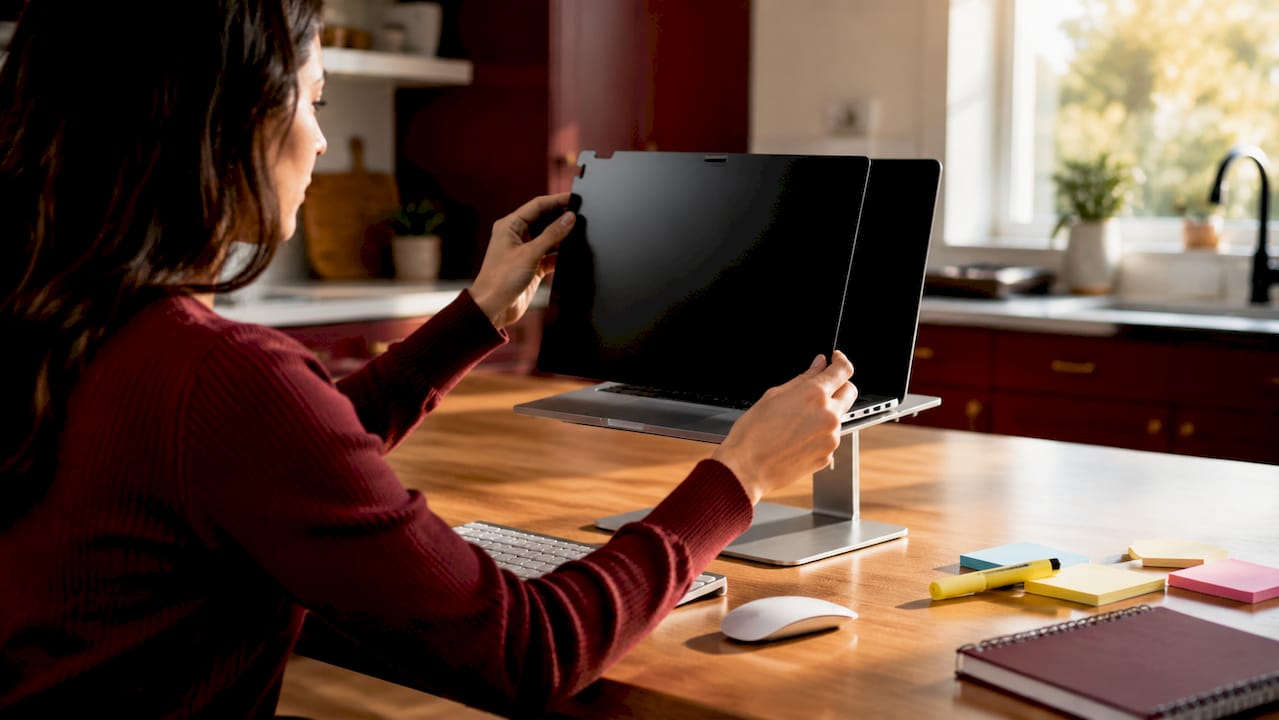
Personal factors drive 38% of digital distractions, making them the second largest category after technology itself. Boredom, impulsiveness, and habitual phone-checking behavior all transfer directly to laptop use. A student who reflexively opens a new tab during a slow lecture is responding to a conditioned habit, not a conscious choice.
Three personal patterns show up most often:
- Habit loops. Opening social media becomes automatic after any pause in class activity, even a 30-second one.
- Boredom-driven browsing. Lectures that feel slow or disconnected push students toward entertainment as a substitute for engagement.
- Impulsive task-switching. The urge to “quickly check” something mid-note is one of the most common focus killers reported by students.
Environmental factors add another layer. Poor classroom management, uninspiring lecture formats, and a lack of clear device policies all increase the likelihood that students will go off-task. Teachers report a constant struggle to keep students from using devices for non-class activities, even when rules are in place.
Pro Tip: Set a specific intention before each class. Write one sentence at the top of your notes describing what you want to learn that session. That single act reduces impulsive tab-switching by giving your brain a concrete target.
3. How attention contagion makes your neighbor’s MacBook your problem
Attention contagion is the documented effect where one student’s off-task screen behavior reduces the focus and test scores of nearby students. A 2019 study on peer distraction found that students seated near distracted peers scored lower on tests, even when those students were not themselves off-task. Screen glow, clicking sounds, and visible video content all pull peripheral attention away from the lecture.
This is a MacBook study environment challenge that no app blocker can fully solve. The distraction originates outside your device. Seating position matters more than most students realize. Sitting toward the front of the room or away from high-traffic areas reduces exposure to neighboring screens. Pairing that choice with a privacy screen for your MacBook also limits how much your own screen affects the students around you.
4. What macOS features help students minimize MacBook distractions?
macOS Focus Modes are the most direct built-in tool for managing distractions in class with a MacBook. Focus Modes go beyond silencing notifications to create entirely different working environments, filtering apps, tabs, and the menu bar based on the task at hand. A student can build a “Study” profile that blocks everything except their note-taking app, browser, and course portal.
Here is a practical setup sequence:
- Create a Study Focus profile. Go to System Settings, then Focus, and add a new profile named “Study.” Allow only apps you need for class.
- Set an automatic schedule. Activate the profile automatically during your regular class hours so you do not have to remember to turn it on.
- Add Freedom or Cold Turkey as a second layer. macOS Focus handles notifications. Freedom and Cold Turkey block specific websites and apps at the network level, making them harder to bypass.
- Use macOS Background Sounds. Found in Control Center, Background Sounds plays white noise or rain sounds to mask ambient classroom noise without requiring headphones.
- Try the Pomodoro technique inside your Focus session. Set a 25-minute study block, then a 5-minute break. Apps like Be Focused on the Mac App Store run this timer natively.
Pro Tip: Combine macOS Focus Mode with a tool like Raycast to switch between study and admin profiles in under three seconds. Speed of switching removes the friction that causes students to abandon focus setups entirely.
Tech-based controls like app blockers are effective but must be balanced with appropriate access. Overly strict restrictions can hinder academic research. Web restrictions on school Macs sometimes block legitimate research tools, pushing students toward workarounds that consume more time than the distraction itself. The goal is targeted blocking, not total lockdown.
5. How physical setup reduces MacBook distractions in class
Physical setup is an underrated part of managing common distractions when using a MacBook. Laptop stands, external keyboards, and privacy screen protectors reduce mental fatigue and visual distractions beyond what digital controls can achieve. Fatigue itself is a distraction trigger. When your neck hurts and your eyes strain, your brain looks for relief, and a YouTube tab is the easiest option available.
| Setup Element | Distraction It Reduces | How It Helps |
|---|---|---|
| Laptop stand | Neck fatigue, poor posture | Raises screen to eye level, reducing physical discomfort |
| External keyboard | Wrist strain during long sessions | Allows more natural typing position, sustaining focus longer |
| Magnetic privacy screen | Side-angle visibility, peer distraction | Blocks neighbors from seeing your screen; reduces your own exposure to theirs |
| Background Sounds (macOS) | Ambient classroom noise | Masks unpredictable sounds that break concentration |
A magnetic privacy screen does two things at once. It stops nearby students from reading your screen, and it narrows your own visual field to the content directly in front of you. That narrowing effect reduces the temptation to glance at neighboring screens. Students who set up their MacBook for privacy and comfort in shared spaces report a more controlled and less reactive study experience.
Combining physical and digital strategies produces better results than either approach alone. Physical ergonomics paired with macOS Background Sounds create a multisensory focus environment that reduces tab fatigue and mental burnout across long class sessions.
6. Best practices for staying focused in different classroom scenarios
MacBook classroom focus tips need to adapt to the type of class you are in. A lecture, a group project session, and an exam all create different distraction pressures.
- During lectures. Close every tab except your note-taking app. Use a single-window view. Activate your Study Focus profile before the class starts, not after you have already opened three tabs.
- During group work. Agree with your group on which apps and tools you will use before the session begins. Unstructured group time is when social media use spikes most sharply.
- During assessments. Use Cold Turkey’s “Frozen Turkey” mode, which locks your Mac to a single app until a timer expires. No override is possible, which removes the decision entirely.
- Communicating with teachers. If your school’s device policy blocks tools you need for research, ask your teacher directly for an exception or an alternative. Students who face unexplained restrictions often spend more time on workarounds than on actual study.
- Active note-taking as a focus anchor. Typing notes in your own words, rather than copying slides verbatim, keeps your brain engaged with the lecture content and reduces the mental space available for distraction.
Treat your MacBook as a study environment, not just a device. The apps you keep open, the notifications you allow, and the physical position of your screen all shape how well you can focus.
Key takeaways
The most effective way to manage MacBook distractions in class is to address all three distraction sources: technology, personal habits, and physical environment, using targeted tools for each.
| Point | Details |
|---|---|
| Technology causes most distractions | Over 50% of digital distractions come from notifications and social media, making app blocking the first priority. |
| Personal habits need direct intervention | Boredom and habit loops drive 38% of distractions; setting a class intention before each session reduces impulsive switching. |
| Peer screens are a real threat | Attention contagion from nearby distracted students lowers test scores even for focused students. |
| macOS Focus Modes change your environment | A Study profile filters apps, tabs, and alerts to create a structurally different workspace during class. |
| Physical setup extends digital focus | Laptop stands, external keyboards, and privacy screens reduce fatigue and visual pull from neighboring devices. |
What I have learned about MacBook distractions after years of watching students struggle
By Gabriel
Most students treat MacBook distractions as a willpower problem. They are not. They are a design problem. The MacBook’s browser, notification system, and app switching are built for speed and access. That is exactly what makes them dangerous in a classroom. Willpower runs out. Good system design does not.
The students I have seen manage this best do one thing differently: they set up their MacBook before class, not during it. They activate a Focus profile, close unnecessary apps, and position their screen deliberately. By the time the lecture starts, the environment is already working for them.
The physical layer matters more than most guides admit. A privacy screen is not just about keeping your notes private from the person next to you. It narrows your visual field and signals to your own brain that this is a work session. That signal is surprisingly effective. Pairing it with Background Sounds and a single-window note-taking setup creates a workspace that feels different from casual browsing, and that difference is enough to shift behavior.
The hardest part is not the technology. It is accepting that your MacBook needs to be configured differently for class than it is for everything else. Students who treat it as one device for all purposes rarely get the focus benefits that the hardware and software are capable of delivering.
— Gabriel
A physical tool that supports your focus setup
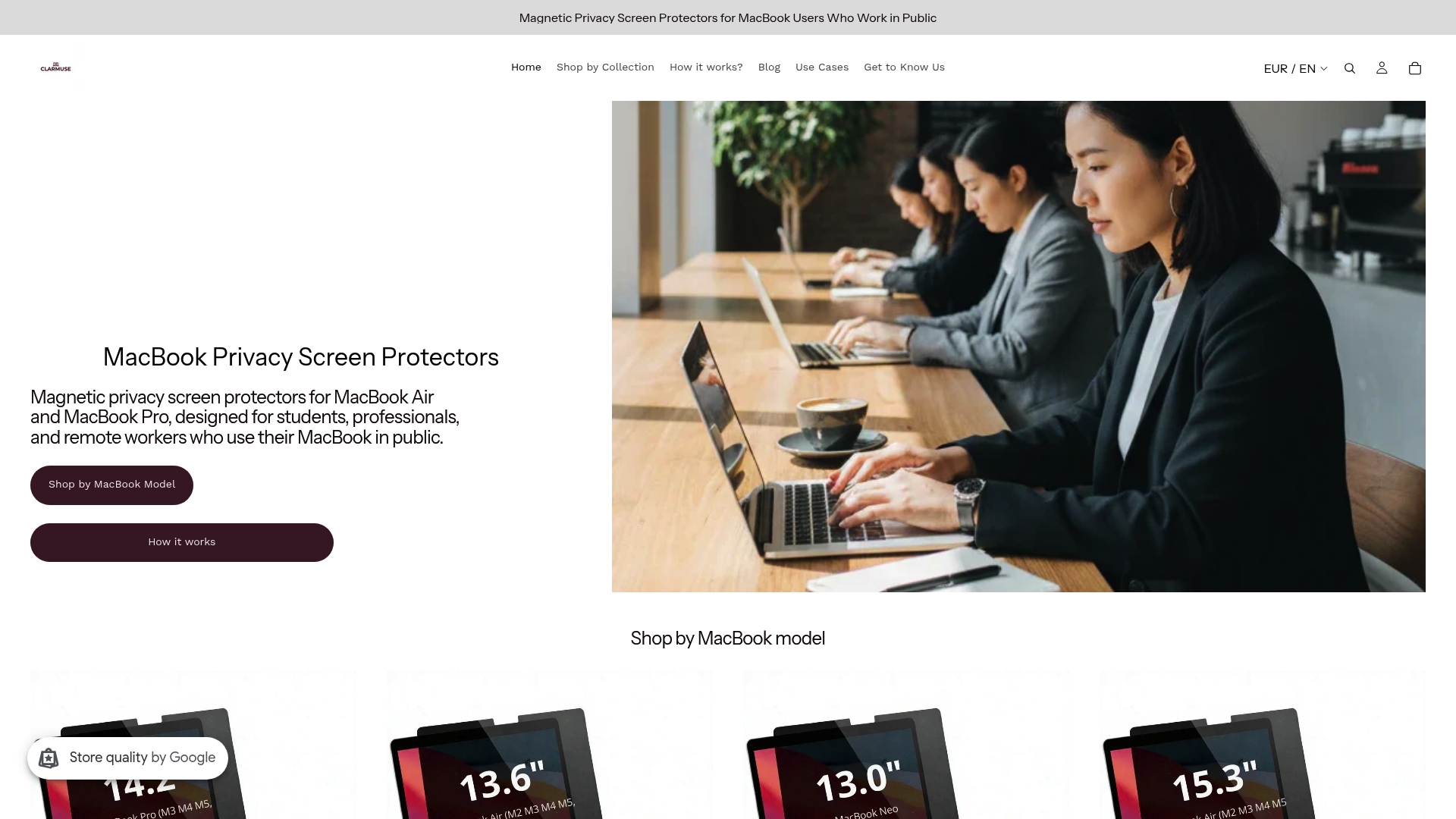
Digital focus tools work best when your physical setup supports them. Clarmuse makes magnetic privacy screen protectors designed specifically for MacBook Air and MacBook Pro models, attaching cleanly without adhesives or bulk. In a classroom, the narrow viewing angle blocks side glances from nearby students and reduces the visual noise of neighboring screens pulling at your attention.
Clarmuse offers model-specific fits for the MacBook Pro 16.2", MacBook Air 15.3", MacBook Pro 14.2", and the MacBook Air 13.6" (M2 through M5). The full range of MacBook privacy screen protectors is available on the Clarmuse website, organized by model for a direct fit.
FAQ
How much class time do students lose to MacBook distractions?
Up to 40% of laptop time in class goes to non-academic activities. That translates to a significant portion of every lecture lost to browsing, messaging, and entertainment.
What is the fastest way to block distractions on a MacBook during class?
Activate a macOS Focus Mode Study profile before class starts and run Freedom or Cold Turkey alongside it. The combination blocks notifications at the system level and websites at the network level simultaneously.
Can a neighbor’s MacBook screen actually hurt your grades?
A 2019 study confirmed that students seated near distracted peers scored lower on tests due to screen glow and clicking sounds. Choosing a seat away from high-traffic areas and using a privacy screen reduces this exposure.
Are school-imposed web restrictions on MacBooks effective?
Restrictions reduce access to distracting sites but can also block legitimate research tools. Unexplained restrictions often push students toward workarounds that consume more time than the original distraction.
Does a privacy screen help with focus, not just privacy?
A magnetic privacy screen narrows your visual field to your own screen, reducing the pull of neighboring devices. Clarmuse privacy screens attach magnetically to MacBook Air and MacBook Pro models without adhesives, making them easy to add and remove between classes.


