

Daily display care is the single most effective way to preserve MacBook screen quality over time. To maintain MacBook display clarity daily, you need three things working together: the right cleaning materials, optimized display settings, and consistent protective habits. MacBook screens use a delicate anti-reflective coating that degrades permanently when exposed to harsh chemicals, abrasive cloths, or trapped debris. Whether you work in a café, coworking space, or open-plan office, the routines below keep your screen sharp, accurate, and free from the haze that builds up faster than most users expect.
What tools and materials do you need for daily MacBook display care?
The foundation of daily MacBook display care is having the correct tools within reach before you need them. Using the wrong material once can cause permanent streaking or coating damage that no amount of cleaning will reverse.
Microfiber cloths: what to use and how to maintain them
A high-quality microfiber cloth is the only safe option for direct contact with your MacBook screen. Standard cotton cloths, paper towels, and kitchen wipes all contain fibers coarse enough to scratch the anti-reflective coating. Properly washing microfiber cloths without fabric softeners maintains their effectiveness over time. Fabric softener coats the fibers and reduces their ability to lift dust without scratching. Wash them separately in cold water, air dry, and replace them every few months if used daily.

Cleaning liquids: distilled water only
Distilled water is the industry-standard cleaning liquid for MacBook screens. Tap water contains minerals that leave residue. Harsh chemicals like alcohol, ammonia, or acetone damage the display coating on contact, even in small concentrations. Electronics-safe, alcohol-free wipes are an acceptable backup when distilled water is unavailable, but they should not be your default.
Pro Tip: Keep a small spray bottle of distilled water and a folded microfiber cloth in your laptop bag. You can clean your screen anywhere without carrying bulky products.
Screen protectors: when they add value
A thin matte-finish screen protector adds a measurable layer of daily protection. A 0.25mm matte-surface protector reduces reflections to approximately 1.1% and shields the native glass from micro-abrasions during travel or shared-desk use. This matters most if you frequently open and close your MacBook in environments with dust or crumbs on the keyboard. The matte surface also wipes clean more easily than bare glass.
| Material | Safe for MacBook screen? | Notes |
|---|---|---|
| Microfiber cloth (clean, dry) | Yes | Best for daily dusting |
| Distilled water + microfiber | Yes | Best for weekly deep clean |
| Electronics-safe alcohol-free wipes | Conditionally | Use only when distilled water unavailable |
| Paper towels or kitchen cloths | No | Scratch anti-reflective coating |
| Alcohol, ammonia, or acetone wipes | No | Permanent coating damage |
How should you clean your MacBook screen every day to avoid damage and streaks?
The correct cleaning method for a MacBook screen is defined by light pressure, minimal moisture, and straight-line motion. Circular scrubbing traps particles and drags them across the coating. The goal, as daily maintenance research confirms, is visual uniformity rather than clinical sterility.
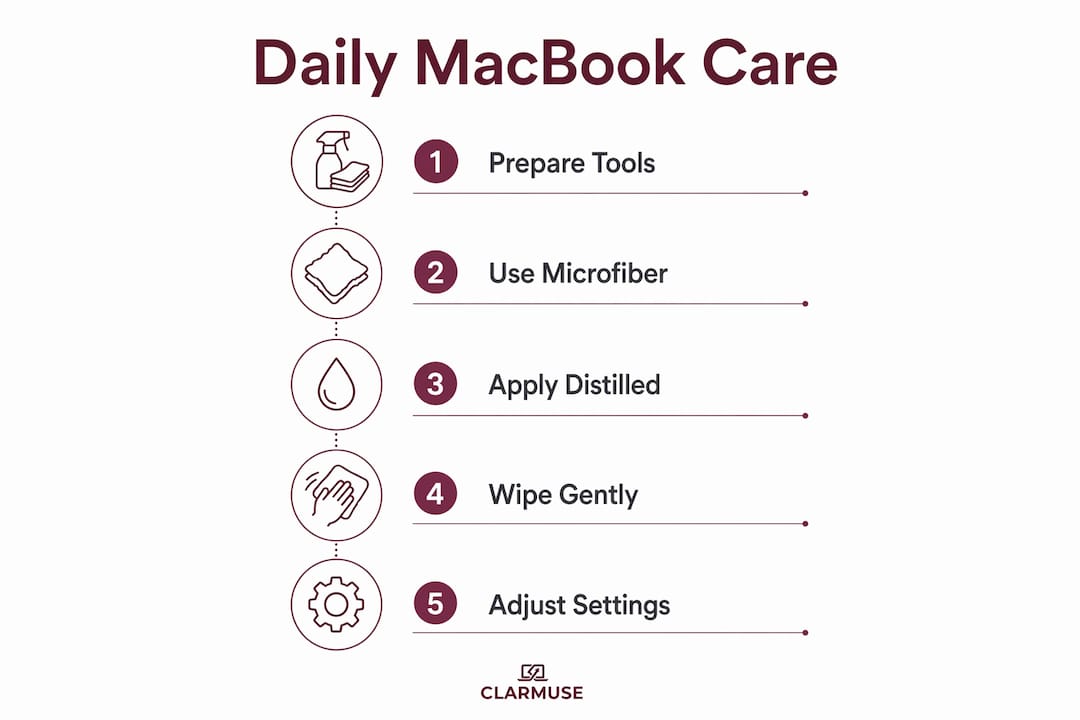
Follow this sequence for a safe, streak-free result:
- Power down the MacBook. A dark screen makes dust and smudges visible. It also eliminates any risk of electrical interference from moisture.
- Dust lightly every 2 to 3 days. Use a dry microfiber cloth in slow, straight horizontal passes. This takes about 10 seconds and removes the surface particles that cause micro-scratches during deeper cleaning.
- Do a full clean once per week. Dampen one corner of your microfiber cloth with distilled water. The cloth should feel barely damp, not wet.
- Wipe in straight lines with gentle pressure. Start from the top of the screen and work downward. Never press hard enough to flex the display panel.
- Allow 30 to 60 seconds of air drying before closing the lid. Closing too soon traps moisture between the screen and keyboard, which accelerates coating wear.
- Never spray liquid directly onto the screen. Apple advises against spraying liquid directly onto the display, as liquid can seep into the bezel and damage internal components.
Pro Tip: If you notice streaks after cleaning, your cloth is either dirty or too wet. Fold to a clean section and make one final dry pass across the screen.
What MacBook display settings help maintain clarity and reduce eye strain daily?
Display settings have a direct impact on both visual sharpness and long-term screen health. Optimizing them takes under five minutes and produces results you notice immediately.
Brightness: the 60 to 70 percent rule
Maintaining MacBook brightness at 60 to 70% reduces thermal stress on the display and minimizes the risk of temporary image retention. Running brightness near 100% increases pixel stress and accelerates the ghosting effect that appears as faint outlines of static elements. In shared environments with overhead lighting, 65% brightness typically delivers clear visibility without the thermal cost.
True Tone and Night Shift: when to disable them
True Tone adjusts your display color based on ambient light, which is useful for general use but reduces color accuracy for design or photo work. Disabling True Tone and Night Shift and switching to a calibrated manufacturer profile produces the most accurate and sharp color output. Go to System Settings, select Displays, and toggle True Tone off when color precision matters.
Resolution and scaling for sharper text
MacBook Retina displays default to a “looks like” resolution that balances sharpness and screen real estate. Selecting “More Space” in Display Settings increases pixel density and makes text noticeably crisper. This setting works well on MacBook Pro 14-inch and 16-inch models where the panel resolution supports the higher density without blurring.
| Setting | Recommended value | Effect on clarity |
|---|---|---|
| Brightness | 60 to 70% | Reduces ghosting and thermal stress |
| True Tone | Off (for precision work) | Improves color accuracy |
| Night Shift | Off during work hours | Prevents color shift |
| Resolution scaling | “More Space” | Sharpens text and UI elements |
| Dock visibility | Auto-hide enabled | Reduces static image persistence |
Auto-hiding the Dock to prevent image persistence
Static screen elements like the Dock cause image persistence when displayed at high brightness for extended periods. Auto-hiding the Dock and menu bar removes these fixed elements from the pixel cycle. On macOS Sequoia, go to System Settings, select Desktop and Dock, and enable “Automatically hide and show the Dock.”
How can you protect your MacBook screen daily to prevent scratches and damage?
Physical protection is as important as cleaning technique. Display longevity issues are mostly caused by accumulated minor habits, not single accidents. The following daily habits address the most common sources of physical damage.
- Inspect the keyboard before closing the lid. Dust and crumbs trapped between the keyboard and screen cause permanent etching of the anti-reflective coating under lid pressure. A 10-second check before closing is one of the highest-value habits you can build.
- Use a screen protector during travel. A matte protector absorbs contact damage from bag contents and shared desk surfaces. It is far easier to replace a protector than to repair a scratched display coating.
- Keep your workspace clear of particles. Sand, metal shavings, and coarse dust are the most damaging materials for screen coatings. If you work outdoors or in industrial environments, wipe the screen area before opening your MacBook.
- Avoid pressing on the display. Applying pressure while cleaning or transporting the MacBook flexes the LCD panel and can cause pressure marks that appear as bright spots or color distortion.
- Store your MacBook in a sleeve. A padded sleeve prevents the display from contacting hard surfaces inside a bag. This is especially relevant for protecting your MacBook display from scratches during daily commutes.
Pro Tip: Place a single clean microfiber cloth between the keyboard and screen before closing the lid. It acts as a buffer against dust and keyboard contact, and it is always in position for your next cleaning.
What are common mistakes that reduce MacBook display clarity and how to avoid them?
Screen clarity degradation often relates to environmental factors and software settings rather than hardware failure. Most users experiencing haze, streaks, or ghosting are dealing with correctable problems caused by daily habits.
The most frequent mistakes include:
- Using excessive moisture. A wet cloth leaves mineral deposits and risks liquid ingress at the bezel. The cloth should feel barely damp.
- Scrubbing with circular motions. This drags particles across the coating and creates micro-scratches that accumulate into visible haze over weeks.
- Using dirty or low-quality cloths. A microfiber cloth used to wipe a desk or keyboard carries abrasive particles. Dedicate one cloth exclusively to your screen.
- Ignoring brightness settings. Running at full brightness for hours daily accelerates pixel stress and ghosting. The 60 to 70% range is the correct operating zone.
- Skipping the keyboard check. This single omission is responsible for a large share of anti-reflective coating damage on MacBook screens.
- Leaving static images on screen for extended periods. Menu bars, browser toolbars, and fixed desktop widgets all contribute to image persistence at high brightness.
“The daily maintenance goal is visual uniformity rather than clinical sterility; cleaning with gentle motions avoids coating wear and streaks.”
When you notice streaks or a white haze, the cause is almost always one of the above. Start by checking your cloth condition and cleaning technique before assuming hardware damage. For a detailed breakdown of what to avoid, the guide on common MacBook screen mistakes covers the full list with fixes.
Key takeaways
Consistent daily habits, not periodic deep cleaning, are what preserve MacBook display clarity over the long term.
| Point | Details |
|---|---|
| Clean with the right materials | Use only a clean microfiber cloth and distilled water; avoid all chemical wipes. |
| Follow a cleaning schedule | Dust lightly every 2 to 3 days; do a full clean weekly with minimal moisture. |
| Set brightness to 60 to 70% | This range reduces thermal stress and prevents ghosting on Retina displays. |
| Inspect the keyboard daily | A 10-second check before closing the lid prevents permanent coating etching. |
| Disable True Tone for precision work | Calibrated color profiles produce sharper, more accurate display output. |
What I have learned from years of daily MacBook screen care
The advice most people ignore is the keyboard check. It sounds trivial until you see the faint etched lines that appear on a screen after months of closing the lid over crumbs. That damage is permanent. No cleaning routine fixes etched glass.
The other thing I have noticed is that most users clean their screens too aggressively when they do clean them, and not frequently enough in between. A 10-second dry wipe every couple of days does more for long-term clarity than a thorough weekly scrub with a damp cloth. Light, frequent contact beats infrequent heavy cleaning every time.
On settings, the default macOS brightness is almost always too high for indoor shared environments. Dropping to 65% in a coworking space or café not only protects the display over time but also reduces the visibility of your screen to people sitting beside you. That is a practical benefit that most display guides overlook entirely. For anyone working regularly in shared spaces, managing MacBook screen visibility is as much about comfort and privacy as it is about hardware longevity.
The simplest summary: treat your screen like you would a quality camera lens. Light touch, correct materials, and consistent habits produce results that no single cleaning session can match.
— Gabriel
Protect your MacBook screen in shared spaces with Clarmuse
If you work in cafés, coworking spaces, airports, or open offices, screen protection goes beyond cleaning and settings. Clarmuse designs magnetic privacy screen protectors built specifically for MacBook Air and MacBook Pro models. They attach and detach in seconds, reduce side-angle visibility, and cut glare without affecting the display quality you see head-on.

The matte surface also makes daily wiping faster and safer than cleaning bare glass directly. If you use a MacBook Pro 14-inch, the Clarmuse magnetic privacy filter for MacBook Pro 14.2" is precision-fitted for that model. No bulk, no adhesive, no complicated setup. Just a cleaner, more private screen wherever you work.
FAQ
How often should you clean a MacBook screen?
Light dusting every 2 to 3 days with a dry microfiber cloth is the recommended frequency, with a full damp clean once per week or whenever smudges appear.
What is the safest liquid to clean a MacBook screen?
Distilled water applied to a microfiber cloth is the safest and most widely recommended option. Tap water leaves mineral deposits, and chemical-based cleaners permanently damage the anti-reflective coating.
Does MacBook screen brightness affect display longevity?
Yes. Running brightness near 100% increases pixel stress and accelerates image retention. Keeping brightness between 60 and 70% extends display life and reduces ghosting.
Can a screen protector improve MacBook display clarity?
A thin matte-finish protector reduces glare and protects the native glass from micro-abrasions. It does not improve the native resolution but makes the screen easier to clean and more resistant to daily contact damage.
What causes a hazy or streaky MacBook screen?
Streaks and haze are almost always caused by using a dirty or damp cloth, circular wiping motions, or chemical residue from improper cleaning products. Switching to a clean microfiber cloth and distilled water resolves most cases.


