

A productive café laptop setup comes down to four non-negotiables: a VPN with a kill switch, an eSIM for cellular backup, noise-cancelling headphones, and a high-capacity power bank. Get those right, and nearly every other problem in a coffee shop workspace solves itself.
Here is what the best setups share in 2026:
- Minimal footprint. One seat, one table zone, no extra chairs claimed for bags.
- Back to a wall. Reduces shoulder surfing and keeps belongings in your sightline.
- VPN always on. Never connect to public WiFi without it.
- eSIM ready. Instant cellular failover when café WiFi drops.
- Power bank charged. A 20,000+ mAh USB-C unit with Power Delivery means you pick your seat for comfort, not outlet proximity.
- Order again. If you stay past two to three hours, buy something else.
- Read the room. When the café fills up, wrap up or move.
1. What hardware and software do you actually need for café work?
The essential café kit is shorter than most people expect: a VPN subscription, an eSIM data plan, noise-cancelling headphones, and a power bank. Everything else is optional.
- VPN with kill switch and WireGuard protocol. Auto-connect on untrusted networks so you never accidentally browse unprotected. The kill switch blocks all traffic the moment the VPN drops, preventing any data exposure.
- eSIM cellular data plan. Provides instant mobile internet failover. When café WiFi fails, enable your phone’s hotspot and reconnect in roughly 10–15 seconds.
- Noise-cancelling headphones. They block ambient noise, keep call audio clean, and signal to everyone nearby that you are focused. Use push-to-talk on Zoom or Google Meet to prevent background noise from transmitting.
- 20,000+ mAh USB-C power bank with Power Delivery. A laptop-capable power bank extends your session without outlet dependency. Look for at least 45W output for laptops; standard USB-A ports max around 12W and cannot keep pace with active use.
- Lightweight laptop, 11–14 inches. Devices in this range keep your café footprint small and the space feeling social. Larger screens create a visual wall that changes the vibe of the whole room.
- Compact Bluetooth keyboard and mouse. Optional but worth it for sessions over two hours. Typing on a raised laptop is hard on your neck; an external keyboard fixes that without much added bulk.
Pro Tip: Bring a 6-foot USB-C cable. It reaches from your bag to the table without stretching, and avoids the trip hazard a longer cable creates for passing customers.
2. How should you arrange your seat and laptop for privacy and comfort?
Sitting with your back to a wall is the single most effective physical move for screen privacy and personal security in a café. It eliminates the angle from which most shoulder surfing happens and keeps your belongings visible.
Keep everything in your immediate zone. No bag on a neighboring chair, no gear spread across half the table. Cafés run on flow, and space is part of what they sell. A compact setup also reads as respectful to staff, which tends to translate into better service and longer welcome.
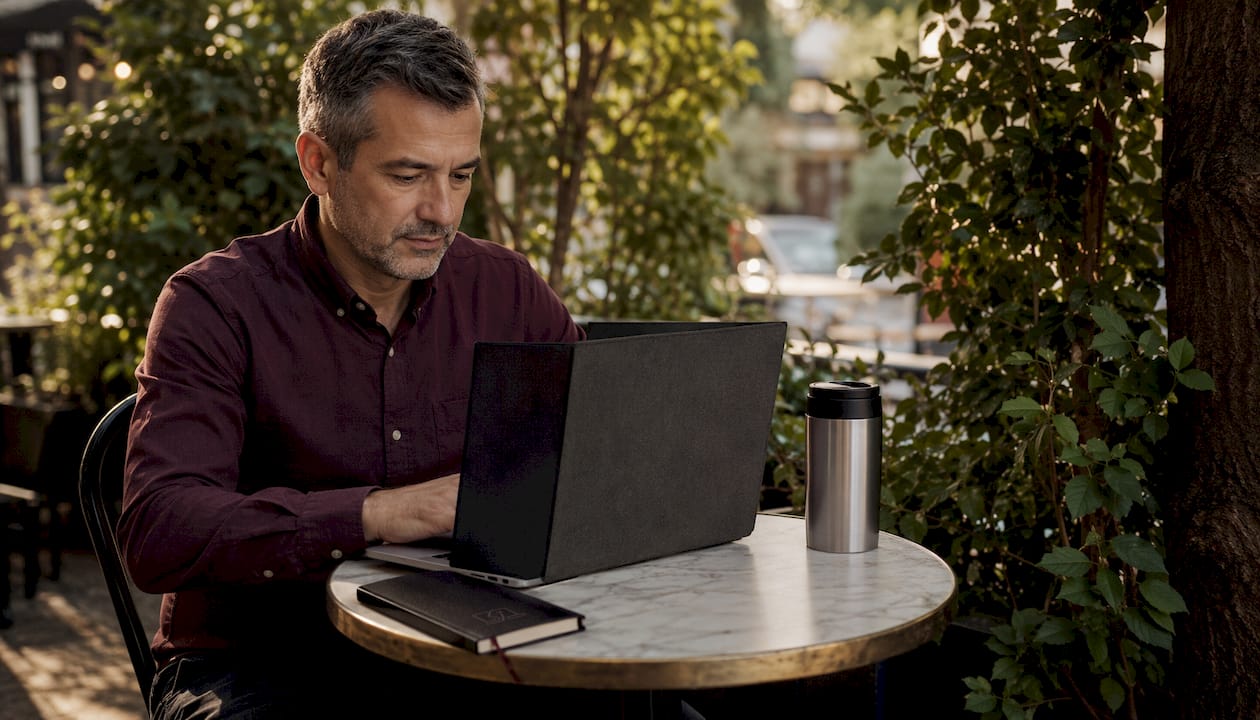
For ergonomics, a thin folding laptop stand raises your screen to a more natural eye level. The MOFT Invisible Stand, for example, folds to roughly 5mm thick and adds no meaningful weight to your bag. Pair it with an external keyboard on the table surface and your posture improves immediately.
Pro Tip: A privacy screen filter combined with a wall seat gives you two independent layers of visual protection. Either one alone leaves a gap; together, they cover nearly every angle.
Avoid large external monitors, multiple peripherals, and any two-seat arrangement. These setups signal “I’m here all day” even when you are not, and they commonly trigger friction with staff and other patrons at popular spots.
3. How do you keep your connection secure and reliable in a café?
Public WiFi is the biggest security risk in any café office setup. A VPN encrypts your traffic; the kill switch ensures that a momentary drop does not expose anything. Set it to auto-connect on untrusted networks so the protection is never a manual step you might skip.
For connectivity, the most reliable approach is to route critical tasks through cellular and use café WiFi only for background activity. Video calls, live collaboration, and anything client-facing go through your phone’s hotspot. Downloads, syncs, and general browsing use the café network. This split means your most important work never depends on a connection you do not control.
- Connect your laptop to your phone via USB tethering or WiFi hotspot for calls.
- Use café WiFi as a secondary network for non-critical tasks.
- Most operating systems prioritize the active connection automatically.
Pro Tip: Test your hotspot before you need it. Some carriers throttle hotspot speeds or require a specific plan tier. Discovering that limitation mid-call is avoidable.
Run a quick speed test when you arrive. Under 10 Mbps download makes video calls unreliable. If the café network falls short, switch to cellular before your session starts rather than mid-task.
4. What café etiquette keeps you welcome long-term?
The cafés that ban laptop workers do so because of behavior, not laptops. A few consistent habits keep you welcome at the spots you rely on.
- One seat, one zone. No bag on extra chairs, no gear spread across neighboring tables. During peak hours, this is the fastest way to create friction with staff.
- Order again after two to three hours. Buying a second drink supports the café’s business and signals that you are not simply occupying space. It also tends to build goodwill with staff over time.
- Adapt when it gets busy. Wrap up, move to a smaller table, or free up a larger one if the café fills. Being flexible is part of the unwritten agreement between café workers and the venues they use.
- Never use speakerphone. Video calls on laptop speakers are the top complaint about café laptop workers. Headphones are non-negotiable for any audio. If you do not have them, step outside or skip the call.
- Keep your setup minimal. A streamlined kit signals to staff that you respect their space and are not planning to occupy it indefinitely. More gear often reduces social acceptance, not just table space.
A compact, attentive setup is the most effective long-term strategy for maintaining access to good café seats. The best café workers treat the environment as a shared resource, not a private office.
Clarmuse makes screen privacy simple for MacBook users
Screen privacy is one of the harder problems to solve in a café, and seating position alone does not fully close the gap. Clarmuse builds magnetic privacy screens designed specifically for MacBook Air and MacBook Pro models, so the fit is exact and the attachment takes seconds.
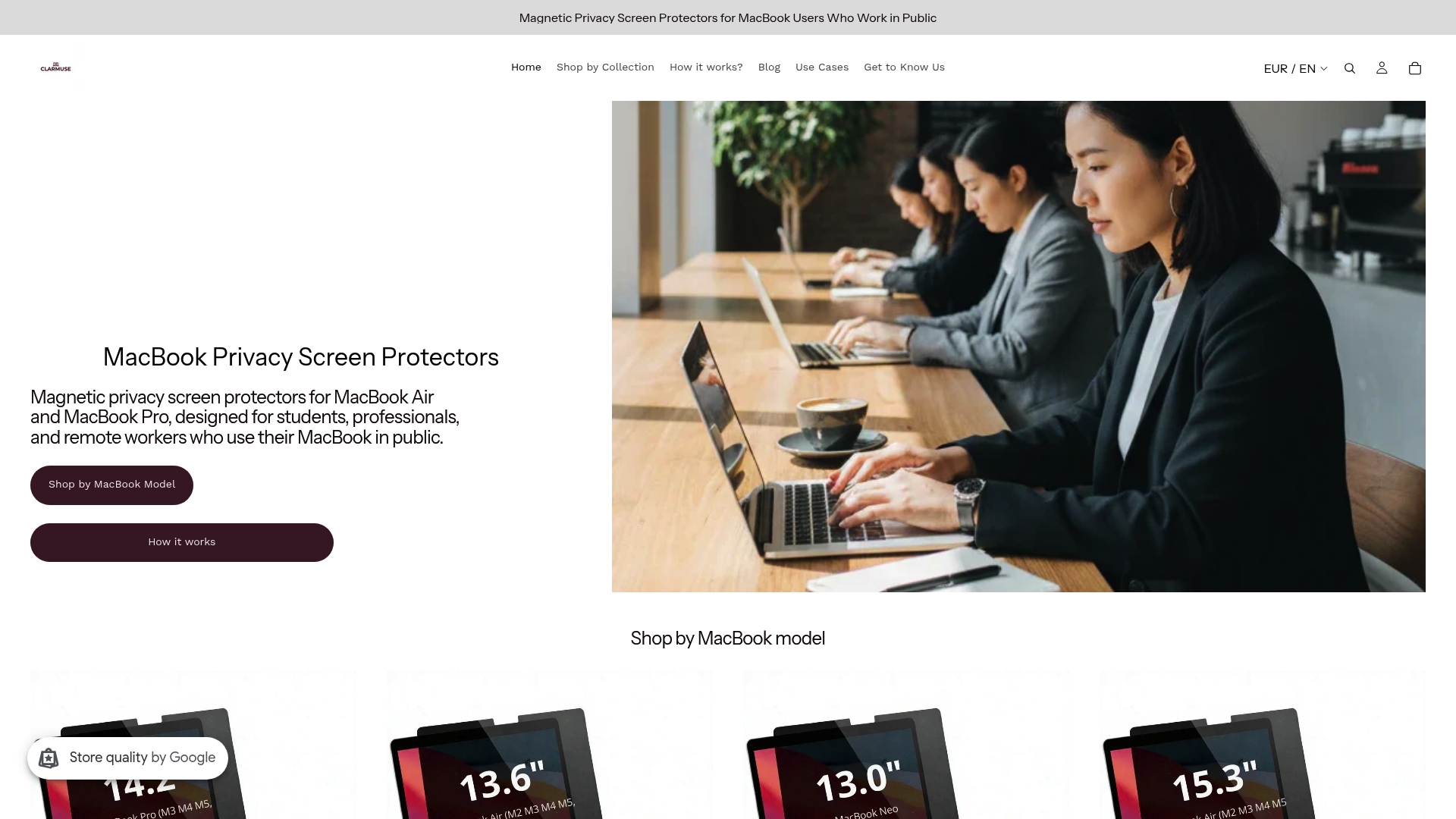
The magnetic system means you can put the filter on before you open your laptop in a busy spot and remove it the moment you are somewhere private, with no adhesive residue and no fumbling. The screens narrow the visible angle from the sides, so anyone not directly in front of your display sees a dark panel rather than your work. For anyone handling client data, financial information, or anything sensitive in a shared space, that protection is practical rather than precautionary.
Clarmuse covers current MacBook Air and MacBook Pro sizes, including the MacBook Pro 16.2", the MacBook Air 15.3", and the MacBook Air 13.6" for M2 through M5. The full range is available at Clarmuse’s collection page.
Key Takeaways
A productive café laptop setup requires a minimal physical footprint, consistent network security, and deliberate etiquette habits that keep you welcome at the venues you rely on.
| Point | Details |
|---|---|
| Four non-negotiables | VPN with kill switch, eSIM backup, noise-cancelling headphones, and a 20,000+ mAh power bank cover most café failure points. |
| Seat selection | Back to a wall reduces shoulder surfing and keeps your belongings visible without any extra gear. |
| Split your connection | Route live calls and critical work through cellular; use café WiFi only for background tasks like downloads and syncs. |
| Etiquette baseline | Order again after two to three hours and keep your setup to one seat and one table zone. |
| Clarmuse for MacBook privacy | Magnetic privacy screens from Clarmuse add a second layer of visual protection beyond seating position, with model-specific fit for MacBook Air and Pro. |
FAQ
What are the four essential items for working from a café?
A VPN with a kill switch, an eSIM cellular data plan, noise-cancelling headphones, and a 20,000+ mAh USB-C power bank with Power Delivery. These four items cover security, connectivity, focus, and power for a full café work session.
How do you protect your screen from shoulder surfers in a café?
Sit with your back to a wall to reduce side-angle exposure, and use a privacy screen filter to narrow the visible angle further. Clarmuse’s magnetic privacy screens attach in seconds and are designed specifically for MacBook Air and MacBook Pro models.
How often should you buy something when working from a café?
Order at least once every two to three hours. This supports the café’s business and is the baseline etiquette standard that keeps laptop workers welcome at most venues.
Is it safe to use café WiFi for client work?
Not without a VPN. Always connect through a VPN with the kill switch enabled before accessing any sensitive accounts or client data on a public network. For live calls and real-time collaboration, routing through your phone’s cellular hotspot is more reliable and more secure.
What laptop size works best for café setups?
An 11–14 inch laptop keeps your footprint small and fits comfortably on most café tables. Larger screens create a visual barrier that changes the social atmosphere of the space and can signal to staff that you intend to stay for an extended period.


