

La comodidad del ángulo de visión se define como la capacidad de ver la pantalla con claridad, a una distancia y altura seguras, sin forzar el cuello ni los ojos. Para los usuarios de MacBook que trabajan en cafeterías, espacios de coworking, aeropuertos o bibliotecas, acertar en este aspecto no es opcional. Una mala posición de la pantalla provoca dolor de cuello, fatiga ocular y sesiones largas que resultan peores de lo que deberían. La buena noticia es que puedes mejorar la comodidad del ángulo de visión de tu MacBook con algunos ajustes específicos en la altura, la inclinación de la pantalla y la configuración general de tu estación de trabajo.
¿Cuál es el ángulo y la altura ideales de la pantalla del MacBook para mayor comodidad?
Colocar la pantalla de tu MacBook entre 15 y 20 grados por debajo del nivel de los ojos reduce la tensión en el cuello hasta un 32%. Este único ajuste es el cambio más impactante que la mayoría de la gente nunca hace. El término ergonómico estándar para esto es "postura neutra del cuello", y significa que tu cabeza se mantiene equilibrada sobre tu columna vertebral en lugar de inclinarse hacia adelante para mirar hacia abajo en un escritorio plano.
La distancia es tan importante como el ángulo. Mantener la pantalla a la distancia de un brazo evita que te inclines hacia adelante, lo que anula cualquier beneficio de elevar la pantalla. Una buena prueba: siéntate, extiende el brazo y las puntas de los dedos deberían casi tocar la pantalla.
Así es como se ve la correcta posición de la pantalla del MacBook en la práctica:
- Altura de la pantalla: El borde superior de la pantalla debe estar al nivel de los ojos o ligeramente por debajo.
- Ángulo de inclinación: Inclina la pantalla hacia atrás entre 15 y 20 grados desde la vertical para que la pantalla quede directamente frente a tus ojos.
- Distancia de visualización: Mantén la pantalla a la distancia de un brazo, aproximadamente entre 20 y 26 pulgadas de tu cara.
- Posición de la cabeza: Tu barbilla debe estar nivelada, no hacia abajo ni hacia adelante.
La mayoría de los usuarios de MacBook colocan su laptop plana sobre un escritorio y se encorvan en 20 minutos. Esa posición coloca la pantalla muy por debajo del nivel de los ojos y fuerza el cuello a una flexión sostenida hacia adelante.
Consejo profesional: Usa un soporte ajustable para laptop para ajustar de forma independiente tanto la altura como la inclinación. Los soportes con mecanismos de ajuste continuo te dan mucho más control que las opciones de ángulo fijo.
Cómo usar accesorios para ajustar el ángulo de la pantalla del MacBook y reducir la tensión
Los accesorios adecuados marcan una diferencia medible, especialmente cuando se trabaja en diferentes lugares. Los soportes ajustables para laptops con múltiples configuraciones de altura e inclinación reducen la fatiga visual y cervical al permitirte ajustar la posición de la pantalla a la altura de tu silla y escritorio, y no al revés.
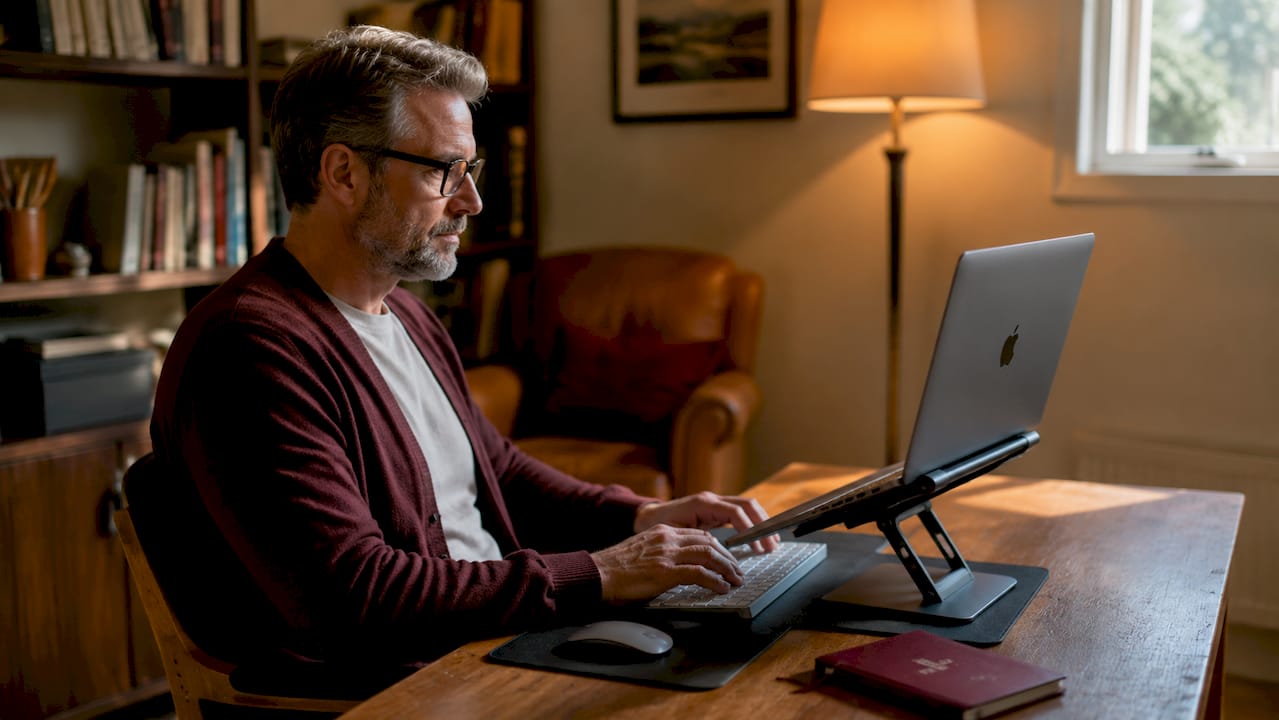
El MOFT Airflow es un ejemplo práctico. Ofrece ángulos de visión entre 15 y 25 grados con dos configuraciones de altura, casi no pesa nada y cabe en una bolsa para portátil sin añadir volumen. Para cualquiera que se mueva entre una cafetería por la mañana y un espacio de coworking por la tarde, esa portabilidad es importante.
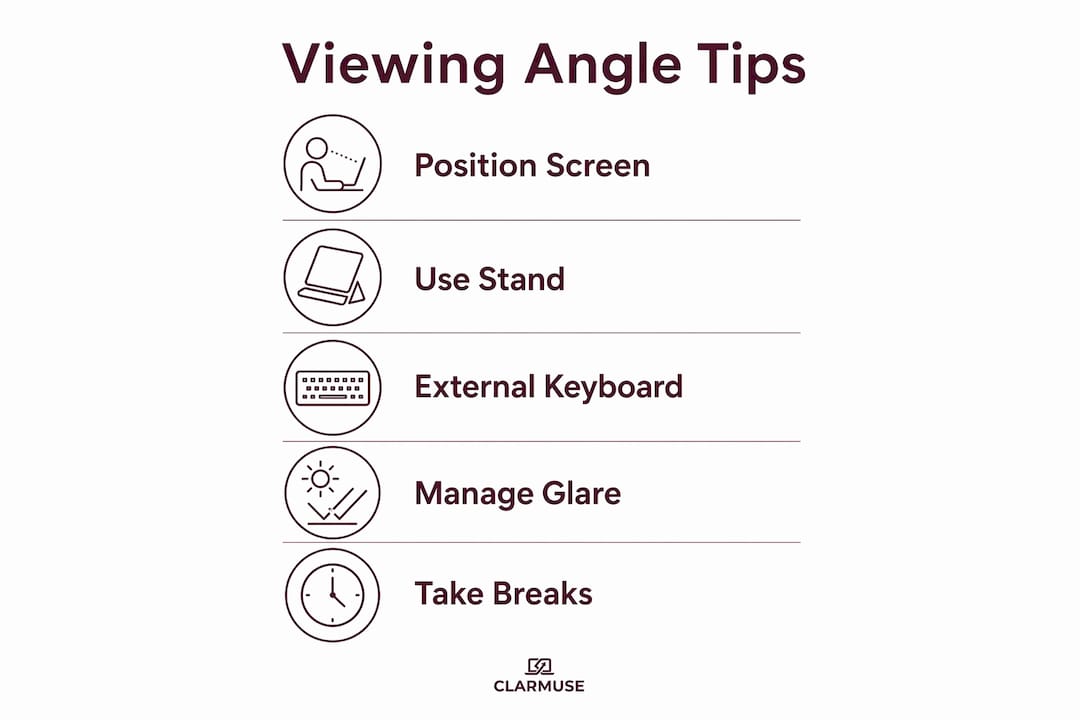
Los teclados y ratones externos completan el panorama ergonómico. Cuando elevas tu MacBook en un soporte, el teclado incorporado se aleja de un alcance cómodo. Añadir un teclado Bluetooth compacto y un ratón inalámbrico mantiene tus muñecas en una posición neutra y tus brazos relajados a la altura del escritorio.
| Accesorio | Lo mejor para | Portabilidad | Ajustabilidad |
|---|---|---|---|
| Soporte MOFT Airflow | Cafeterías, viajes | Muy alta | Dos ángulos fijos |
| Soporte ajustable de aluminio | Configuraciones de escritorio | Media | Altura e inclinación continuas |
| Teclado Bluetooth compacto | Cualquier espacio compartido | Alta | N/A |
| Ratón inalámbrico | Cualquier espacio compartido | Alta | N/A |
| Pantalla de privacidad magnética | Espacios públicos | Muy alta | Se acopla en segundos |
Los protectores de pantalla de privacidad pertenecen a esta lista por una razón específica. Los filtros de privacidad magnéticos reducen el deslumbramiento y mitigan la exposición a la luz azul, lo que afecta directamente la comodidad de tus ojos después de una sesión prolongada. En entornos de cafetería luminosos o cerca de ventanas, el deslumbramiento por sí solo puede obligarte a inclinar la pantalla en un ángulo peor solo para verla con claridad.
Consejo profesional: Empaqueta un soporte y un teclado compacto juntos como un kit de viaje único. El peso combinado es mínimo, y la recompensa ergonómica en una sesión de tres horas en el aeropuerto es significativa.
Cómo configurar tu estación de trabajo MacBook para una mejor comodidad visual en público
Una buena configuración ergonómica del MacBook en un espacio compartido sigue una secuencia específica. Saltarse pasos produce resultados inconsistentes.
- Elige tu asiento primero. Elige una silla con respaldo. Evita taburetes de bar o sofás bajos para sesiones de más de 30 minutos.
- Ajusta la altura de tu silla. Tus pies deben apoyarse planos en el suelo con las rodillas en un ángulo de aproximadamente 90 grados.
- Coloca tu soporte en el escritorio. Coloca el soporte del MacBook de modo que la parte superior de la pantalla se alinee con o justo debajo de tu nivel de ojos cuando estés sentado erguido.
- Ajusta la distancia de visualización. Desliza el soporte hasta que la pantalla esté a la distancia de un brazo. No permitas que la profundidad del escritorio te fuerce a acercarte.
- Inclina la pantalla. Ajusta la tapa del MacBook para que la pantalla mire directamente a tus ojos, no al techo.
- Coloca tu teclado y ratón. Mantenlos a la altura del codo con los antebrazos aproximadamente paralelos al suelo.
- Verifica el deslumbramiento. Reposiciona o añade una pantalla de privacidad si las luces del techo o las ventanas crean reflejos en la pantalla.
Tomar microdescansos cada 30-60 minutos y variar la postura reduce la fatiga muscular durante las largas sesiones con el MacBook. Configura un temporizador si tiendes a perder la noción del tiempo cuando estás concentrado.
| Paso de configuración | Verificación clave |
|---|---|
| Altura de la silla y el escritorio | Pies planos, rodillas a 90 grados |
| Altura de la pantalla | Borde superior a la altura de los ojos o ligeramente por debajo |
| Distancia de visualización | A la distancia de un brazo de la cara |
| Inclinación de la pantalla | La pantalla mira a los ojos, no al techo |
| Gestión del deslumbramiento | No hay reflejos visibles en la pantalla |
| Microdescansos | Cada 30-60 minutos |
Para una mirada más profunda a los consejos de configuración del MacBook para espacios compartidos, los principios anteriores se aplican tanto si estás en un escritorio de hotel como en una mesa de biblioteca.
¿Cuáles son los problemas comunes con el ángulo de la pantalla del MacBook y cómo se solucionan?
Los problemas de ángulo de la pantalla no siempre son un problema de postura. A veces, el hardware en sí es el factor limitante.
Las primeras señales de un cable de bisagra del MacBook defectuoso incluyen parpadeos o apagones que aparecen solo en ciertos ángulos de la tapa. Si la pantalla se oscurece cuando la inclinas más allá de un punto específico, eso es una falla del cable de la bisagra, no una configuración de la pantalla. Continuar usando la laptop en el único ángulo donde la pantalla funciona acelera el daño y puede requerir un reemplazo completo del conjunto de la pantalla en lugar de una simple reparación del cable.
Esté atento a estas señales de advertencia:
- La pantalla parpadea o se atenúa al ajustar el ángulo de la tapa.
- La pantalla se apaga completamente en ciertas posiciones de inclinación.
- Observa un pliegue o decoloración a lo largo del área de la bisagra.
- La tapa se siente suelta o inusualmente rígida en comparación con cuando el MacBook era nuevo.
“Forzar la pantalla de un MacBook a un rango de ángulo limitado para evitar parpadeos es una solución a corto plazo que acelera el daño a largo plazo. La respuesta correcta es un diagnóstico profesional, no un ajuste de postura.” — Estudio de caso de PC Macgicians
Si ninguna de esas señales de hardware está presente, pero aún así le cuesta ver mejor su MacBook, el problema es casi siempre ambiental. El deslumbramiento de la iluminación superior, el bajo brillo de la pantalla o una pantalla cubierta de huellas dactilares reducen la visibilidad y lo obligan a adoptar posiciones de visualización incómodas. Limpie la pantalla, aumente el brillo y agregue un filtro de privacidad para reducir los reflejos antes de asumir que el ángulo en sí es incorrecto.
Cuando la pantalla integrada ya no satisface tus necesidades, el modo de concha con un monitor externo centrado a la altura de los ojos es la solución a largo plazo más eficaz para una configuración de escritorio fija.
Puntos clave
La forma más eficaz de mejorar la comodidad del ángulo de visión del MacBook es elevar la pantalla a la altura de los ojos, mantener una distancia de un brazo y utilizar un teclado externo con un soporte portátil.
| Punto | Detalles |
|---|---|
| Altura e inclinación de la pantalla | Coloque la pantalla de 15 a 20 grados por debajo del nivel de los ojos para reducir la tensión en el cuello. |
| Distancia de visualización | Mantenga la pantalla a la distancia de un brazo para evitar una postura de cabeza hacia adelante. |
| Soportes portátiles | Soportes como el MOFT Airflow ofrecen múltiples ángulos con un peso mínimo añadido. |
| Microdescansos | Tome un descanso cada 30 a 60 minutos para reducir la fatiga muscular durante sesiones largas. |
| Señales de advertencia de hardware | El parpadeo en ángulos específicos indica desgaste del cable de la bisagra que requiere reparación profesional. |
Lo que he aprendido de años de trabajar en espacios compartidos
La mayoría de los consejos ergonómicos tratan el MacBook como un ordenador de sobremesa. No lo es. Las personas que realmente necesitan una mejor comodidad visual son las que se mueven entre una cafetería, un espacio de coworking y una sala VIP de aeropuerto en el mismo día. Ese contexto lo cambia todo.
Pasé mucho tiempo buscando la configuración "perfecta" antes de darme cuenta de que la consistencia importa más que la perfección. Un soporte que realmente llevas contigo es mejor que un soporte premium que se queda en casa. Un teclado Bluetooth compacto que usas todos los días hace más por tu cuello que un teclado ergonómico que dejas en tu escritorio.
La parte que la mayoría de las guías omiten es la gestión del deslumbramiento. En una cafetería luminosa o cerca de una ventana, el deslumbramiento te obliga a inclinar la pantalla en un ángulo peor solo para eliminar el reflejo. Ese único factor ambiental deshace una cuidadosa colocación. Una pantalla de privacidad magnética resuelve esto sin añadir fricción a tu rutina. Se acopla en segundos y se quita igual de rápido.
Una configuración ergonómica adecuada va más allá del ángulo de la pantalla. Combinar un soporte, un teclado externo y un filtro de privacidad crea un sistema en el que cada pieza soporta a las demás. El resultado no es solo menos dolor de cuello. Es una configuración que puedes mantener durante horas sin pensar en ella.
El mayor error que veo es esperar a que algo duela para hacer cambios. La tensión en el cuello y la fatiga ocular se acumulan gradualmente. Cuando te das cuenta, ya has pasado semanas reforzando malos hábitos. Empieza por el soporte y la altura de la pantalla. Todo lo demás viene después.
— Gabriel
Pantallas de privacidad magnéticas Clarmuse para la comodidad del MacBook en público
Trabajar en espacios compartidos añade un desafío que un soporte por sí solo no puede resolver. El deslumbramiento, los reflejos y la visibilidad desde ángulos laterales afectan la forma en que posicionas la pantalla y el tiempo que puedes trabajar cómodamente.
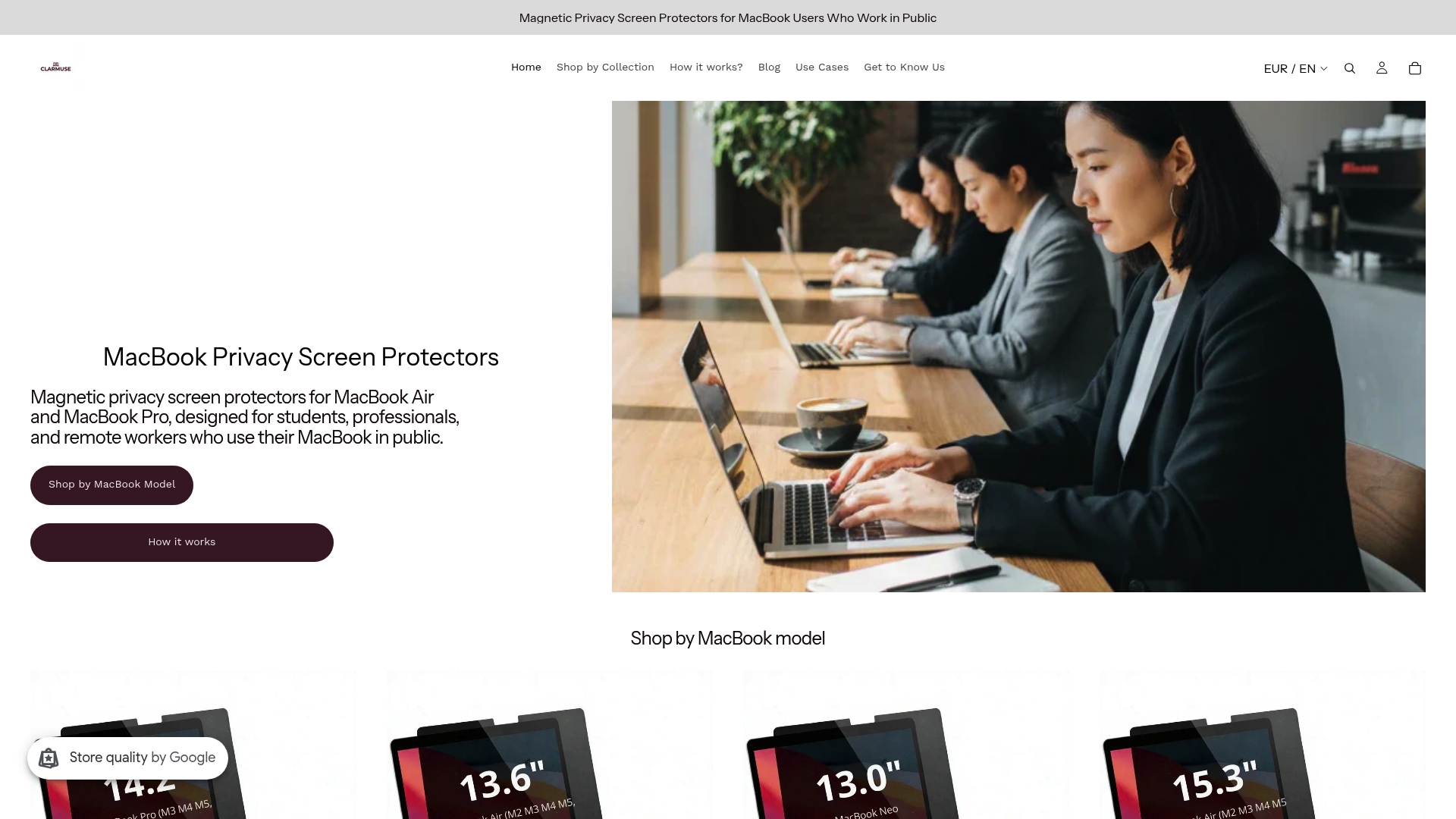
Clarmuse fabrica protectores de pantalla de privacidad magnéticos diseñados específicamente para los modelos MacBook Air y MacBook Pro. Se acoplan sin herramientas, reducen el deslumbramiento y disminuyen la exposición a la luz azul durante sesiones prolongadas. El ajuste es específico del modelo, por lo que no es necesario recortar ni reposicionar. Para los usuarios de MacBook Pro, la colección de pantallas de privacidad para MacBook Pro cubre varios tamaños de pantalla. Si utilizas un MacBook Air de 13,6", la pantalla de privacidad para MacBook Air de 13,6" se ajusta a los modelos M2 a M5 lanzados entre 2022 y 2026. Las pantallas Clarmuse están diseñadas para personas que buscan mayor comodidad y privacidad sin añadir volumen a su bolso.
Preguntas frecuentes
¿Qué ángulo de pantalla es mejor para la comodidad del MacBook?
Coloca la pantalla de tu MacBook entre 15 y 20 grados por debajo del nivel de los ojos con la pantalla a la distancia de un brazo. Esta postura neutra del cuello reduce la tensión durante sesiones prolongadas.
¿Cómo evito el deslumbramiento de la pantalla del MacBook en espacios públicos?
Añada una pantalla de privacidad magnética para reducir los reflejos y aumente el brillo de la pantalla para compensar la luz ambiental. Reposicionar la pantalla lejos de las luces cenitales directas también ayuda.
¿Puede un soporte para portátil realmente reducir el dolor de cuello?
Sí. Elevar el MacBook al nivel de los ojos con un soporte ajustable elimina la inclinación hacia adelante de la cabeza que causa tensión en el cuello. Los soportes como el MOFT Airflow proporcionan este beneficio con un peso añadido mínimo.
¿Con qué frecuencia debo tomar descansos durante sesiones largas con el MacBook?
Tómate un microdescanso cada 30-60 minutos. Ponte de pie, estira el cuello y los hombros, y mira algo a más de 20 pies de distancia para reajustar el enfoque de tus ojos.
¿Cuándo debo consultar a un profesional sobre la pantalla de mi MacBook?
Si tu pantalla parpadea o se apaga en ángulos específicos de la tapa, esto indica un desgaste del cable de la bisagra. Deja de forzar la pantalla a una posición de trabajo y busca un diagnóstico profesional antes de que el daño requiera un reemplazo completo del conjunto de la pantalla.
Recomendado
- Consejos de configuración del MacBook para la privacidad y la comodidad en espacios compartidos – Clarmuse
- Visibilidad de la pantalla del MacBook explicada para espacios de trabajo compartidos – Clarmuse
- Configura tu MacBook para privacidad y comodidad en público – Clarmuse
- Accesorios para MacBook para la productividad en espacios compartidos – Clarmuse


