

Most people think a login password is enough. It is not. Your screen lock protects against casual snooping, but it does nothing against someone who boots your laptop from a USB drive, runs a cold boot attack on your RAM, or quietly logs your keystrokes over a rogue Wi-Fi hotspot. Using a laptop in cafés, airports, libraries, or coworking spaces exposes you to a category of threats that most standard security advice ignores entirely. This public laptop security checklist covers every layer: firmware, network, physical access, session behavior, and daily habits.
Table of Contents
- Key Takeaways
- 1. Your public laptop security checklist starts with firmware
- 2. Network security: managing Wi-Fi and Bluetooth safely
- 3. Session management: controlling access during active use
- 4. Physical security: locks, positioning, and visual privacy
- 5. Behavioral habits that compound your overall security
- 6. Software hygiene: updates, permissions, and browser settings
- My perspective on public laptop security
- Protect your screen visibility with Clarmuse
- FAQ
Key Takeaways
| Point | Details |
|---|---|
| OS passwords are insufficient | BIOS/UEFI locks and full-disk encryption are required to block boot-level attacks. |
| Disable auto-connect, not radios | Turning off Wi-Fi discovery reduces rogue hotspot risk by 94% without breaking system features. |
| Screen lock under 60 seconds | Short lock timeouts with biometrics or PIN drastically reduce credential exposure windows. |
| Physical visibility is a real threat | Screen positioning and privacy filters stop shoulder surfers without any software setup. |
| Layered defenses compound protection | Five core controls together reduce unauthorized data access risk by over 99.4%. |
1. Your public laptop security checklist starts with firmware
This is the layer most people never touch. And it is exactly where sophisticated attackers go first.
Your Windows or macOS login password blocks casual access. It does not block someone who restarts your laptop and boots from a USB drive containing a Linux environment or a password-extraction tool. A BIOS/UEFI password blocks unauthorized boot changes and firmware-level persistence attacks that an OS password cannot reach. You set this in your firmware settings, accessed by pressing a key like F2 or Del at startup, depending on your manufacturer.
Alongside the BIOS password, disable boot from USB and enable Secure Boot. Secure Boot verifies that only trusted, signed software loads at startup, which closes a significant class of firmware-level exploits.
The third piece of this layer is full-disk encryption. On Windows, that is BitLocker. On macOS, it is FileVault. On Linux, it is LUKS. Without encryption, anyone who removes your hard drive can read every file without entering a single password. With it, the data is unreadable without your key.
Pro Tip: If you are setting up BitLocker for the first time on a laptop with a large drive, use the "-usedspaceonly` flag during setup to encrypt only allocated sectors first. It cuts initial encryption time from hours to minutes.
2. Network security: managing Wi-Fi and Bluetooth safely
Public Wi-Fi is a known risk. What most guides miss is that simply being near a public network creates exposure, even before you connect.
Modern operating systems passively probe for saved networks in the background. This probing broadcasts network names your laptop has connected to before, which can be used for fingerprinting or to trick your device into joining a rogue hotspot. The fix is not turning Wi-Fi off completely. That breaks too many features and drains battery unnecessarily. The better approach: disable auto-join on a per-network basis and turn off Wi-Fi discovery.
Here is a practical network checklist:
- Disable auto-join for any network you do not fully control. On macOS, go to System Settings, Wi-Fi, and uncheck “Auto-Join” for saved public networks.
- Turn off Bluetooth discoverability when you are not actively pairing a device. Keep the radio on if you use AirPods or a keyboard, but set it to non-discoverable.
- Set trusted network priority so your laptop always prefers known networks over unfamiliar ones.
- Enforce DNS-over-HTTPS at the OS level. Browser-based DoH only covers browser traffic. System-level enforcement covers all apps. Free VPNs add an average of 412 ms of latency per request and often break zero-trust security models. System DoH is more targeted and lower friction.
Pro Tip: Every few months, open your saved Wi-Fi list and delete any network you no longer use. Disabling auto-connect reduces rogue hotspot association risk by 94%. Pruning the list prevents background probing of networks you forgot you ever used.
3. Session management: controlling access during active use
The window between you stepping away from your laptop and someone else sitting down in front of it can be under 30 seconds in a busy café. That window is what session management is designed to close.
Set your screen lock timeout to 60 seconds or less, with mandatory password, PIN, or biometric authentication to unlock. Most systems default to five minutes or longer. That default is too long for public use.

| Mode | Risk level | Notes |
|---|---|---|
| Suspend (sleep) | Low | RAM is preserved securely; quick re-authentication required |
| Hibernate | Medium | Writes session to disk; hibernate file can contain unencrypted tokens vulnerable to DMA attacks |
| Shutdown | Very low | No active session data; slowest to resume |
Suspend mode with fast re-authentication reduces credential exposure by 8.3 times compared to hibernation. For public laptop use, prefer suspend over hibernate whenever you leave your seat briefly.
Two underrated habits: clear your clipboard regularly, and disable Handoff or cross-device continuity features. When you copy a password or a client email, it sits in your clipboard indefinitely. Several clipboard managers and browser password fields auto-populate from clipboard history. In a shared space, that is a meaningful exposure point. On macOS, disabling Handoff (System Settings, General, AirDrop and Handoff) also prevents session tokens from leaking to nearby Apple devices.
Pro Tip: Pair your 60-second screen lock with a privacy screen setup for MacBook users. The lock handles absence. The filter handles presence.
4. Physical security: locks, positioning, and visual privacy
Technical controls only go so far. If someone can physically pick up your laptop or clearly read your screen from two seats away, software cannot help you.
Cable locks and Kensington locks anchor your device to a fixed object. They are not unbeatable, but they eliminate opportunistic theft, which represents the majority of public laptop theft cases. Most premium laptops and docking stations include a Kensington slot.
For screen visibility, the threat is shoulder surfing. It is quiet, requires no tools, and leaves no trace. Someone can read your email, see your login screen, or photograph your screen from an angle while appearing to look at their own device.
A few physical security practices worth adopting:
- Position your screen so your back is toward a wall. This eliminates the most common viewing angle. Read more about optimal screen positioning for public spaces.
- Use a privacy screen filter that restricts side-angle visibility to roughly 60 degrees. Unlike software solutions, it requires zero configuration and works across every app and browser.
- Never leave your laptop unattended, even to use the restroom. Carry it with you or ask someone you trust to watch it. Even a 90-second absence is enough for a USB keylogger to be installed on an unguarded port.
- Cover your webcam when not in active use. Tape or a physical slider adds a visible deterrent with zero technical complexity.
Traveling with a MacBook adds another layer of exposure that fixed location users rarely consider. Hotel rooms, airport lounges, and train seats all increase your physical vulnerability window.
5. Behavioral habits that compound your overall security
Hardware and software settings create your security floor. Your daily habits determine how much you stay above it.
The behaviors that matter most in public laptop safety:
- Switch off Wi-Fi and Bluetooth when moving between locations. Devices in transit are especially vulnerable because they probe aggressively for known networks.
- Avoid public USB charging stations. A practice known as juice jacking uses compromised charging ports to install malware or siphon data. Carry your own charger and use an AC outlet.
- Use a standard user account for daily work, not an admin account. If malware does execute, it runs with your privilege level. A standard account limits the damage significantly.
- Apply the NIST 2026 password recommendations: use 15-character minimum passphrases instead of complex shorter passwords, and stop forcing periodic resets unless there is a suspected breach.
- Back up your encrypted volume regularly. Encryption protects your data from others. A backup protects it from hardware failure. Doing one without the other is an incomplete checklist.
- Stay aware of your surroundings. If someone sits unusually close without an obvious reason, reposition. If a stranger offers to help with your laptop, decline. Physical access attacks are social as often as they are technical.
Hybrid work dramatically increases physical access risks, since laptops move between home, office, and public spaces constantly. The more your laptop travels, the more your behavior needs to compensate for the absence of a controlled environment.
6. Software hygiene: updates, permissions, and browser settings
The security controls above need a clean software environment to function reliably.
Keep your operating system and applications updated. Unpatched software is the most common entry point for remote attacks on public Wi-Fi networks. Enable automatic updates for your OS, browser, and any applications that handle sensitive data.
Audit your browser extensions. Extensions run with elevated permissions and can read page content, including passwords and form data. Remove any extension you do not actively use. Avoid free extensions that promise VPN or privacy features as a secondary function.
Review your application permissions regularly. On macOS, go to System Settings, Privacy and Security to see which apps have access to your camera, microphone, location, and contacts. Revoke access for anything that does not require it for core functionality.
Log out of accounts you are not actively using. Staying logged into email, banking, or cloud storage during a public session means those accounts are exposed if your session is compromised. Screen lock timing is your first line of defense, but logged-out accounts eliminate the target entirely.
Consider using a separate browser profile or private mode for sensitive transactions in public. Private browsing does not encrypt your traffic, but it prevents session cookies and autofill data from persisting between sessions.
My perspective on public laptop security
I have worked with remote and hybrid teams long enough to watch the same mistake play out repeatedly. Someone sets a strong password, installs antivirus software, and considers themselves covered. Then they work from a coffee shop on unsecured Wi-Fi, leave their screen unlocked for three minutes, and never once think about what their firmware allows.
The honest truth is that most public laptop risks are not exotic. They are physical. Someone glances at your screen. Someone picks up your unattended device. Someone connects a USB tool to an unlocked port. User behavior often conflicts with security, and the gap between what people know they should do and what they actually do in a busy café is wide.
What I have found works is treating security as a sequence, not a setting. Firmware lock first. Encryption on. Network discipline second. Screen lock at 60 seconds. Physical awareness last. None of these steps is technically difficult. Together, they create a posture that makes your laptop a genuinely poor target.
The mindset shift that matters most: security is not a one-time setup. It is a habit you repeat every time you open your laptop somewhere new.
— Gabriel
Protect your screen visibility with Clarmuse
If you work from cafés, airports, libraries, or coworking spaces, the technical controls above handle the digital layer. Your screen visibility is a separate problem, and it has a simpler solution.
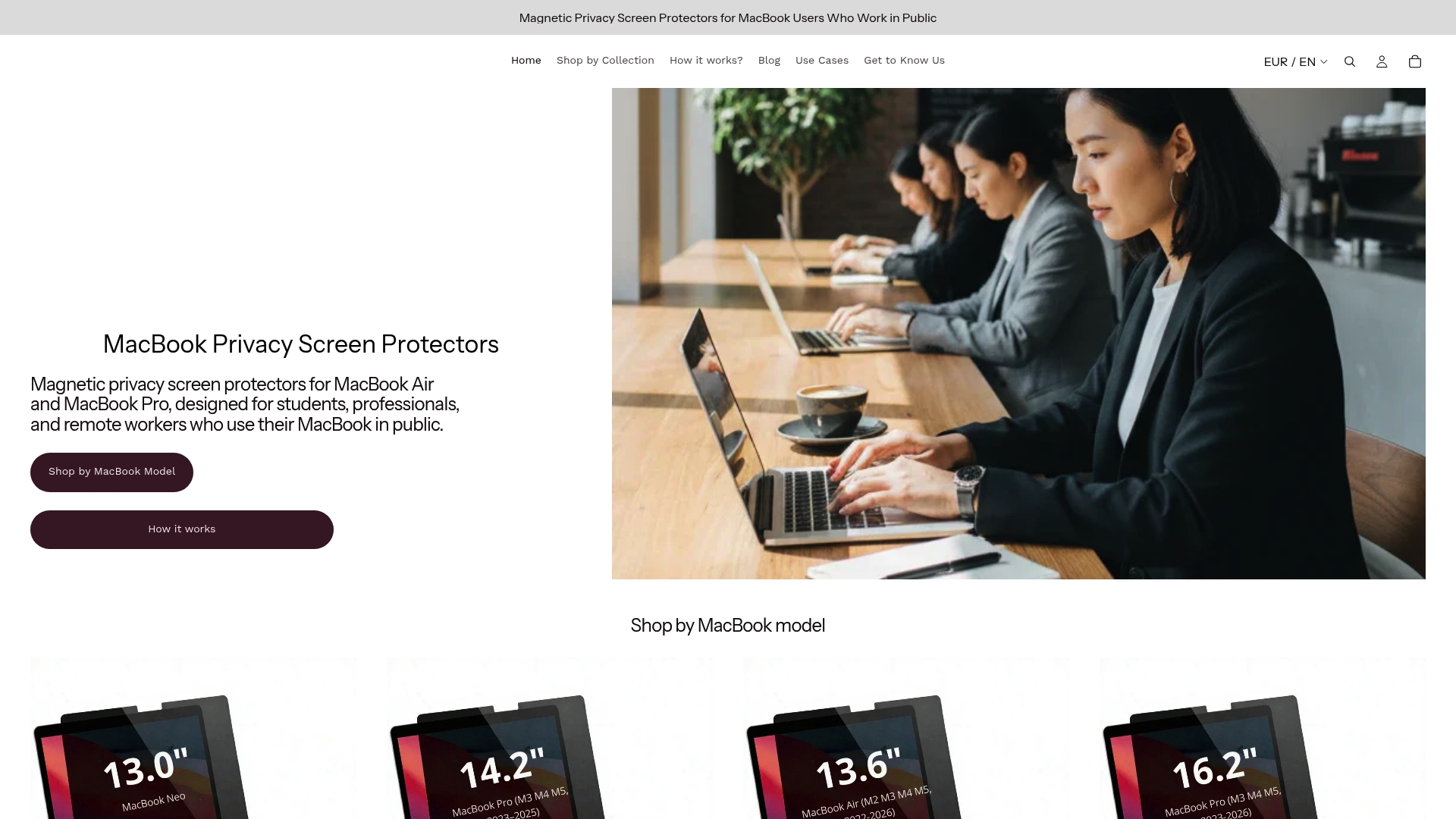
Clarmuse makes magnetic privacy screen protectors designed specifically for MacBook Air and MacBook Pro models. They attach in seconds, restrict the viewing angle to roughly 60 degrees, filter blue light, and remove cleanly when you do not need them. No adhesive, no bulk, no complicated setup.
Browse the full range of MacBook Pro privacy filters or find the right fit for your model at the Clarmuse privacy screen collection. If you want to understand how the technology actually works before buying, the how privacy filters work page covers it clearly.
FAQ
What does a public laptop security checklist include?
A solid checklist covers firmware locks, full-disk encryption, auto-connect settings, screen lock timers under 60 seconds, physical cable locks, and screen positioning or privacy filters to block shoulder surfing.
Is a login password enough to protect my laptop in public?
No. A Windows or macOS login password blocks casual access but not boot-level attacks. BIOS/UEFI passwords combined with disk encryption are required to protect against someone who restarts your device or removes the drive.
Should I use a VPN on public Wi-Fi?
Free and generic VPNs add latency and can introduce new risks. System-level DNS-over-HTTPS enforcement is a more targeted approach that protects all traffic, not just browser requests, with less overhead.
How do I stop my laptop from connecting to rogue Wi-Fi hotspots?
Disable auto-join for all public and unfamiliar networks at the OS level rather than simply deleting them. Deleting saved networks does not stop background probing. Disabling auto-connect directly removes the association behavior.
What is the safest sleep mode for using a laptop in public?
Suspend (sleep) mode is safer than hibernate for public use. Hibernate writes session data to disk, where it can be accessed via DMA attacks. Suspend keeps data in RAM and requires rapid re-authentication, which reduces credential exposure significantly.


