

MacBook screen glare is defined as specular reflection, the direct bounce of ambient light off the smooth glass display surface, producing bright highlights that obscure screen content. This optical effect is not a defect. It is a predictable consequence of how light behaves at the interface between air and glass. Understanding what causes MacBook screen glare helps you choose the right screen finish, accessories, and environment to work comfortably anywhere. Apple’s display designs, from standard glossy panels to nano-texture glass on the MacBook Pro, each handle this reflection differently. The fix starts with knowing the cause.
How does light interaction cause glare on MacBook screens?
Specular reflection off the glass surface is the primary driver of MacBook screen glare. When a beam of light strikes a smooth, flat surface at a specific angle, it reflects at an equal and opposite angle. If that reflected angle points directly at your eyes, you see a bright highlight that competes with the display image underneath.
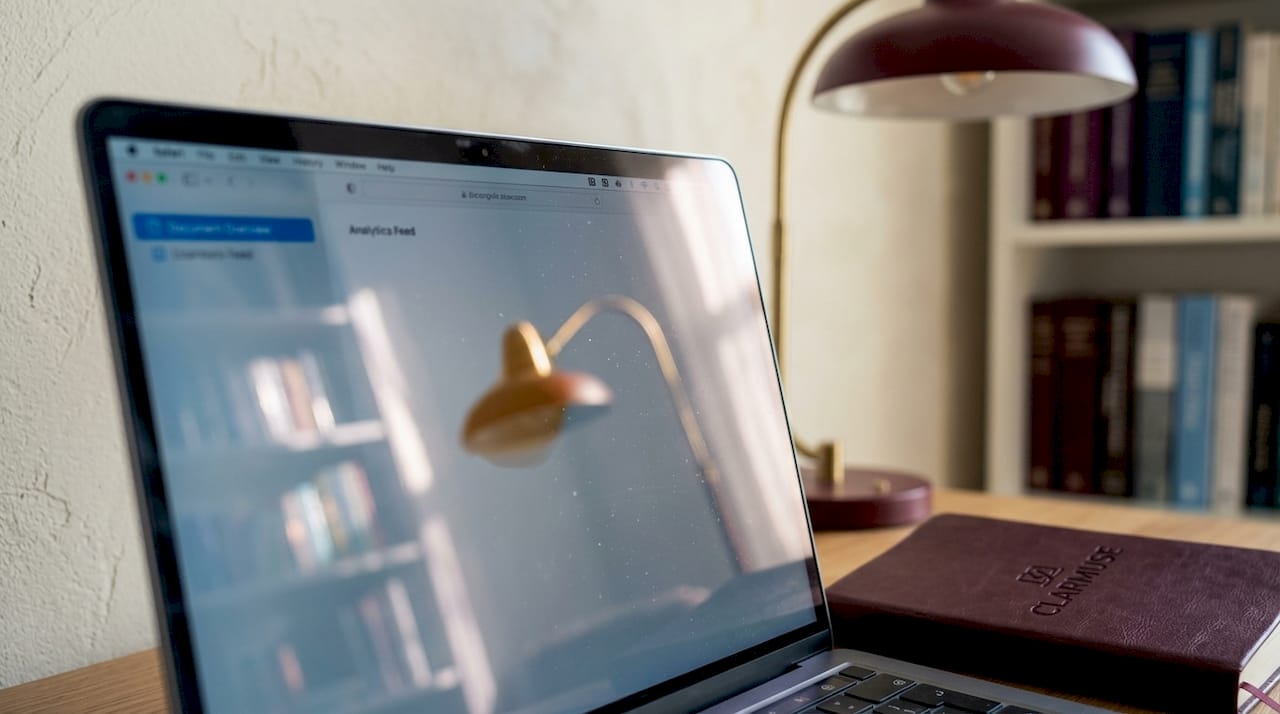
The angle of incidence matters more than most users realize. Sitting near a window with the screen tilted slightly back can shift a diffuse glow into a sharp, mirror-like reflection in seconds. The same physics that makes a calm lake look like a mirror at sunset applies to your MacBook display.
The distinction between specular and diffuse reflection explains why screen finish matters so much:
- Specular reflection occurs on smooth, glossy surfaces. Light bounces in one predictable direction, creating sharp, high-contrast glare.
- Diffuse reflection occurs on rough or matte surfaces. Light scatters in many directions, spreading the reflection so no single bright spot dominates.
- Fresnel equations govern how much light reflects versus transmits at any glass-air interface. At steeper viewing angles, reflectivity increases sharply, which is why tilting your screen often makes glare worse before it gets better.
Ambient light sources like direct sunlight and overhead lamps dramatically increase glare visibility on glossy screens. Moving a lamp three feet to the side can reduce perceived glare more than any software setting.
Pro Tip: If you can see a clear reflection of your own face in your MacBook screen, you are experiencing specular reflection. The fix is not to increase brightness. It is to change the angle between the light source, screen, and your eyes.
What role do different MacBook screen finishes and coatings play in glare?
Apple ships MacBook displays in three distinct surface configurations, and each produces a different glare profile. Knowing the trade-offs helps you set realistic expectations before purchasing or upgrading.
| Screen type | Glare behavior | Trade-off |
|---|---|---|
| Standard glossy glass | Sharp, mirror-like reflections from any direct light source | Vivid color and contrast in controlled lighting |
| Matte (anti-glare) finish | Diffuse, soft reflections with no sharp highlights | Slight reduction in image crispness and peak contrast |
| Apple nano-texture glass | Nanometer-scale etching scatters light at the surface level | Subtle graininess on light backgrounds; higher fingerprint visibility |
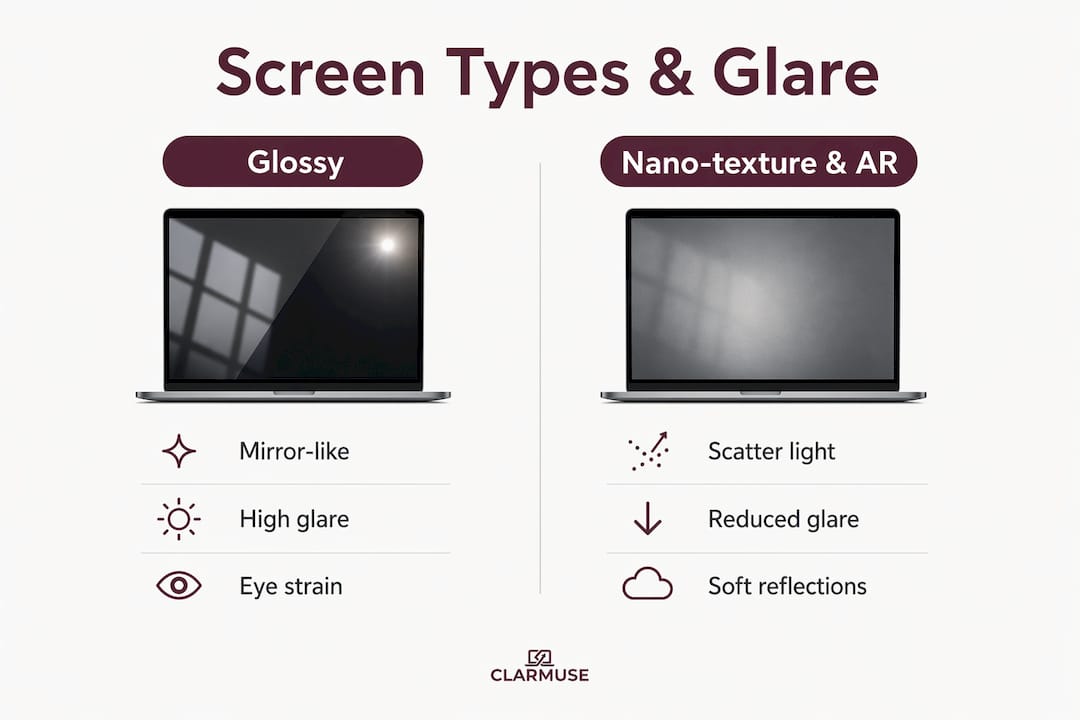
Glossy screens generate sharp, mirror-like reflections from ambient light, increasing glare and potential eye strain compared to matte screens. This is the default finish on most MacBook Air and MacBook Pro models sold today.
Apple’s nano-texture displays physically etch the glass on a nanometer scale to scatter ambient light, reducing glare while minimizing impact on display brightness. This is a fundamentally different approach from a matte coating applied on top of glass. The etching is part of the glass itself, which means it cannot peel or degrade the way surface coatings can.
Anti-reflective coatings take a third approach. These coatings reduce glare through thin-film interference, causing reflected light waves from different layers to cancel each other out. The coating thickness and refractive index are tuned so that reflections from the top and bottom surfaces of the film arrive out of phase, effectively eliminating them. This is the same principle used in camera lenses and eyeglasses.
Pro Tip: Testing any anti-glare or nano-texture screen with a white or light gray background is the most reliable way to evaluate it. Subtle grain or haze from surface treatments shows up most clearly on light colors, which is exactly the kind of background you see in word processors and spreadsheets.
Nano-texture glass is available on select MacBook Pro configurations and Apple Studio Display units. It costs more and requires specific cleaning cloths to avoid scratching the etched surface. For users who work primarily outdoors or in bright offices, the glare reduction justifies the premium. For studio work requiring precise color grading, the subtle graininess can be a drawback.
How do screen protectors affect MacBook screen glare?
Screen protectors influence MacBook screen reflection issues in two distinct ways: through surface texture and through optical coatings. Understanding which mechanism a protector uses tells you what to expect from it.
Matte screen protectors work by diffusing light at the surface. The slightly rough texture scatters incoming light in multiple directions, eliminating sharp specular reflections. The trade-off is a modest reduction in image sharpness, particularly noticeable at smaller font sizes or when viewing high-resolution photos.
Anti-reflective screen protectors use thin-film optical coatings to cancel reflected light waves through destructive interference, the same principle as Apple’s factory coatings. These protectors preserve image clarity better than matte options but are more sensitive to installation quality and surface contamination.
Adding extra layers can interfere with factory AR coatings because AR coatings rely on optical interfaces with air. Placing a film on top of the factory coating changes the refractive index at the interface, disrupting the interference pattern the coating was designed to produce. The result is sometimes worse reflectivity than the bare screen.
Key considerations when choosing an anti-glare screen protector for MacBook:
- Choose protectors designed specifically for your MacBook model to avoid edge gaps that collect dust and distort the optical stack.
- Matte protectors suit users who work outdoors or in bright shared spaces where glare reduction outweighs the sharpness trade-off.
- AR-coated protectors suit users in controlled lighting who want glare reduction without visible texture.
- Avoid stacking multiple films. Each additional layer compounds optical interference and reduces overall clarity.
- AR coating performance is compromised when protectors or films alter the intended air interface, making model-specific accessories far more reliable than generic cuts.
The practical takeaway: a well-chosen matte protector from a brand that designs for MacBook-specific dimensions delivers more consistent glare reduction than a generic AR film that disrupts the factory coating.
What practical steps can you take to reduce MacBook screen glare?
Fixing glare on MacBook screens does not require buying new hardware. Most users can reduce MacBook screen glare significantly by adjusting their environment first, then layering in accessories where needed.
- Reposition relative to light sources. Place your MacBook so windows are to your side, not behind or in front of you. Direct sunlight hitting the screen at a perpendicular angle produces the worst specular reflection. A 45-degree offset eliminates most of it.
- Tilt the screen forward slightly. Reducing the screen angle by 5 to 10 degrees often shifts the reflection of overhead lights off your direct line of sight. This is the fastest fix in office environments with fluorescent ceiling panels.
- Adjust brightness and use True Tone. Increasing screen brightness raises the signal-to-noise ratio between display content and reflected ambient light. Apple’s True Tone feature adjusts color temperature to match ambient light, which reduces the perceptual contrast between the screen and its surroundings and makes reflections less visually disruptive.
- Use Night Shift in the evening. Warmer color temperatures reduce the blue-light component of the display, which makes the screen appear more comfortable in low-light conditions where glare from lamps is common.
- Add a matte or magnetic privacy screen protector. A magnetic privacy screen protector for MacBook Pro 14.2 adds a matte diffusion layer that reduces glare while also blocking side-angle visibility in cafés, airports, and coworking spaces.
- Clean your screen regularly. Nano-texture displays require careful maintenance because smudges and fingerprints increase perceived glare as much as the ambient light itself. Use the Apple-supplied polishing cloth and avoid standard microfiber cloths, which can scratch the etched surface.
- Use a physical hood or shade in outdoor settings. Laptop privacy hoods and monitor shades block overhead and side light from reaching the screen surface entirely, which is the most effective method for reducing MacBook screen glare outdoors when repositioning is not possible.
Pro Tip: Anti-glare coatings and protectors do not eliminate glare entirely. They diffuse or soften reflections. User testing in realistic lighting angles is the only reliable way to evaluate whether a solution works for your specific environment before committing to it.
Key takeaways
MacBook screen glare is caused by specular reflection off the glass surface, and reducing it requires matching the right surface treatment, accessory, or environmental adjustment to your specific lighting conditions.
| Point | Details |
|---|---|
| Specular reflection is the root cause | Smooth glass bounces light at a predictable angle directly toward the viewer, creating visible glare. |
| Screen finish determines glare type | Glossy creates sharp reflections; matte diffuses them; nano-texture scatters light at the glass level. |
| Screen protectors can help or hurt | Model-specific matte protectors reduce glare reliably; generic films can disrupt factory AR coatings. |
| Environment adjustments work first | Repositioning relative to windows and overhead lights eliminates most glare before any accessory is needed. |
| Maintenance affects glare perception | Smudges on nano-texture or coated screens increase perceived glare as much as the ambient light source. |
Why I stopped blaming the screen and started controlling the environment
Most of the advice on MacBook screen reflection issues focuses on buying something: a new display, a nano-texture upgrade, a premium screen protector. After spending time with multiple MacBook configurations in real working conditions, from bright café windows to fluorescent-lit open offices, the single most consistent finding is that environment control outperforms any coating or film.
Nano-texture glass is genuinely impressive in side-by-side testing. But I have watched users with nano-texture MacBook Pros struggle with glare in a café because they sat with their back to a floor-to-ceiling window. Meanwhile, a standard glossy MacBook Air positioned at a 45-degree angle to the same window produced almost no visible reflection. The physics does not lie: angle matters more than surface treatment in most real-world scenarios.
The other underrated factor is maintenance. Users of nano-texture displays report that smudges and fingerprints visibly increase glare, sometimes to the point where a dirty nano-texture screen performs worse than a clean glossy one. Cleaning frequency and technique are not glamorous topics, but they directly affect the result.
My recommendation: start with positioning, add a quality matte protector if you work in genuinely uncontrollable lighting, and reserve the nano-texture upgrade for situations where you have already optimized everything else and still need more. Spending more on display technology before fixing the environment is solving the wrong problem.
— Gabriel
Reduce MacBook screen glare with Clarmuse magnetic screen protectors
If repositioning your MacBook is not always possible, a purpose-built screen protector is the most practical next step.
Clarmuse designs magnetic privacy screen protectors specifically for MacBook Air and MacBook Pro models. Each protector adds a matte diffusion layer that reduces specular reflection in bright offices, cafés, airports, and coworking spaces, while also blocking side-angle screen visibility. The magnetic attachment system means installation and removal take seconds, with no adhesive residue and no interference with the MacBook’s hinge. Clarmuse protectors are built to MacBook-specific dimensions, which preserves the optical stack and avoids the edge-gap issues common with generic cuts. Browse the full MacBook collection to find the right fit for your model.
FAQ
What is the main cause of MacBook screen glare?
MacBook screen glare is caused by specular reflection, where ambient light bounces off the smooth glass display surface at an angle that directs it toward the viewer’s eyes. The intensity depends on the angle between the light source, the screen, and the viewer.
Does Apple’s nano-texture glass eliminate glare completely?
Nano-texture glass significantly reduces glare by scattering light at the nanometer scale, but it does not eliminate it entirely. Smudges and fingerprints can increase perceived glare on nano-texture surfaces, making regular cleaning with the correct cloth necessary.
Will a screen protector make MacBook glare worse?
A poorly chosen or generic screen protector can disrupt the factory anti-reflective coating by changing the optical interface with air, sometimes increasing reflectivity. Model-specific matte protectors designed for MacBook dimensions reduce glare reliably without this risk.
How do I reduce MacBook screen glare outdoors?
Position the MacBook so the sun is behind or to the side of the screen rather than in front of it, increase display brightness to improve the contrast between screen content and reflected light, and use a matte screen protector or physical shade for persistent outdoor glare.
Is screen glare the same as a washed-out display?
No. Screen glare is a surface optical effect caused by reflected ambient light. A washed-out display appearance relates to brightness settings, resolution, or display adapter choices and is a separate issue from reflection at the glass surface.


