

Many people assume laptop privacy screens are bulky, fiddly add-ons that require careful daily removal and reattachment. The reality is quite different. A magnetic laptop accessory attaches and detaches in seconds, leaves zero residue, and works with your MacBook’s natural closure. If you work regularly in cafés, open offices, airports, or classrooms, the right magnetic accessory can change how confidently you use your screen around others. This guide covers how these accessories work, what to look for, and how to get the most from them in shared spaces.
Table of Contents
- What is a magnetic laptop accessory?
- How magnetic privacy screens protect your MacBook display and data
- Why MacBook users prefer magnetic screens over adhesive options
- How to choose the right magnetic accessory for your MacBook model
- Using magnetic privacy screens effectively in shared and hybrid workspaces
- Reevaluating laptop privacy: Why magnetic accessories are a game-changer for MacBook users
- Explore magnetic privacy screens designed for your MacBook at Clarmuse
- Frequently asked questions
Key Takeaways
| Point | Details |
|---|---|
| Magnetic attachment convenience | Magnetic laptop accessories snap on and off easily without adhesives or residue. |
| Privacy and eye protection | They limit viewing angles and reduce blue light to protect onscreen data and eyes. |
| Model-specific compatibility | Ensure your magnetic accessory matches your MacBook model and screen size for best fit. |
| Supports hybrid work flow | Quick installation and removal enable seamless privacy toggling in shared spaces. |
| Preserves device functionality | Magnetic screens allow full MacBook closure and sleep mode without removal. |
What is a magnetic laptop accessory?
A magnetic laptop accessory is an add-on that attaches using magnets rather than adhesives, straps, or screws. No sticky residue. No awkward brackets. The accessory simply snaps into position along the magnetic frame of your MacBook display and pulls away just as cleanly when you no longer need it.
For MacBook users, the most common type is a magnetic privacy screen. It sits flush against the display and narrows the viewing angle so only the person directly in front can read the screen. Side glances from neighbors in a coworking space or a coffee shop get a darkened, unreadable view. Understanding how magnetic privacy screens work helps clarify exactly why the attachment method matters as much as the filter itself.
Key features of magnetic laptop accessories include:
- Snap-on attachment using the built-in magnetic frame on MacBook Air and MacBook Pro models
- Full lid closure without needing to remove the screen first
- Clean removal with no adhesive residue or surface damage
- Reversible design with matte and glossy sides for different lighting conditions
- Slim profile that adds no noticeable thickness to your laptop setup
The role of magnetic attachment laptop accessories goes beyond just convenience. Removing friction from the privacy process means you actually use the screen when you should, rather than skipping it because setup feels like a hassle.
How magnetic privacy screens protect your MacBook display and data
Magnetic privacy screens do two jobs at once: they limit who can see your display, and they filter certain wavelengths of light that strain your eyes during long work sessions.
On the privacy side, viewing angle narrows to roughly ±30° from center. Anyone sitting beside you on a train or standing at a nearby café table sees a dark screen. You see everything normally from your direct line of sight. For anyone handling sensitive documents, client data, financial information, or personal messages in public, that angular restriction is a meaningful layer of protection.

On the eye-care side, quality magnetic privacy screens reduce blue light by up to 52%. Blue light exposure during extended screen time contributes to eye fatigue and can disrupt sleep patterns when you work in the evenings. A matte surface also cuts glare from overhead lighting, which is a constant problem in open-plan offices and shared study spaces.
Here is a quick breakdown of what the two sides of a reversible magnetic privacy screen offer:
- Matte side: Reduces glare, absorbs ambient light, easier on eyes in bright environments. Some versions include an antimicrobial coating that resists bacteria on the surface.
- Glossy side: Provides sharper color reproduction and higher contrast for when privacy is less urgent and screen clarity takes priority.
Pro Tip: Use the matte side when working near windows or under fluorescent lighting. Switch to the glossy side for video calls or design work where color accuracy matters more than glare reduction.
One underrated benefit: well-designed magnetic screens let your MacBook lid close fully while the filter is still attached. Your laptop enters sleep mode normally. No interruption to your workflow. No need to remember to pull the screen off before packing up.
MacBook Air magnetic privacy screen protectors are available in model-specific sizes so the magnetic alignment is precise rather than approximate.
Why MacBook users prefer magnetic screens over adhesive options
Adhesive privacy screens were the standard for years. They worked, but the experience of using them daily revealed a consistent set of problems. Residue builds up over repeated removal. The adhesive weakens over time. Misalignment during reattachment is frustrating. And critically, some adhesive filters interfere with the MacBook’s ability to fully close, which either prevents sleep mode or puts physical stress on the display hinge over time.
Magnetic screens solve all of these issues. Magnetic attachment avoids adhesives entirely, preserving the MacBook’s surface and enabling fast attach and detach without any setup process.
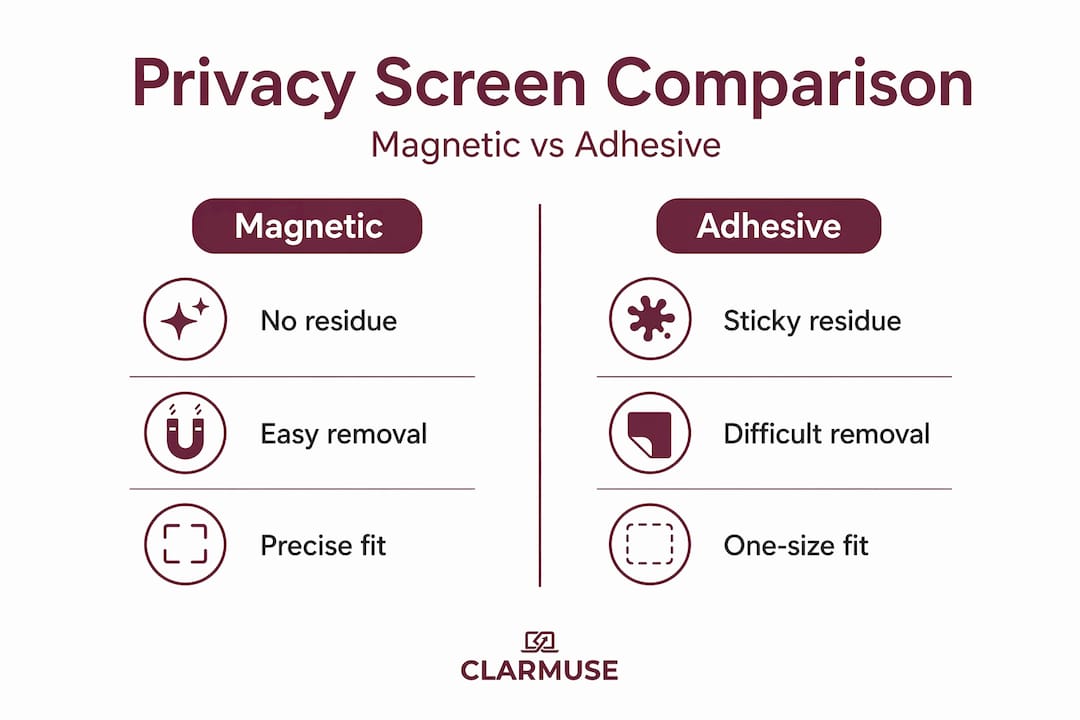
Here is a direct comparison:
| Feature | Magnetic privacy screen | Adhesive privacy screen |
|---|---|---|
| Attachment method | Snap-on magnets | Sticky film or micro-suction |
| Residue risk | None | Possible after repeated use |
| Removal time | Under 5 seconds | 15-30 seconds minimum |
| Lid closure with screen on | Yes | Often not possible |
| Sleep mode compatibility | Yes | Depends on thickness |
| Surface damage risk | None | Low to moderate |
| Daily convenience | High | Moderate |
Benefits of magnetic accessories for MacBook users in hybrid work environments are especially clear. When you move between private desks and group tables throughout a single workday, toggling privacy on and off needs to feel natural rather than procedural. Magnetic screens support that pattern in a way adhesive ones simply do not.
Practical advantages at a glance:
- No tools or setup required
- No adhesive residue on the MacBook bezel
- Screen stays in place while you work but detaches cleanly when collaboration requires a fully visible display
- Lightweight enough that it does not add noticeable weight when carried in a bag
Pro Tip: If you frequently move between private and collaborative work in the same day, leave the magnetic screen in your laptop bag rather than attached, so toggling privacy takes seconds at your seat rather than requiring a trip to your bag.
For a deeper breakdown of what makes certain filters worth choosing, best privacy screens for MacBook users offers a practical guide organized around real use cases.
How to choose the right magnetic accessory for your MacBook model
Magnetic accessories for laptops are not universal. The magnetic attachment points on a MacBook Air 13" sit differently than those on a MacBook Pro 16". Getting the wrong size means the screen either does not align correctly or does not attach securely.
Compatibility is model-specific, and you need to verify your MacBook’s exact model and year before purchasing.
Follow these steps to find the right fit:
- Identify your MacBook model. Go to the Apple menu, select “About This Mac,” and note the model name, chip generation, and year.
- Match screen size to accessory dimensions. MacBook screen measurements are diagonal. A 14" MacBook Pro and a 14" MacBook Air are not identical in display dimensions, so check the specific product compatibility list.
- Confirm magnetic frame compatibility. Most current MacBook Air (M1 and later) and MacBook Pro (M1 and later) models have magnetic frames compatible with magnetic privacy screens.
- Choose your surface preference. If you work mostly in brightly lit spaces, a matte-first design will serve you better. If screen clarity is your top priority, check whether the glossy side suits your typical conditions.
Key questions to ask before buying:
- Is this product listed as compatible with my exact MacBook model year?
- Does it support full lid closure?
- Does it include both matte and glossy sides?
- What is the viewing angle restriction?
MacBook screen protectors for all models includes compatibility information organized by model to simplify this process.
Using magnetic privacy screens effectively in shared and hybrid workspaces
Having the right screen matters. Knowing when and how to use it matters equally. The physical space you work in determines which mode serves you best and how often you toggle between them.
Practical steps for effective daily use:
- Attach the screen before entering shared spaces. In cafés, coworking lounges, airport departure gates, or library reading rooms, snap the screen on before you open your laptop. It takes two seconds and removes the mental overhead of deciding whether to attach it once you are already seated.
- Switch to matte side in bright or overhead-lit environments. Office fluorescent lighting and window glare create reflections on glossy surfaces that make reading harder and eyes work more. Matte absorbs that light.
- Remove the screen for collaborative work. When you need a colleague to review content on your screen, detach the filter and tuck it in your bag. The magnetic screen does not need to stay on during every task.
- Close the laptop with the screen attached for quick breaks. The screen supports sleep mode when the lid closes, so you do not need to remove it every time you step away from your desk.
Magnetic screens support fast switching between private and collaborative modes, which is precisely what hybrid work environments demand.
Pro Tip: Keep a small microfiber cloth in your laptop bag alongside the privacy screen. Fingerprints and smudges accumulate faster on privacy filters than on bare displays, and a quick wipe before attaching keeps the view clear.
In shared workspaces, screen privacy is not about paranoia. It is about professional control over who sees your work and when.
For more context on applying these habits specifically in communal settings, MacBook privacy tips for shared spaces covers the specifics of dorm rooms, shared offices, and similar environments.
Reevaluating laptop privacy: Why magnetic accessories are a game-changer for MacBook users
The common reason people abandon privacy screens is not cost or dissatisfaction with the privacy itself. It is friction. Adhesive screens require effort. That daily effort, small as it sounds, compounds into a habit of skipping the screen entirely. And once the habit breaks, the screen ends up unused at the bottom of a bag.
This is the problem that magnetic attachment actually solves. Magnetic screens remove the barrier to consistent use by making attachment and removal so fast that there is no longer a reason to skip it.
There is also a broader point about how we think about privacy tools. Features like ±30° viewing angle and blue light reduction are worth having. But the privacy filter user experience determines whether those features actually get used. A screen you leave in your bag provides zero protection. A screen you snap on in two seconds at every café table provides meaningful protection every single time.
The full laptop closure compatibility point is also underappreciated. Sleep mode interruptions are a real problem when accessory design has not accounted for closure. They drain battery, expose your session, and break your working rhythm. Magnetic screens designed specifically for MacBook models account for this from the start because MacBook-specific fit is the design brief, not an afterthought.
For MacBook users who work across multiple locations in a week, the case for magnetic accessories over any alternative comes down to one thing: they are the only format that matches how people actually use their laptops, rather than how product designers assume they might.
Explore magnetic privacy screens designed for your MacBook at Clarmuse
Clarmuse builds magnetic privacy screens specifically for MacBook Air and MacBook Pro models. Each product is matched to a specific model year and display size so attachment is precise, coverage is complete, and lid closure works without removing the screen.
Browse MacBook Pro magnetic privacy screens or MacBook Air magnetic privacy screens to find the right fit for your model. Every listing includes compatibility details organized by chip generation and year. If you want to understand what you are getting before buying, how MacBook privacy filters work explains the technology behind the attachment, the viewing angle restriction, and the reversible surface design in plain terms.
Frequently asked questions
What exactly is a magnetic laptop accessory?
It is an add-on that attaches using magnets rather than adhesives or screws, allowing quick and damage-free installation. The most common example for MacBook users is a magnetic privacy screen that snaps onto the display frame.
Do magnetic privacy screens affect the laptop’s ability to close or enter sleep mode?
No. Well-designed magnetic privacy screens allow your MacBook to fully close, and the screen’s magnets help keep the lid shut so sleep mode activates normally without removing the filter.
Are magnetic privacy screens compatible with all MacBook models?
Magnetic privacy screens are model-specific by design. You need to confirm the exact MacBook size and generation before purchasing to ensure correct alignment and secure attachment.
Can magnetic laptop accessories damage my MacBook or its SSD?
No. Magnetic accessories built for laptops use shielded magnets that do not interfere with your MacBook’s storage or internal components. The magnetic field is localized to the frame attachment points.


